Features Guide
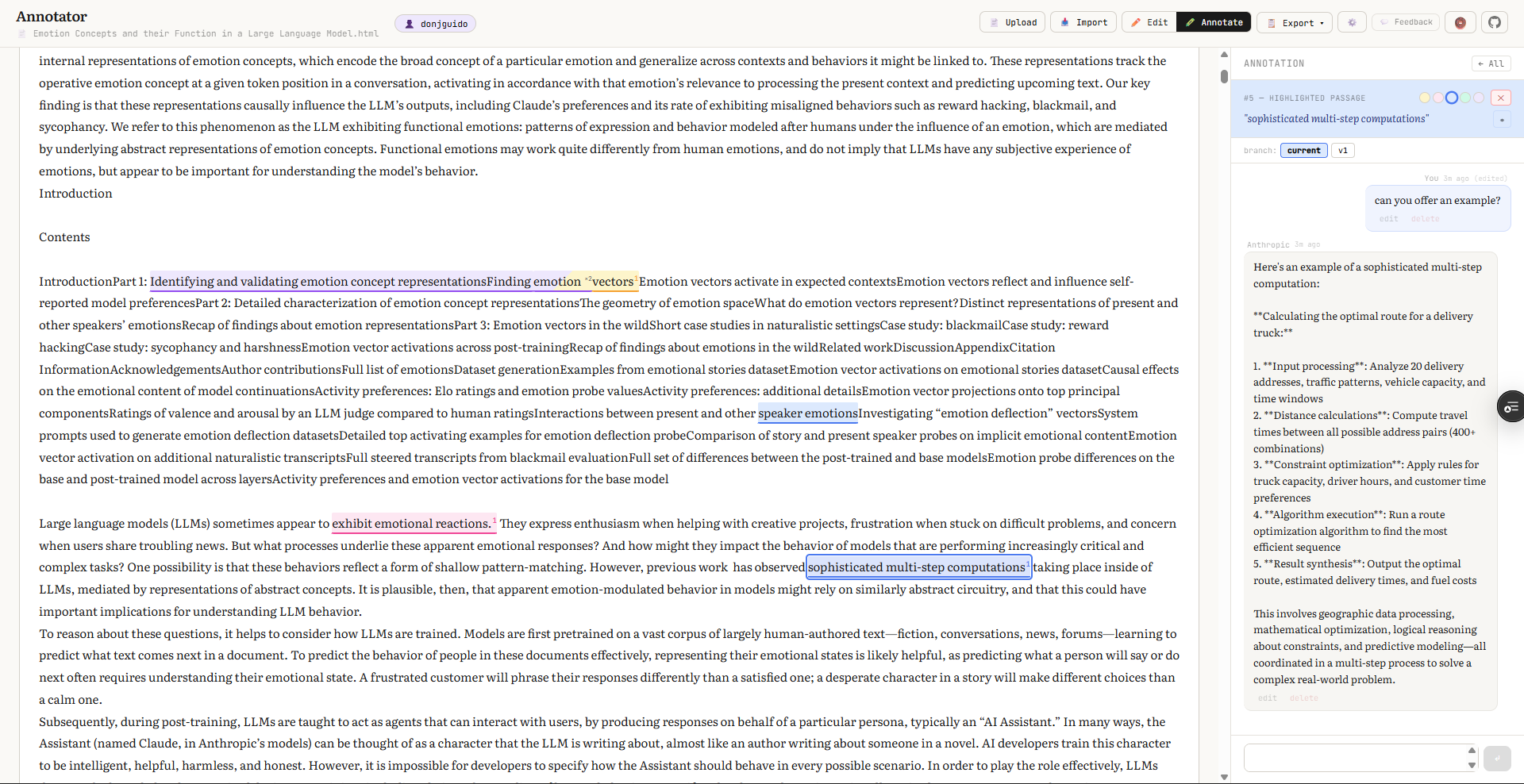
A detailed look at everything Annotator can do.
Select any text in Annotate mode to create a highlight. Each highlight becomes its own annotation with a dedicated chat thread in the sidebar.
Five highlight colors are available: Lemon, Rose, Sky, Mint, and Lilac. Pick a color from the palette before highlighting, or change it later by clicking the color dot in the sidebar.
Highlights can overlap. When you click overlapping text, a picker lets you choose which annotation to view.
Click the locate button (crosshair icon) next to the highlighted passage in the sidebar to scroll the document to that highlight.
Each annotation has its own threaded conversation. Type a question in the sidebar input and press Enter to send it to your configured AI.
- Default — Only the highlighted passage is sent to the AI
-
/ctx— Prefix your message with/ctxto include the full document text as context for that specific prompt -
@#N+— Reference another annotation with+to import its text and recent conversation as additional context
See the full Slash Commands reference.
Type @#N (e.g., @#3) in any message to create a clickable link to annotation N. If the annotation has a custom name, the link shows that name.
Type @#N+ to link and import that annotation's highlighted text and recent conversation as context for the AI.
Type /attach in the input to add a file as extra context for an annotation thread. The file contents are sent to the AI with each prompt in that thread.
Edit any user message and choose Branch + Regen to:
- Save the current thread as a branch
- Apply your edit
- Get a fresh AI response
Switch between branches using the tab bar that appears above the conversation. Choose Save instead to edit the message in place without creating a branch.
Double-click the annotation name in the sidebar header (e.g., "Annotation #1") to give it a custom name. Named annotations are easier to reference with @#N links.
In Edit mode, paste or type text directly into the editor.
Click Upload to import:
- PDF — Text is extracted using PDF.js
- DOCX — Converted via mammoth.js
- EPUB — Extracted via JSZip + HTML parsing
- TXT / HTML — Loaded directly
Switching between Edit and Annotate modes preserves your scroll position in each.
Set your name in the sidebar to track who created which annotations — useful if multiple people are working on the same document.
Multiple export formats are available. See Export and Import for details.
Click the gear icon in the header to configure:
- AI provider and model
- API key
- Custom endpoint URL (for OpenAI-compatible providers)
Settings persist in localStorage — you configure once per browser. See AI Providers for provider-specific setup.