
File Encryption GUI App with Python
- Python 3
- Tkinter for GUI
- pycryptodomex for Cryptodome
- AES Encryption
- cx_freeze to build executable
pycryptodomexfor AES encryption.
pip install pycryptodomexcx_freezeto build executable.
pip install cx_freeze- Open
setup.pyand replace<path/to/your/python_directory>with your python installation directory. - Open Terminal in directory where
setup.pyis; and type,
python setup.py buildExecutable files will be created in the
builddirectory. Build tested onWindows 10 Pro (1903)
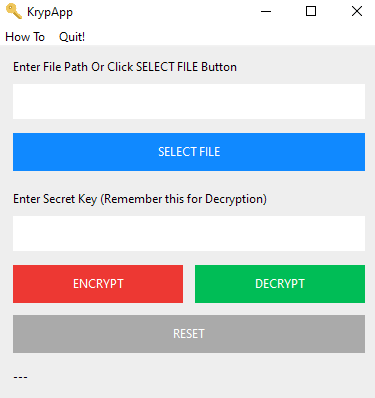
- Open the App and Click SELECT FILE Button and select your file e.g. "abc.jpg".
- Enter your Secret Key (This can be any alphanumeric letters). Remember this so you can Decrypt the file later.
- Click ENCRYPT Button to encrypt. A new encrypted file with ".kryp" extention e.g. "abc.jpg.kryp" will be created in the same directory where the "abc.jpg" is.
- When you want to Decrypt a file you, will select the file with the ".kryp" extention and Enter your Secret Key which you chose at the time of Encryption. Click DECRYPT Button to decrypt. The decrypted file will be of the same name as before with the suffix "dekrypted" e.g. "abc__dekrypted__.jpg".
- Click RESET Button to reset the input fields and status bar.
- You can also Click CANCEL Button during Encryption/Decryption to stop the process.
Tested on
Windows 10 Pro (1903)
EncryptionToolclass fromnsk89for file encryption.flaticon.comfor icon file.