Running the App
Expo has allowed us to run the application on several different device types. Expo is a framework that allows us to build our project is such a way that we can create a cross platform application.
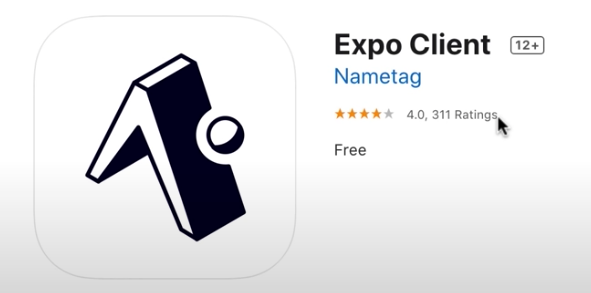
- If you don't already have it, download the Expo Client app on your phone from the Google Play Store, or download Expo Go from the Apple Store. The app should look something like this:
-
Open the command line or a terminal on your computer and navigate to where you cloned the repository. Then navigate into the /frontend_2 folder:
cd Fall2020-Group09/frontend_2/ -
Make sure you have all the necessary dependencies installed by typing
npm install. npm will automatically look for and download any missing packages. -
From here, you can start expo using the command
npm startorexpo start(whichever you prefer). -
A QR Code should appear in the terminal for you to scan with your device. Additionally, a new window in your browser should also open with the same QR Code to scan. (These two QR Codes are equivalent to each other, so it shouldn't matter which one you choose)
- Android Users: Open the Expo Client app to scan the QR Code
- IOS Users: Open the camera app on your device, scan the QR Code and click the Expo Go popup to open the application
Make sure you installed Node.js and Expo as mentioned in Getting Started.
If you're having issues loading the application, make sure that both the computer and device your trying to load the app on are on the same (wifi) network.
You can also try changing the connection type on the web browser that opened from LAN to Tunnel or Local.

Occasionally when the application loads or refreshes on your device a bottom bar is loaded that won't disappear and blocks the tab navigation. This is something that the Expo App does, to fix this exit out of the app on your device and reopen it.
To stop running Expo on your terminal (command line) press CTRL + C on your keyboard and it should end.
(Note: requires expo-cli to be installed. See Installing Expo)
An APK file, similar to an exe file on Windows, is a standalone version of the application that can be run on an Android device.
- Navigate to the front end folder:
cd frontend_2 - Then run
expo build:android - Select “apk” and press enter.
- If asked to upload a keystore, select “Let Expo handle the process”.
- Expo should begin building an APK file and provide a download link when the process is finished.
For more information, see https://docs.expo.io/distribution/building-standalone-apps/