Get the Linux window manager experience on Windows in a single script!


This script is meant to be run with AutoHotkey.
If you want a taskbar icon for the AutoHotkey script, you need to download the source code zip folder which contains the icons. Place the icons folder in the same directory as the script.
The executable is a demo (full feature except for that it doesn't work on windows with higher privileges) as well as an install guide.
Run the exe file to install AutoHotkey with UI Access to make the script work with elevated windows like task manager. (optional)
If you want to get autohotkey directly from the source, download it here instead. (The script fetches an up to date version of it though)
The goal of this script is to make the Windows key behave like the Super key in Linux.
This Script works similarly to AltDrag, so here are some features in this script compared to AltDrag.
- Resizing is much smoother (no noticable difference to dragging from the window corner)
- Resize snapping to screen borders AND other programs + automatic fullscreen
- windows snap assist can be utilized (experimental)
- A few less features like always on top (I recommend PowerToys for that)
- Should work with any monitor layout / High DPI / whatever out of the box
- Dragging Windows from task view is possible
- Works with AutoHotkey UI Access instead of administrator permissions
- Active development, taking feature requests
Be careful when running AltDrag and Task View Enhancer at the same time because they aren't fully compatible.
The same goes for other .ahk scripts with windows key shortcut combos. (works best if you combine the scripts or run them all with UI Access)
Left Windows Key -> task view
Start searching by typing in task view
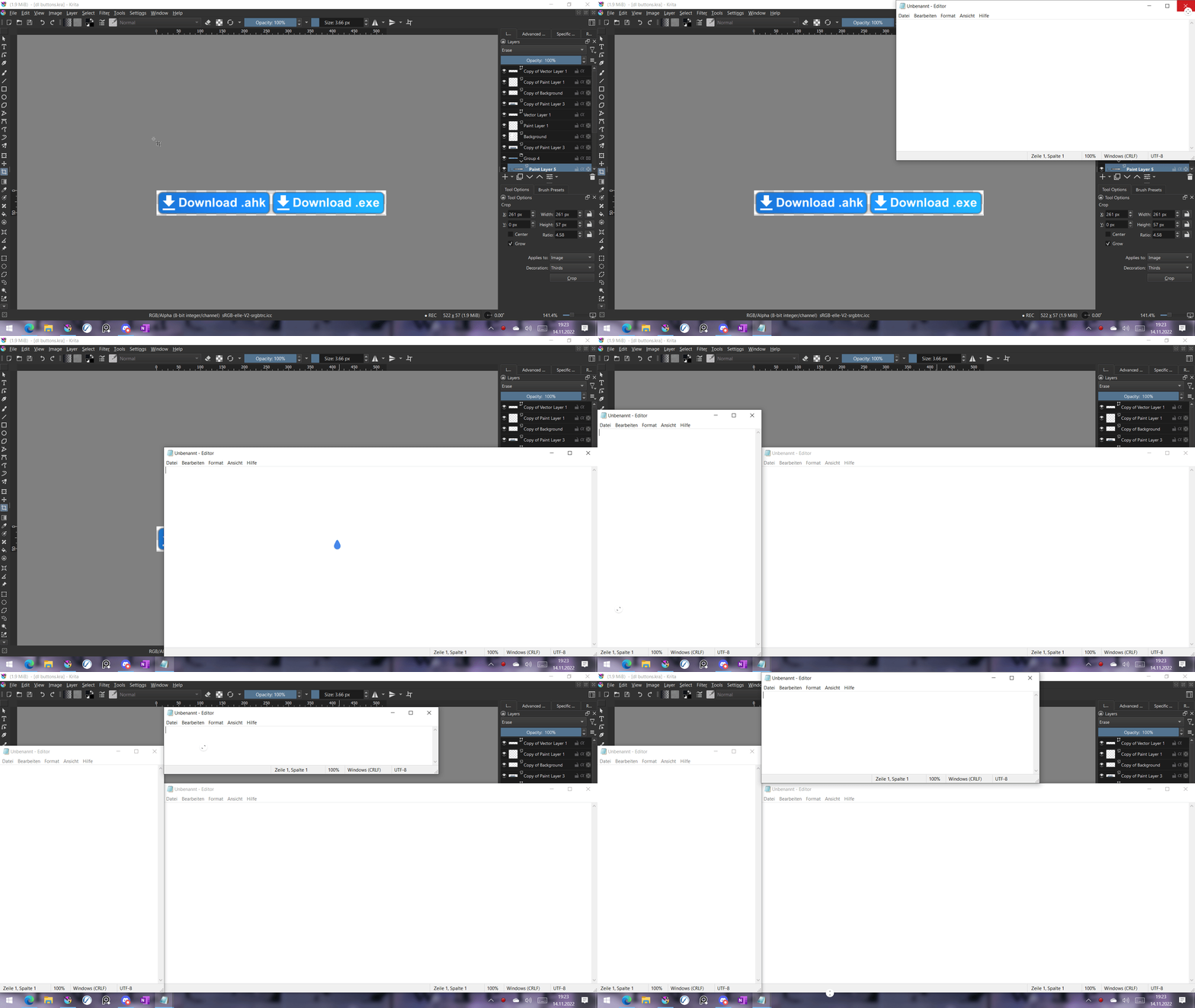
Windows + left click -> drag windows
->window snapping works too
->works in task view and from snap assist too
Windows + right click -> resize windows
->picks the closest window corner to resize from
->snaps to your work area (doesn't include your task bar) and other windows
->maximizes the window when the window snapped in all screen corners
Holding shift limits movement to one axis (press shift after starting a function)
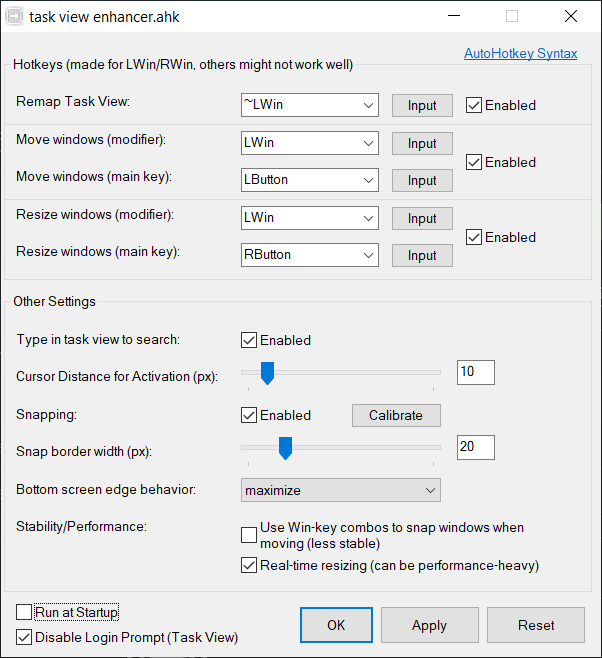
A settings UI to disable any part of this
To adjust some other settings after the initial startup, click the task tray icon.
You might get the idea to use task scheduler for whatever reason (i know there are a few), but for some reason it doesn't work correctly when it's being run that early, and thus requires being restarted anyway to work properly.
To disable the Microsoft account login prompt in task view you get when you're using a local account on your machine, use the checkbox in the settings.
Resizing can be a bit inconsistent because programs like to report their window sizes differently. That's why you can calibrate an offset per program through the calibrate button in the settings or via right click on the tray icon. If you notice an offset, it is recommended you use the value that first appears when you try to calibrate, but you might need to fine tune it.