
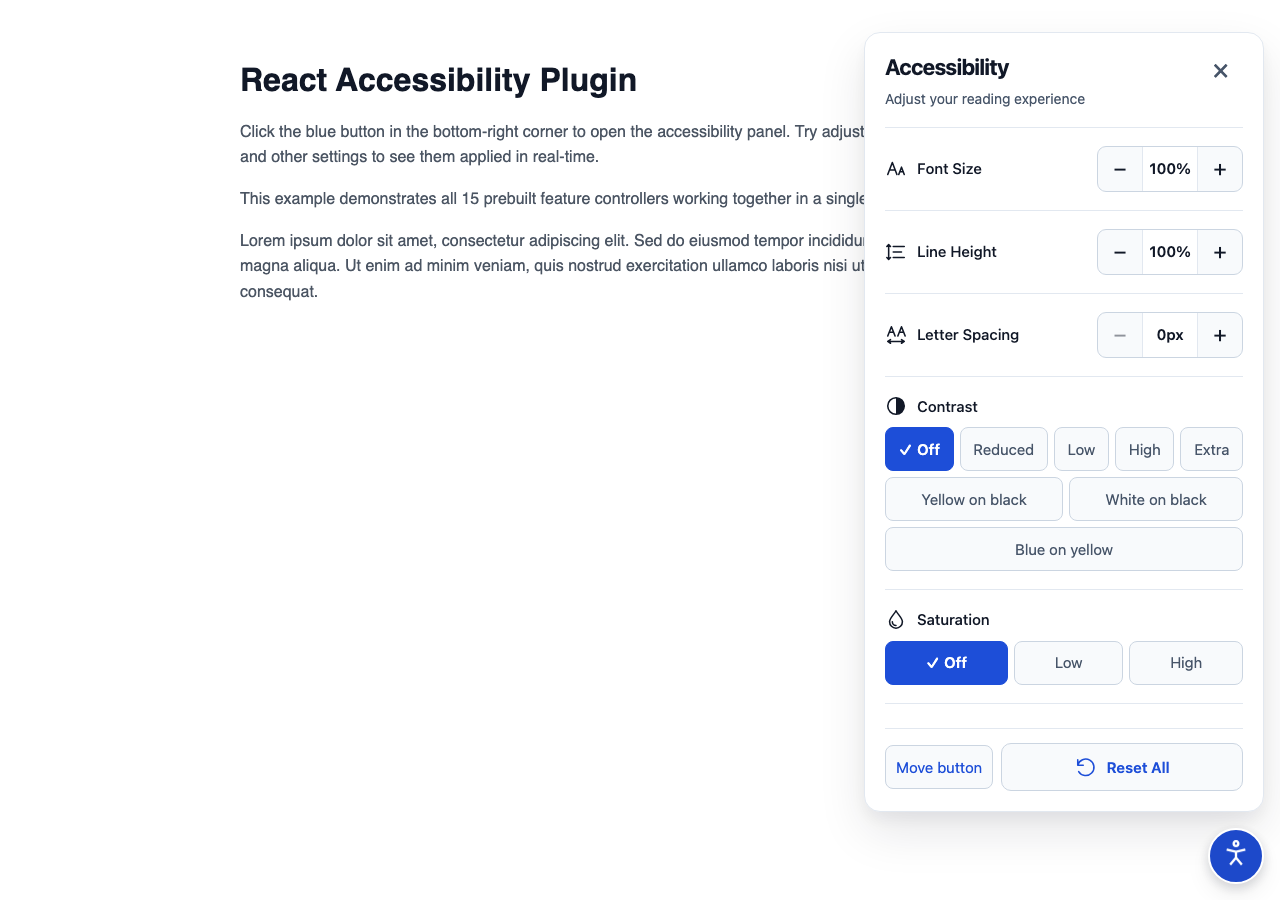
Composable React controls for display preferences and reading assistance. Choose the controls in JSX, keep the widget outside your application layout, and let the provider own state, persistence, effects, focus behavior, and cleanup.
The 2.3.0 minor release introduces modular accessible control primitives (FeatureCard, ToggleControl, ChoiceControl, StepperControl), state UI (SearchCount, EmptyState, ErrorState), profile previews (ProfilePreviewCard), locale and oversized control modes (largeControls), and automated releases across npm, GitHub Releases, and GitHub Packages.
It supports React 18.3.1 and React 19.x, ships ESM, CommonJS, TypeScript declarations,
and scoped plain CSS, and has no runtime dependency other than React and React DOM.
This library improves the presentation of your content. It cannot repair inaccessible application markup or certify WCAG conformance. Human screen-reader, physical-device, actual-zoom, forced-colors, and host integration checks remain part of your application's accessibility process.
npm install accessibility-plugin-reactnpm install @prabothcharith/accessibility-plugin-react --registry=https://npm.pkg.github.comReact and React DOM are peer dependencies and must use the same major/minor line. The package requires Node.js 22.13 or newer for development and builds. The widget itself does not require an API key, backend, environment variable, Tailwind, Motion, or an icon library.
Import the package and mount one provider per document, preferably above route changes or in the persistent application layout. The package automatically injects its scoped CSS in browser environments:
import {
  AccessibilityPlugin,
  AccessibilityButton,
  AccessibilityList,
  FontSizeController,
  ContrastController,
  GrayscaleController,
  ResetController,
} from "accessibility-plugin-react";

export function AccessibilitySettings() {
  return (
    <AccessibilityPlugin position="right">
      <AccessibilityButton description="Adjust display preferences" />
      <AccessibilityList>
        <FontSizeController />
        <ContrastController />
        <GrayscaleController />
        <ResetController />
      </AccessibilityList>
    </AccessibilityPlugin>
  );
}
The button and panel are non-modal body portals. The application remains interactive while the panel is open. Opening moves focus to the named region; Escape and Close return focus to the trigger. Focus is not trapped.
AccessibilityPlugin can be rendered next to application content:
export function App() {
  return (
    <>
      <main>{/* application routes and content */}</main>
      <AccessibilitySettings />
    </>
  );
}Every controller is opt-in. Add only the controls that make sense for your site, and choose their order in JSX.
| Controller | Effect |
|---|---|
TextScaleController |
Stepwise reflow-safe text enlargement (1.0x, 1.125x, 1.25x, 1.5x, 2.0x) protecting forms, code, and icons. |
FontSizeController |
Scales eligible HTML text from 50% to 200%; supports continuous 10% steps or stepScale mode. |
LineHeightController |
Scales computed line height from 50% to 200%. |
LetterSpacingController |
Applies 0–10px letter spacing. |
ContrastController |
Turns contrast off, reduces it, increases it, or selects a named palette. |
SaturationController |
Reduces or increases saturation. |
InvertColorsController |
Inverts eligible page content. |
GrayscaleController |
Removes color while preserving the selected saturation value for later. |
LinkHighlightController |
Highlights links or selects a link palette. |
TextAlignController |
Restores the host alignment or forces left, center, right, or justified text. |
HideImagesController |
Hides images and CSS background images while retaining layout. |
HideVideosController |
Hides video elements and recognized YouTube/Vimeo embeds visually. |
BigCursorController |
Applies a larger high-contrast cursor where supported. |
ReadingMaskController |
Dims the page around a transparent reading window. |
ReadingGuideController |
Follows pointer/focus with a reading guide line. |
ResetController |
Resets display features and custom registered features without moving the widget. |
Effects compose where appropriate. For example, contrast, saturation, invert, and grayscale are applied in a deterministic order. Defaults leave host styles unchanged, and the provider restores host inline values and priorities when an effect is disabled or the provider is removed.
Build custom accessible panels or custom features with modular primitives that include ARIA semantics, keyboard navigation, and Clean light styling:
FeatureCard: Accessible container with header, icon, description, status badge, and alert states (idle,active,error,unavailable,permission-required).ToggleControl: Native switch button withrole="switch",aria-checked, and >=44px touch targets.ChoiceControl: Segmented or grouped choices withrole="radiogroup", Arrow key navigation (Left/Right/Up/Down/Home/End), and visual check indicators.StepperControl: Bounded decrement/increment buttons,<output aria-live="polite">, and optional range slider.SearchCount&EmptyState: Polite live announcements for feature filtering and search zero-results states.ProfilePreviewCard: Previews affected accessibility profile settings (e.g. low-vision, dyslexia, cognitive) and provides one-click reversal back to custom settings.
Use the two-argument hook for simple state, or provide validation and a provider-owned effect for a feature that changes the page:
import { useAccessibility } from "accessibility-plugin-react";

export function OutlineFeature() {
  const { value, setValue } = useAccessibility("site:outline", false, {
    apply(enabled) {
      if (!enabled) return;

      const previous = document.body.style.outline;
      document.body.style.outline = "3px solid #1e40af";
      return () => {
        document.body.style.outline = previous;
      };
    },
  });

  return (
    <button type="button" aria-pressed={value} onClick={() => setValue(!value)}>
      Outline page
    </button>
  );
}
Place the feature inside AccessibilityList:
<AccessibilityList>
  <FontSizeController />
  <OutlineFeature />
  <ResetController />
</AccessibilityList>
The provider owns the effect lifetime, so it continues when the panel closes or
the control temporarily unmounts. Cleanup runs before reapplication and when
the provider unmounts. Custom state is JSON-compatible; supply validate for
arrays and objects. Feature keys must be stable and cannot use reserved
prototype names or built-in keys. See custom feature details.
Preferences are stored in a versioned local-storage record under
react-accessibility-plugin:state by default. Writes are debounced and flushed
when the page is hidden or the provider is removed. Invalid saved values fall
back to defaults; storage failures do not make the widget unusable.
<AccessibilityPlugin
  persistenceKey="my-site:accessibility"
  persist={true}
  position="left"
>
  {/* button, list, and selected controllers */}
</AccessibilityPlugin>
Persistence options are fixed for the provider lifetime. Remount with a React
key when changing the storage identity. Use one provider per document.
The trigger is draggable by default. Movement also works with Alt+Arrow keys
and the panel's explicit corner and arrow controls. Drag activation has an
8px threshold, cancelled drags do not open the panel, and placement is clamped
on resize. ResetController preserves placement; the panel's separate
position reset removes it. Set draggable={false} when only the non-drag
controls should be available.
The stylesheet is scoped to .arap-root and does not add a global reset,
Tailwind preflight, or host theme variables. Load it once, then put consumer
overrides after it:
.arap-root {
  --arap-accent: #1e40af;
  --arap-accent-hover: #1e3a8a;
  --arap-selected: #eff6ff;
}

.arap-root .my-trigger {
  border-radius: 999px;
}
Use className, style, title, description, and closeLabel to adapt
the widget to your product language and layout. Preserve visible focus,
pressed states, contrast, and the library's 44px minimum interactive targets
when overriding styles.
For Next.js App Router, put the provider and custom controls in a Client Component, import the CSS from the root layout, and render the provider in the persistent layout rather than once per route:
// app/accessibility-settings.tsx
"use client";

import {
  AccessibilityPlugin,
  AccessibilityButton,
  AccessibilityList,
  FontSizeController,
  ResetController,
} from "accessibility-plugin-react";

export function AccessibilitySettings() {
  return (
    <AccessibilityPlugin>
      <AccessibilityButton />
      <AccessibilityList>
        <FontSizeController />
        <ResetController />
      </AccessibilityList>
    </AccessibilityPlugin>
  );
}
See installation and Next.js for App Router and Pages
Router examples, runnable code in examples/next-app/, and strict CSP guidance.
- Public components, props, exported types, placement, persistence, custom features, and CSS variables are documented in API.md.
- Detailed per-feature defaults, bounds, and host behavior are in FEATURES.md.
- Filters can create stacking contexts and containing blocks for fixed host descendants. Test sticky headers, overlays, and third-party widgets in the real application.
- Text measurement covers the current document's eligible HTML elements.
Shadow DOM, iframe interiors, SVG/canvas text, pseudo-elements, and raw text
nodes directly under
bodyare outside scope. - Image/video hiding is visual; video playback is not paused or muted.
- Reading aids are pointer-transparent overlays and do not replace semantic reading structure.
- There is no live cross-tab synchronization or server-side preference sync.
persist={false}disables both display and placement persistence.
See troubleshooting before filing an issue.
- API reference
- Feature behavior and bounds
- Installation and Next.js
- Content Security Policy (CSP) guidance
- Custom features
- Migration from v1 and development baselines
- Architecture and lifecycle decisions
- Development and testing
- Design foundation
- Troubleshooting
- Project status and verification evidence
- Release procedure
- Changelog
Runnable package-consumer examples are in examples/:
npm ci
npm run build
npm run exampleThis package is available under the ISC license. The original vanilla JavaScript project is maintained separately at prabothcharith/accessibility-plugin.