Library View User Guide
The library view is an optional in-app browser for your Immich server's assets, albums, and Explore categories. It replaces the default settings window as the main window when enabled.
- Open Settings → Behavior → Enable Library View.
- Save and restart Mimick.
The library window opens instead of the settings window on the next launch. Settings remain accessible from the header bar gear button.
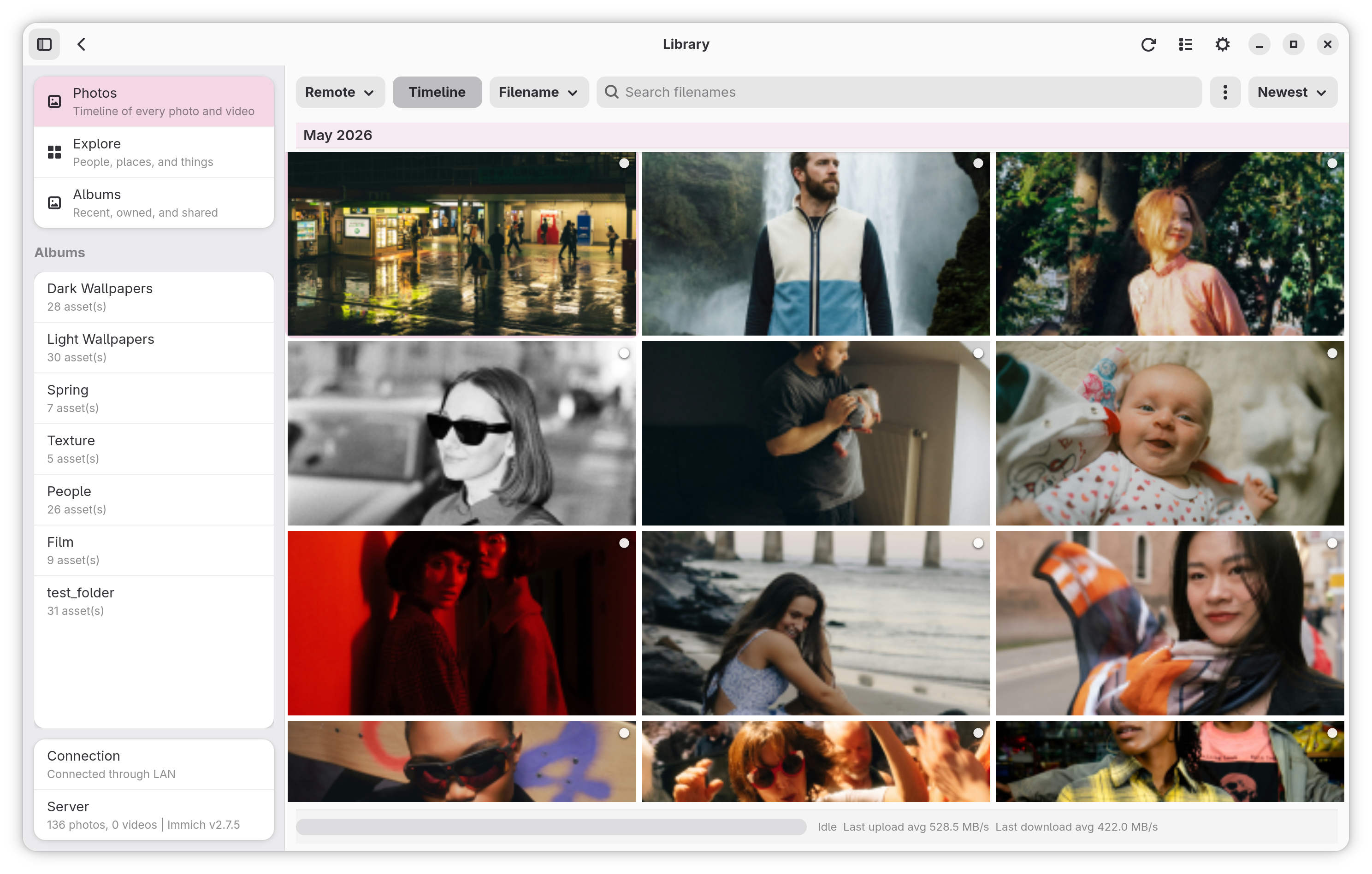
| Photos (Light) | Photos (Dark) |
|---|---|
 |
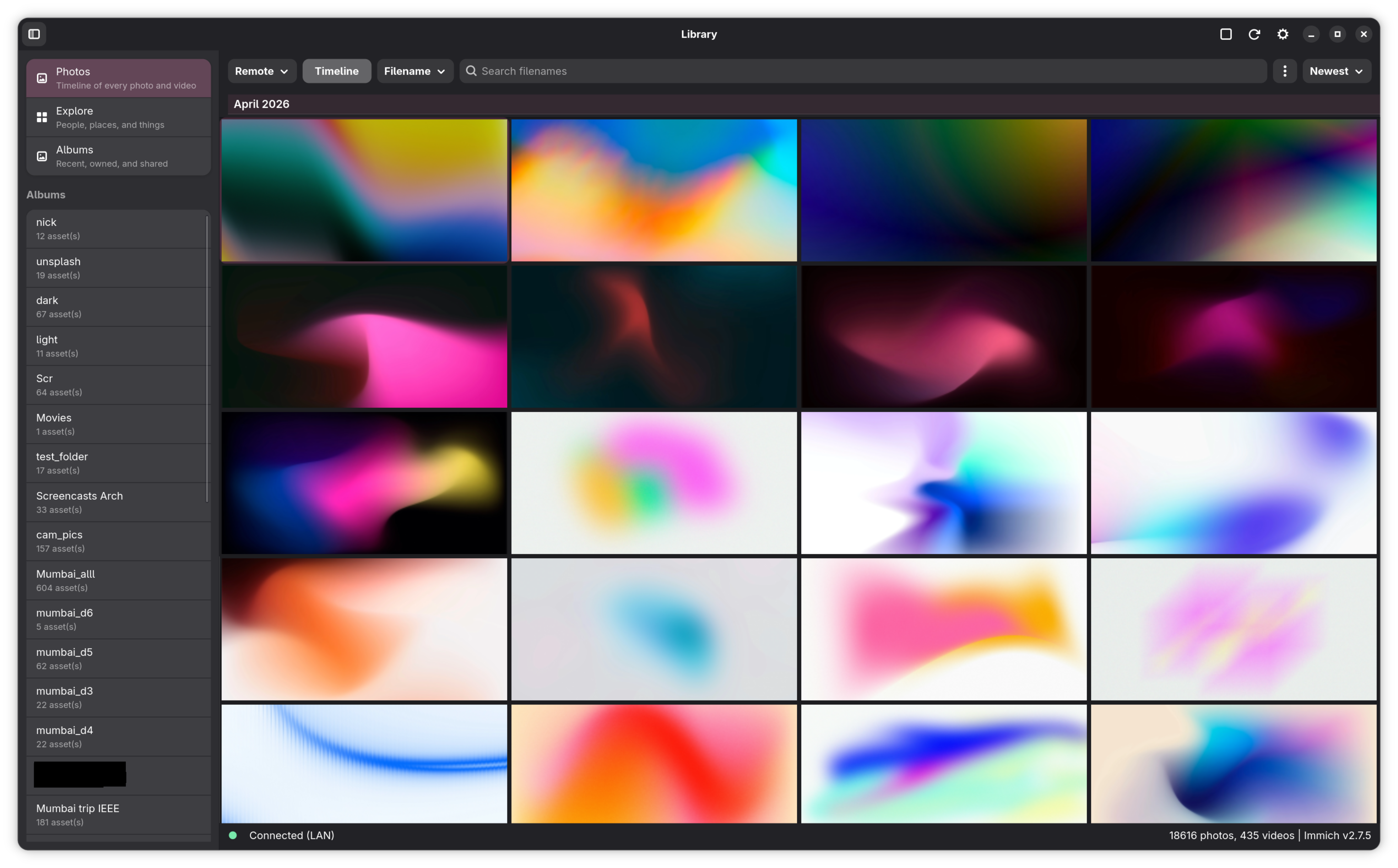 |
The window uses a sidebar + content split.
Sidebar (toggle with F9 or the sidebar button in the header):
- Photos — opens the timeline grid
- Explore — People, Places, Things
- Albums — album landing page
- album entries listed below for quick navigation
- Bottom footer contains the server connection row (clicking it opens the Server Statistics dialog)
Header bar controls (right side):
- source selector dropdown (Remote / Local / Unified)
- sort selector (Newest / Filename / File Type / Sync State)
- search entry with search mode selector
- Timeline toggle button
- select-mode toggle button
- Upload button (invokes the manual multi-file picker)
- refresh button
- gear button (opens Settings)
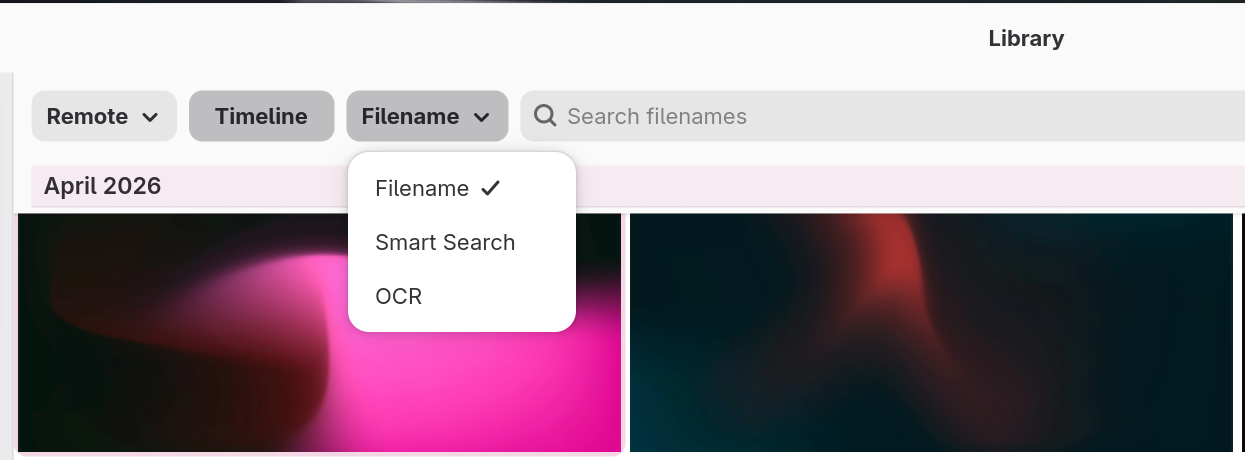
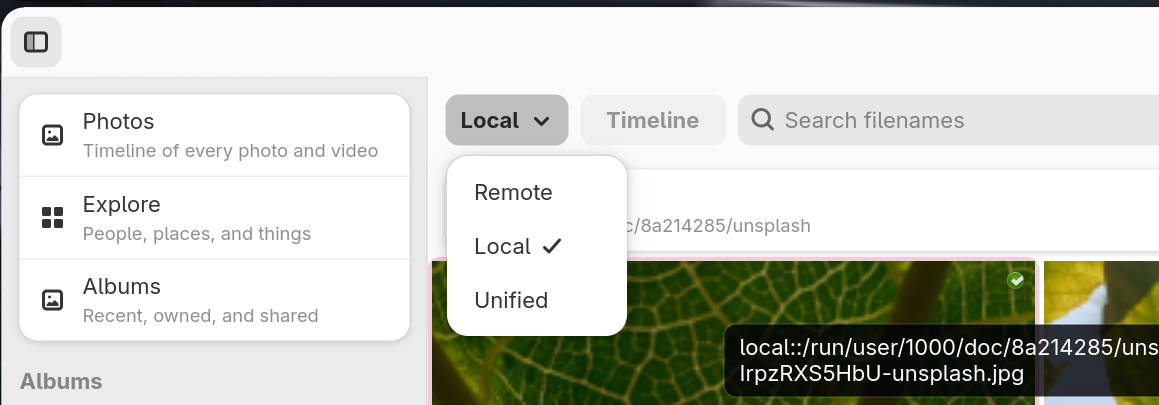
| Search Options | View Options |
|---|---|
 |
 |
Assets load in pages of 50. Scroll to the bottom of the grid to load the next page. The footer label shows the current count.
Thumbnails are loaded asynchronously. A placeholder is shown while the thumbnail downloads. Decoded thumbnails are cached in RAM up to the configured limit (library_thumbnail_cache_mb, default 80 MB).
Use the sort dropdown to order the current view by:
- Newest — most recently created first
- Filename — alphabetical
- File Type — grouped by MIME type
- Sync State — local-only assets first, then synced
Sort applies to the current source and page.
The Timeline button in the header switches the Remote source between a standard paged grid and a timeline layout that groups assets by date. Timeline is only available for the Remote source; it is hidden when Local or Unified is active.
The source dropdown controls which assets the grid shows.
| Source | What it shows |
|---|---|
| Remote | Assets fetched from the Immich server |
| Local | Files in your configured watch folders, enumerated directly |
| Unified | Remote assets merged with local sync state |
Switching sources clears any active search and reloads from page 1.
Local source notes:
- Local enumeration walks your watch folders using the same extension filter as the sync engine.
- No checksum is computed during enumeration, so Local mode does not indicate whether a file has been uploaded — use Unified for that.
- Files matched via the sync index show their album assignment and sync state.
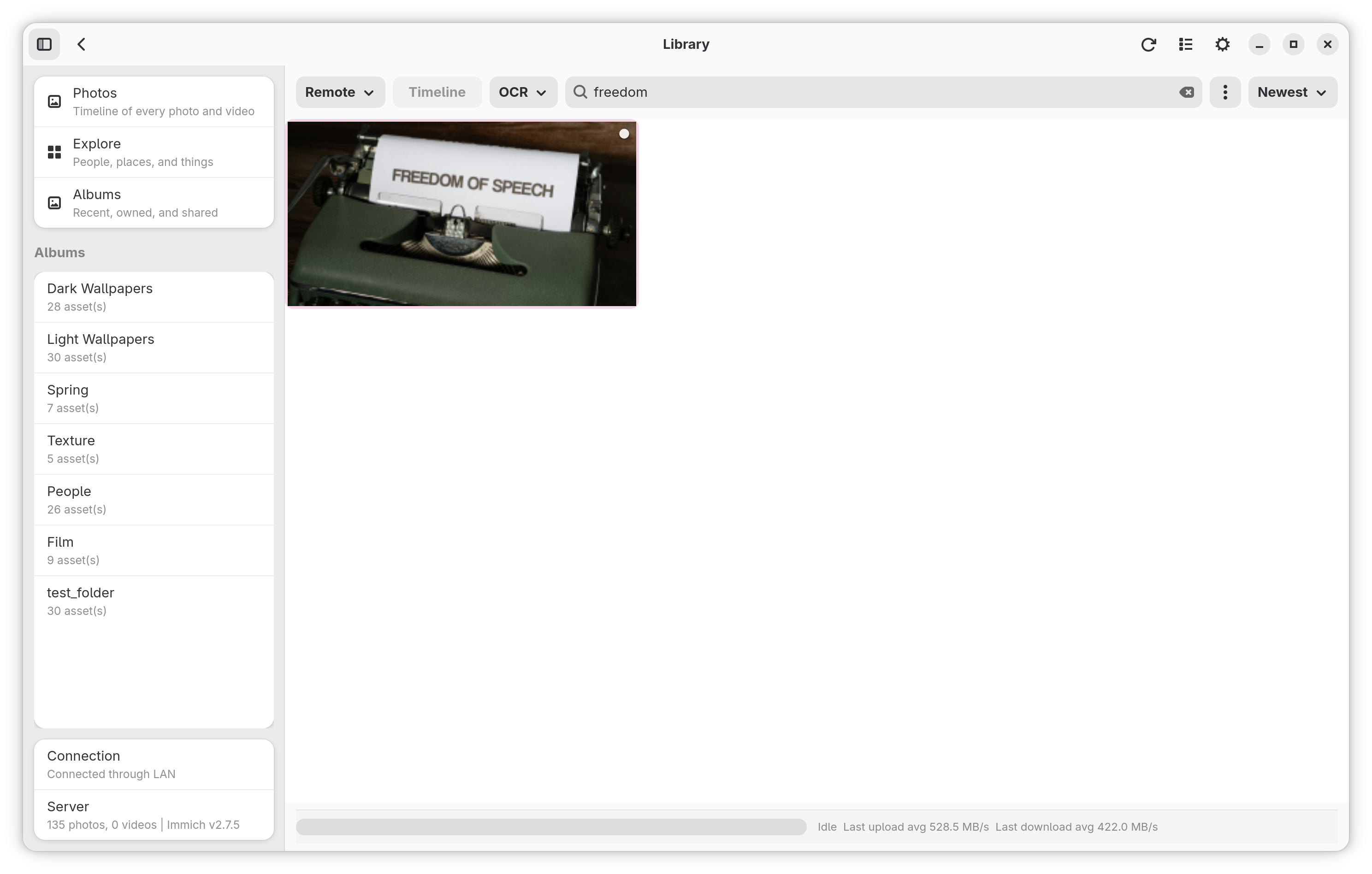
The search entry appears in the header bar. Enter a query and press Enter or wait for the field to commit.
Use the mode dropdown next to the search entry:
| Mode | What it searches | Server requirement |
|---|---|---|
| Filename | Filename and EXIF metadata fields | None |
| Smart Search | CLIP-based semantic/natural-language similarity | Immich ML service running |
| OCR | Text extracted from images | Immich ML service running |
- Smart Search and OCR both require the Immich machine-learning service to be enabled and healthy on your server. Queries against a server without ML will return empty results or an error.
- Filename mode works without ML and is the fastest option.
- Clearing the search entry returns to the previous non-search source.
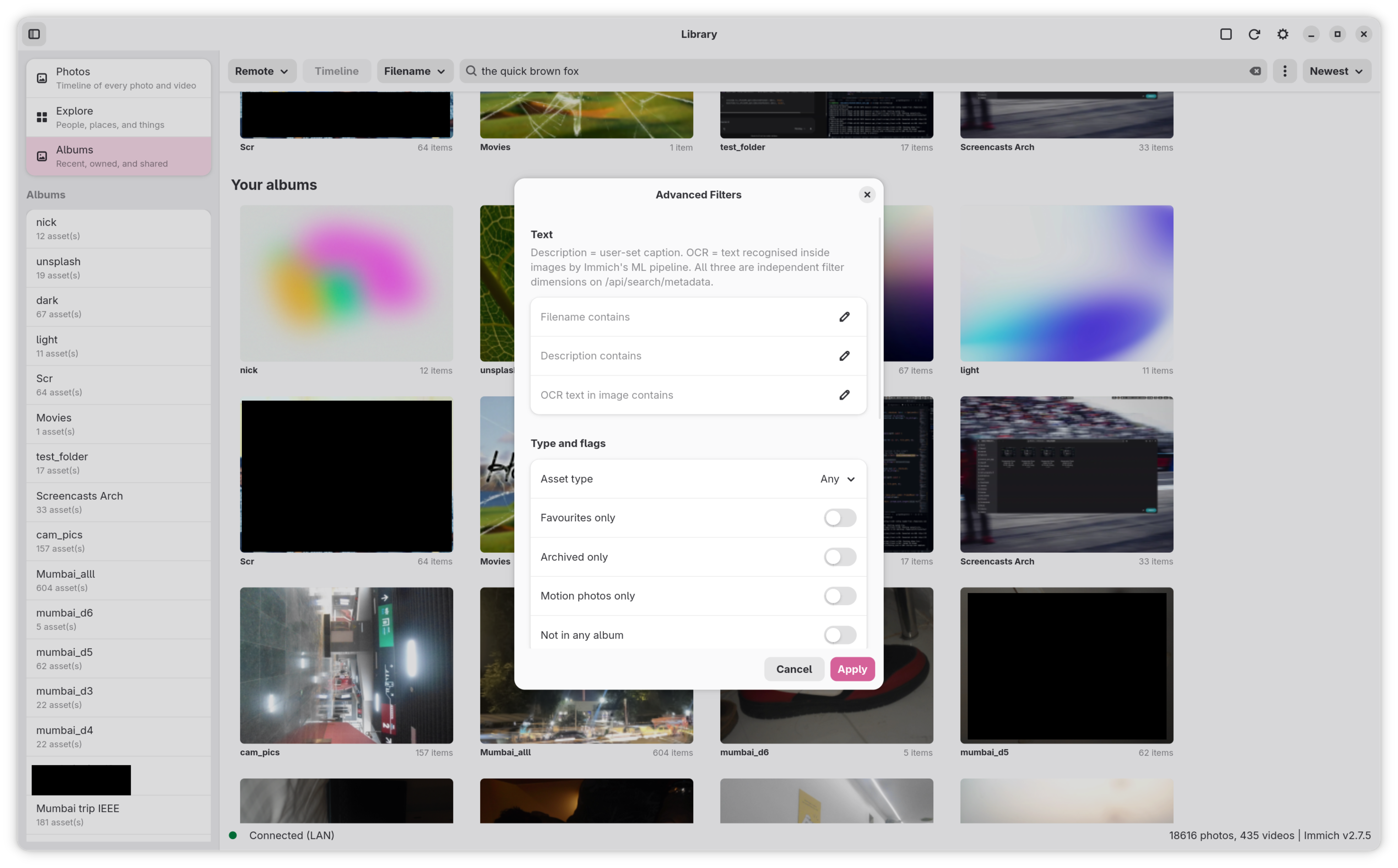
| Advanced Filters | Advanced Filters (More Options) |
|---|---|
 |
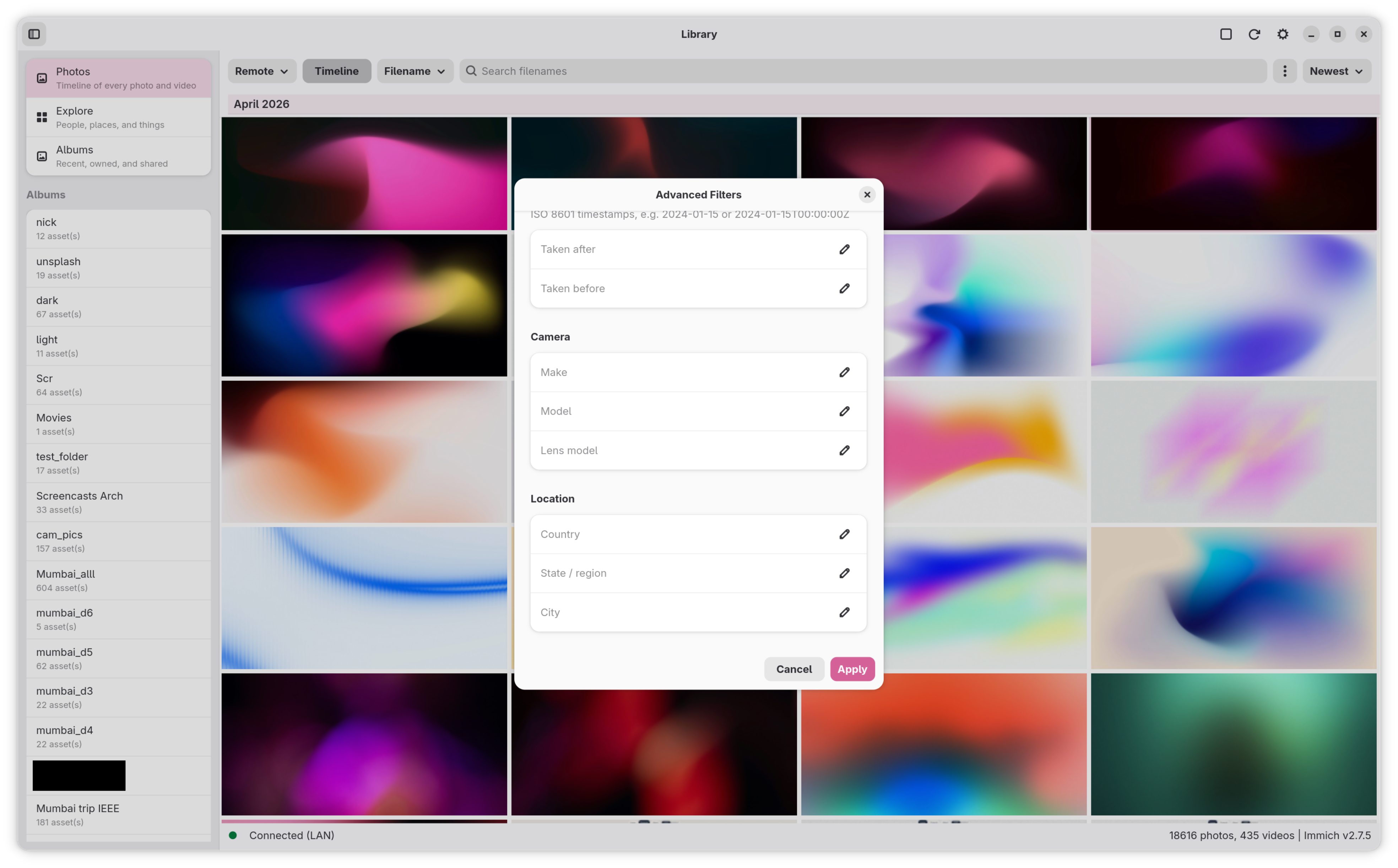 |
Local and Unified search always uses filename matching regardless of the mode selector. The mode selector is hidden when Local or Unified is active.
Select Explore in the sidebar to open the Explore view.
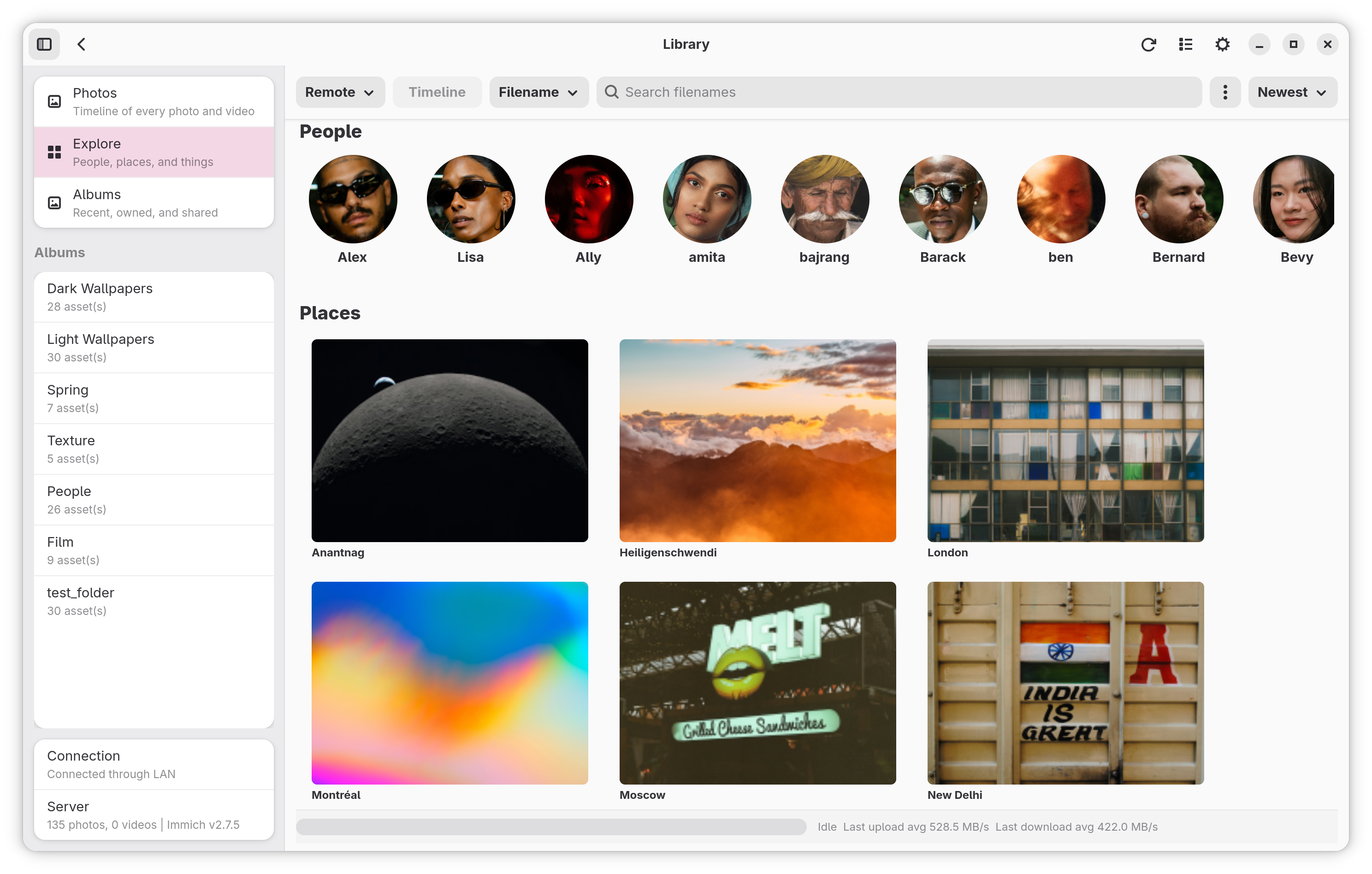
Three sections are populated from the Immich server:
- People — a horizontal row of recognised person tiles with their name and a representative thumbnail. Requires face recognition to be enabled on the server.
- Places — city/location tiles for assets with geolocation EXIF data.
- Things — tag tiles for object-recognition labels (animals, vehicles, etc.). Requires ML object tagging on the server.
Clicking a tile filters the grid to assets belonging to that person, place, or tag. The view will persist your active filter selection even if you navigate away and return.
Use the Refresh button in the header to reload the Explore data. Sections that return no results from the server are hidden automatically.
Face Visibility: By default, unnamed faces are shown and hidden faces are excluded. You can toggle these independently in Library Settings.
Select Albums in the sidebar to open the album landing page.
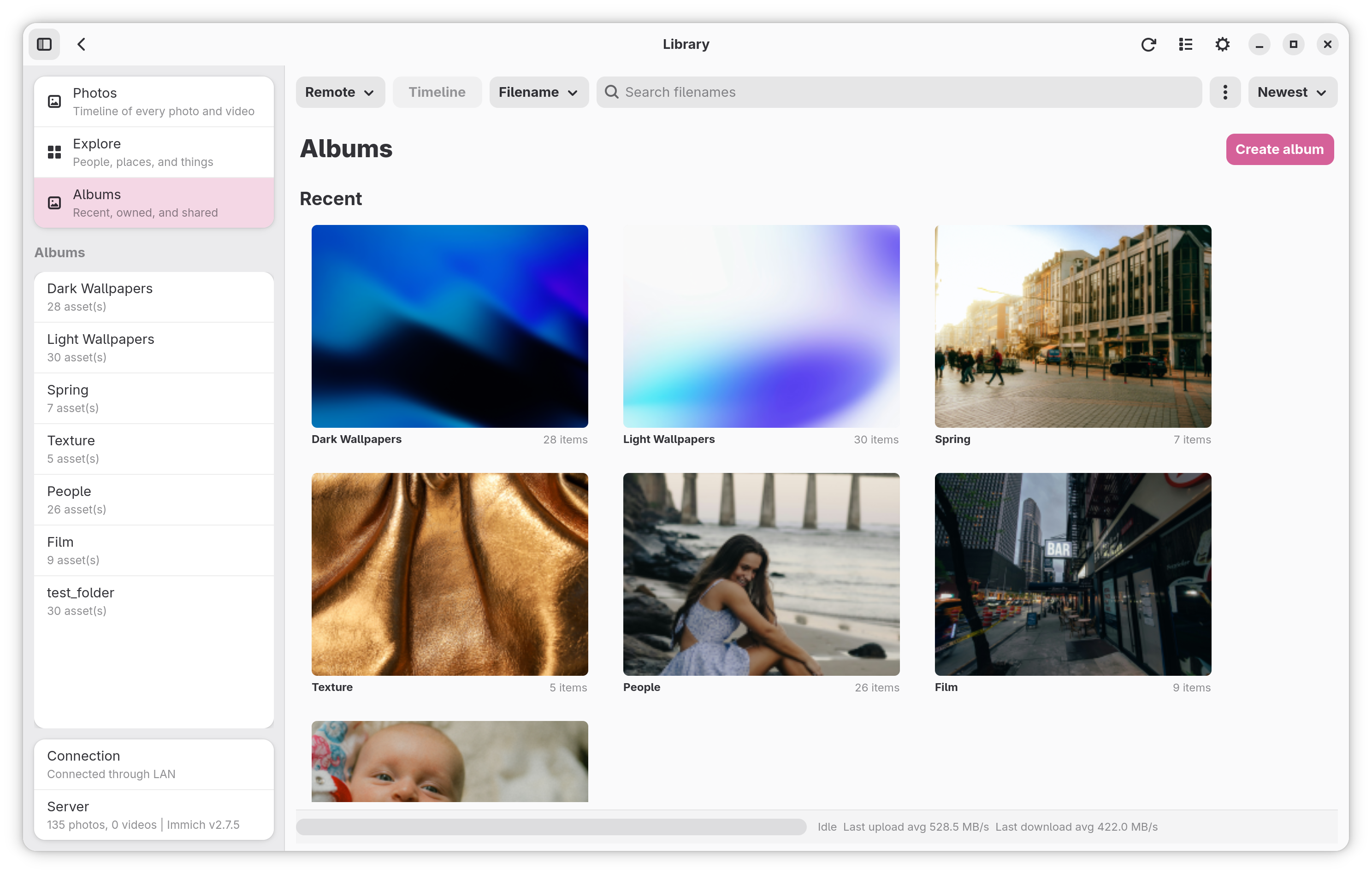
Three sections are shown:
- Recent — recently accessed albums
- Your albums — albums you own
- Shared with you — albums shared by other users
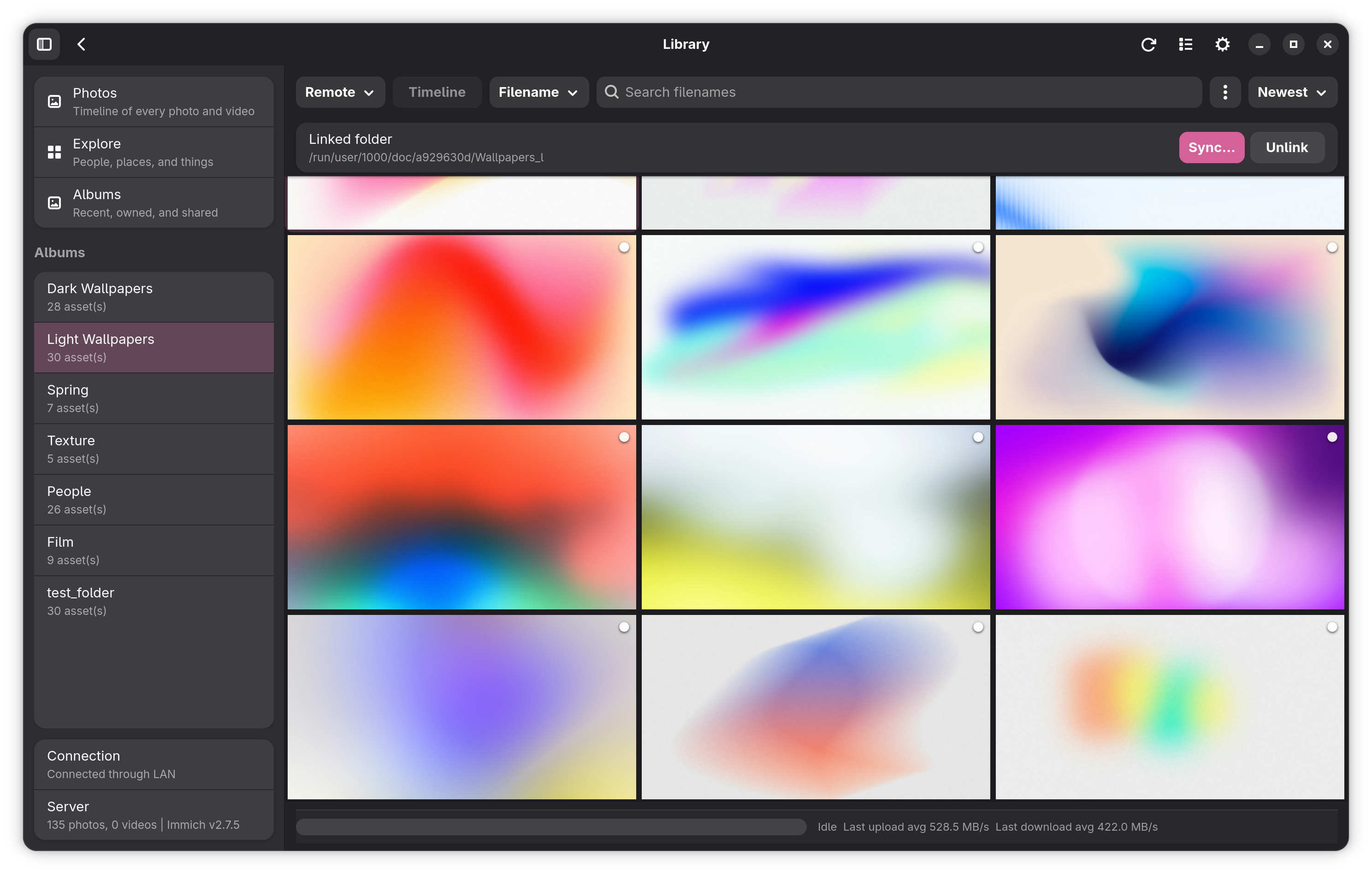
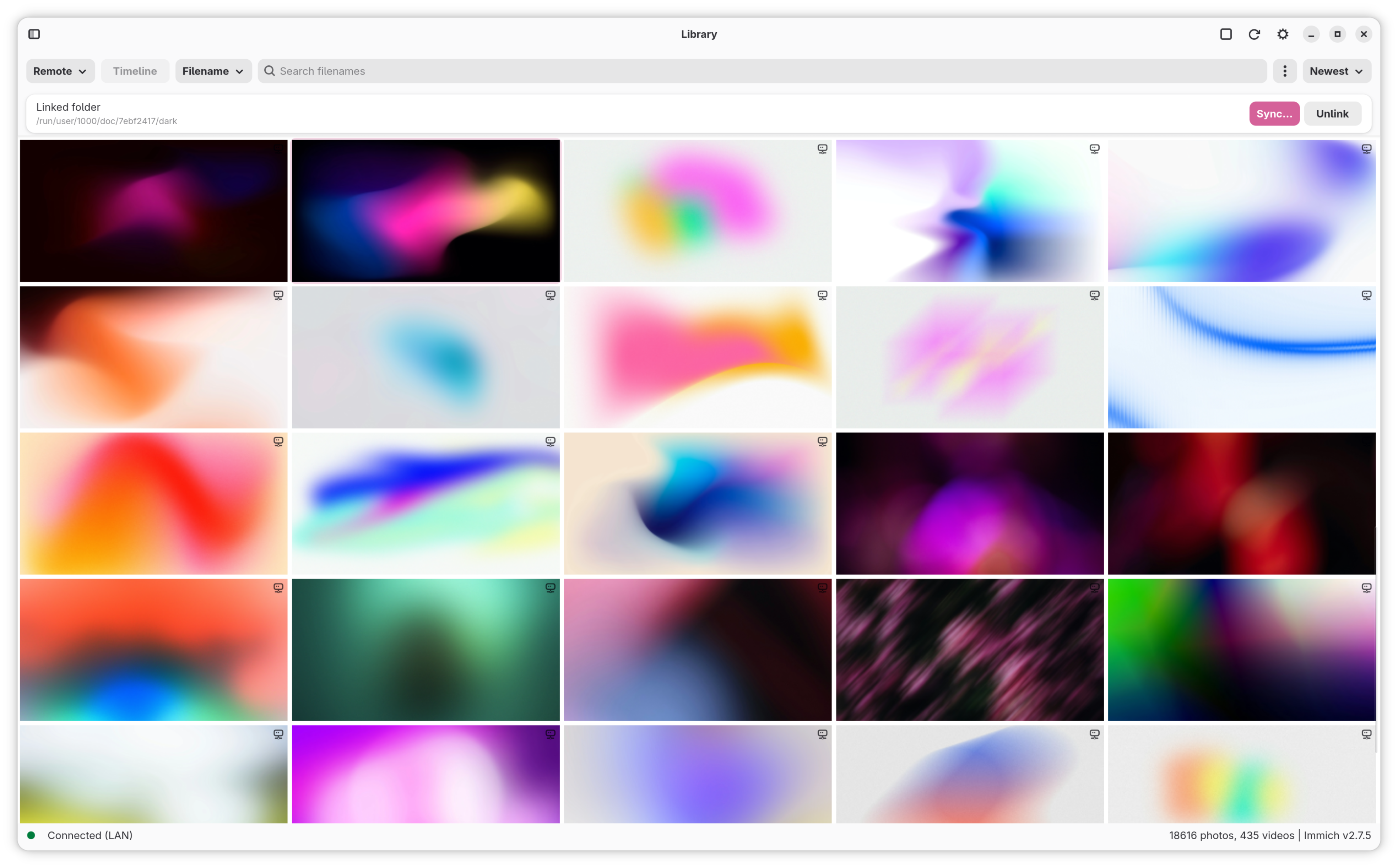
Click an album tile to open it in the grid view. The album is also added to the sidebar list for quick re-access.
| Selected Album (Dark) | Album View (Sidebar Off) |
|---|---|
 |
 |
Click Create album (top right of the Albums page). Enter a name and confirm. The new album appears in the Your albums section immediately.
To assign a new or existing album to a watch folder for automatic upload, use Settings → Watch Folders → album dropdown on the relevant folder row.
You can upload files directly to the library or to a specific album using the Upload button in the header bar. This opens a multi-file picker and enqueues the selections for upload without requiring a watch folder.
Click the checkbox icon in the header bar (or use Esc to exit) to toggle selection mode.
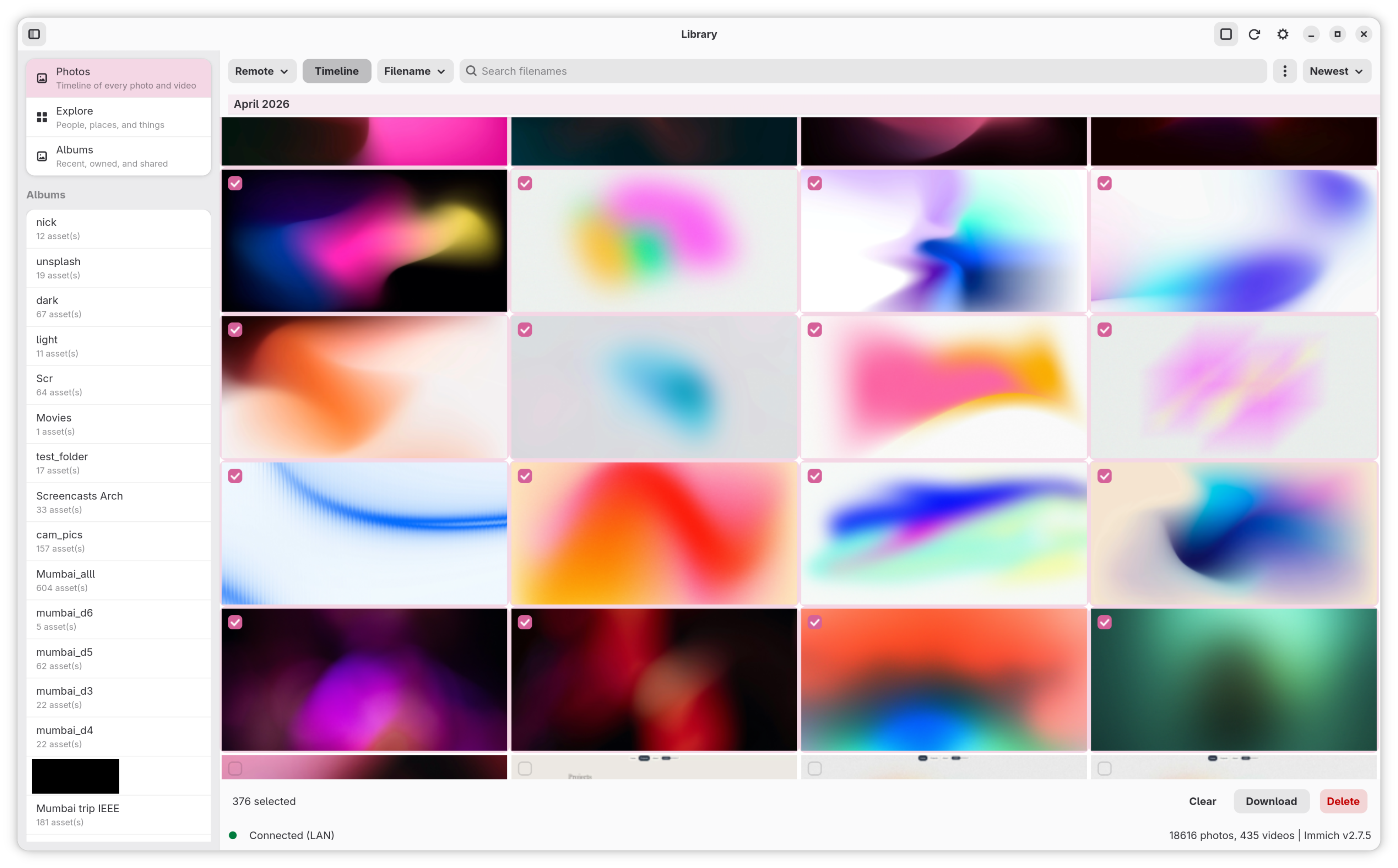
In selection mode:
- each grid cell shows a checkbox
- clicking a cell toggles its selection state
- a bulk action bar appears at the bottom showing the selection count
Bulk actions available:
- Download — saves selected remote assets to the configured download folder (local-only assets are skipped)
- Delete — permanently deletes selected remote assets from the Immich server after a confirmation dialog
- Clear — deselects all items without taking action
Selection mode exits automatically when all items are deselected.
Click any asset in the grid to open it in the lightbox.
| Lightbox (Details On) | Lightbox (Details Off) |
|---|---|
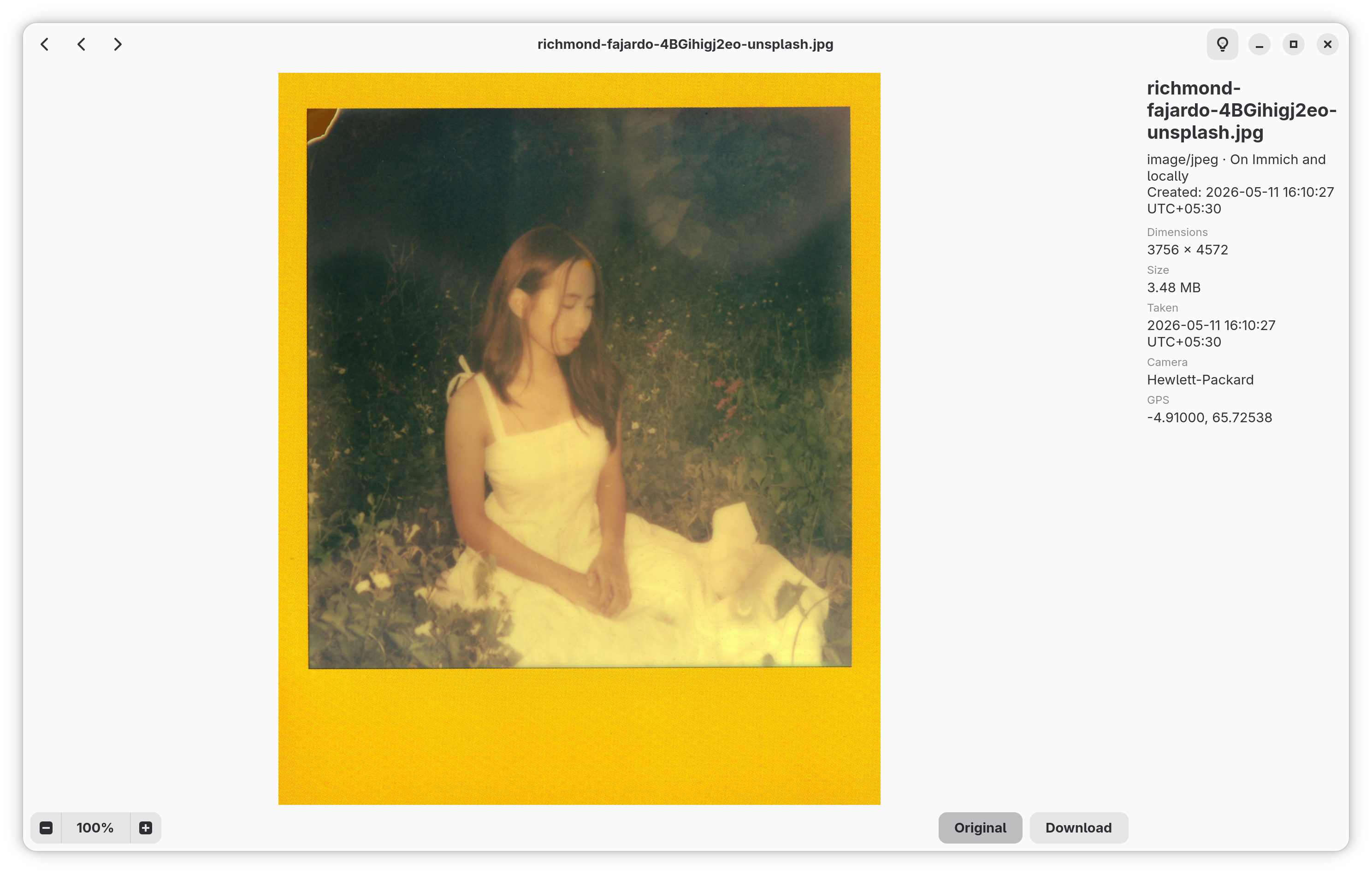 |
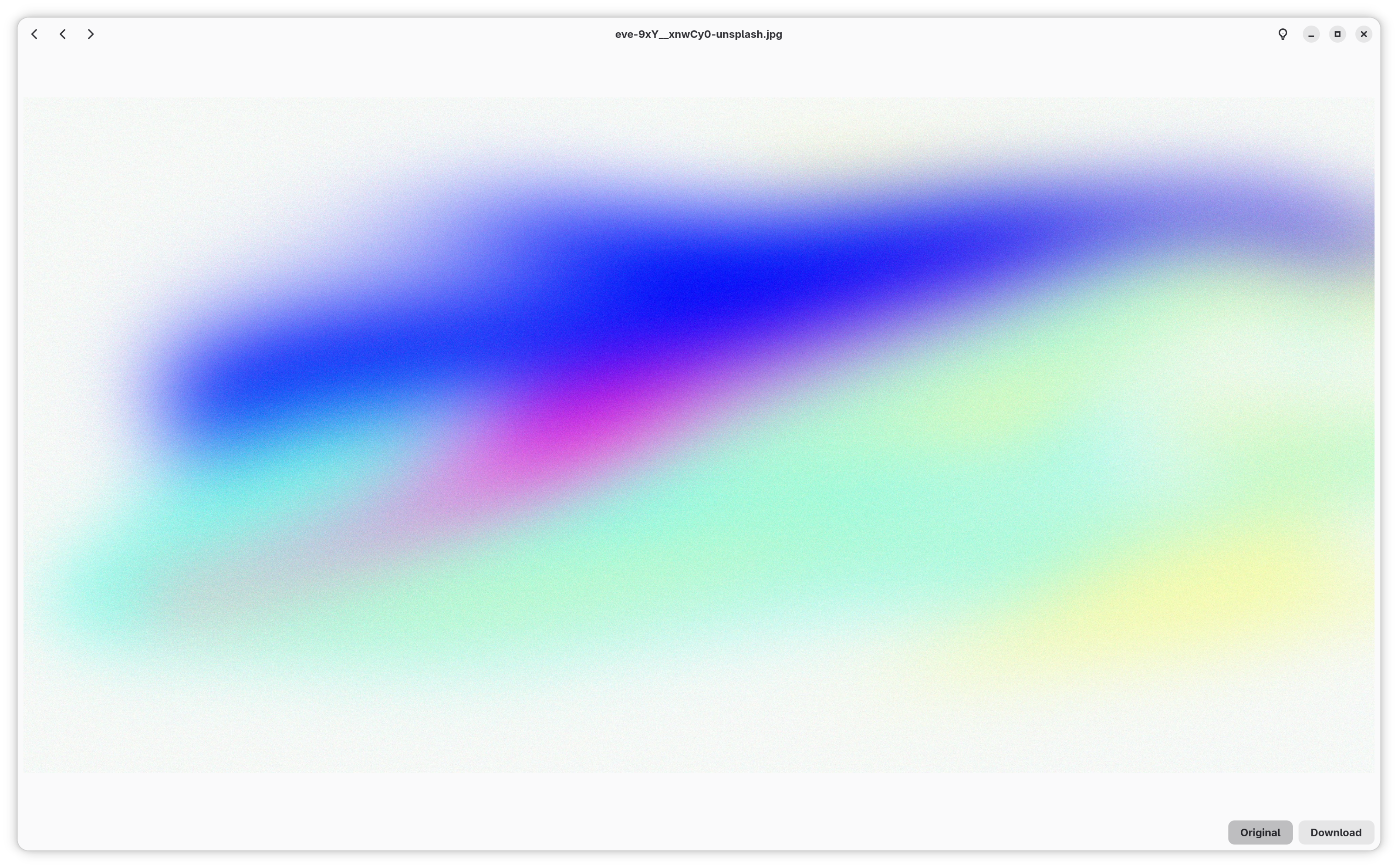 |
- The lightbox shows a preview image. If Full Resolution Preview is enabled in Settings → Behavior, it loads the original file instead of a server-generated proxy.
- RAW Previews: By default, RAW files display using their fast embedded previews. The extractor first scans the file for the largest embedded JPEG (catching the full-resolution preview on cameras that store both a tiny thumb and a full-res one — e.g. Sony ARW); if the file contains no JPEG at all (Samsung DNG, OnePlus DNG, and other phone DNGs that store their preview as uncompressed TIFF strips), it falls back to libraw's bitmap thumbnail with container orientation applied. You can toggle Full RAW Decoding in settings to perform a full sensor demosaic instead.
- Videos: Navigating to a video asset in the lightbox shows the video's still thumbnail as a poster with a centered play badge. Clicking the badge launches the same external player flow used by the grid (system default app for local files; downloaded to cache then opened for remote files). Zoom, resolution toggle, and download controls are hidden for the video case.
- EXIF metadata is fetched (including for local files) and displayed alongside the asset.
- Download saves the original file to the configured download folder.
Download folder:
- On the first download, a folder picker opens and the chosen path is saved to
download_target_pathinconfig.json. - Subsequent downloads go to the same folder without prompting.
- If the target folder is missing at download time, the picker opens again.
- Filename collisions are resolved by appending a numeric suffix (e.g.
photo (1).jpg).
When viewing an album, a footer row shows the linked local watch folder (if any) and two action buttons.
| Button | Action |
|---|---|
| Link folder | Opens a picker to associate a local watch folder with this album |
| Sync | Runs a bidirectional sync between the linked folder and the album |
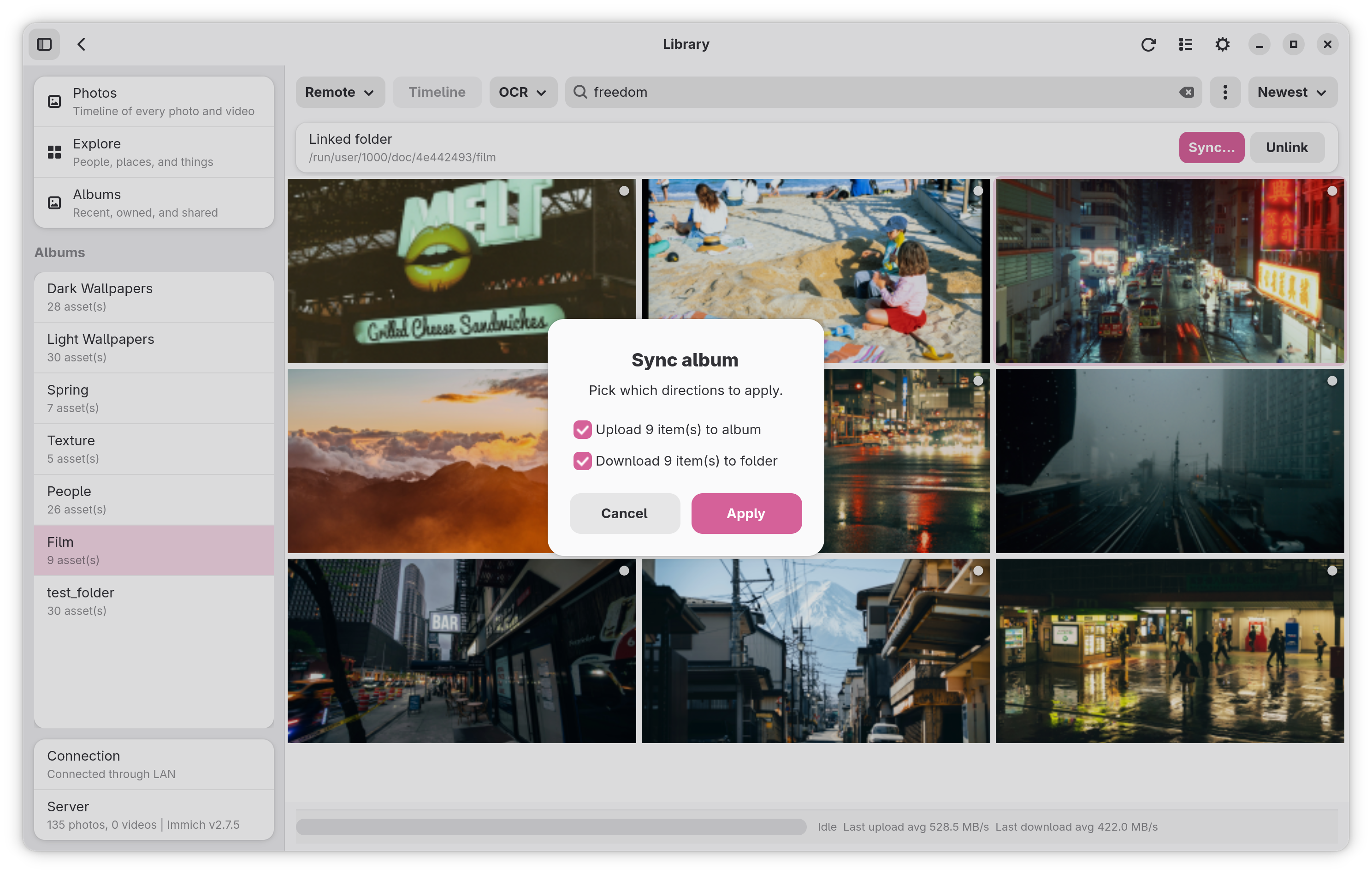
Sync steps:
- Mimick computes SHA-1 checksums for local files in the linked folder.
- Files present locally but missing from the remote album are uploaded.
- Assets in the remote album missing from the local folder are downloaded.
- Name collisions during download are resolved with a numeric suffix.
Album sync is on-demand — it runs only when you press Sync and does not run automatically in the background. It respects the same file extension filters as the main sync engine.
These options are in Settings → Behavior and apply to the library view.
| Setting | Default | Effect |
|---|---|---|
| Full-Resolution Preview | Off | When on, the lightbox loads the original file instead of the ~1440px server-generated preview. Uses more bandwidth. |
| Full RAW Decoding | Off | Decode high-resolution sensor data instead of using fast embedded camera previews (slower). |
| Cache Decoded RAW Files | Off | Store demosaiced RAW images on disk so re-opens are instant. Only applicable when Full RAW Decoding is enabled. |
| Show unnamed faces | On | Show people with no assigned name in the Explore view. |
| Show hidden faces | Off | Include hidden people in the Explore view. |
| Thumbnail Memory Cache (MB) | 80 | RAM cap for decoded thumbnails. Increase to reduce re-fetches when scrolling through large grids. |
| Download Folder | Not set | First download opens a folder picker; the chosen path is saved and reused for subsequent downloads. |
See Performance Tuning for guidance on choosing values for these settings.
| Key | Action |
|---|---|
| F9 | Toggle sidebar |
| Esc | Exit selection mode |