
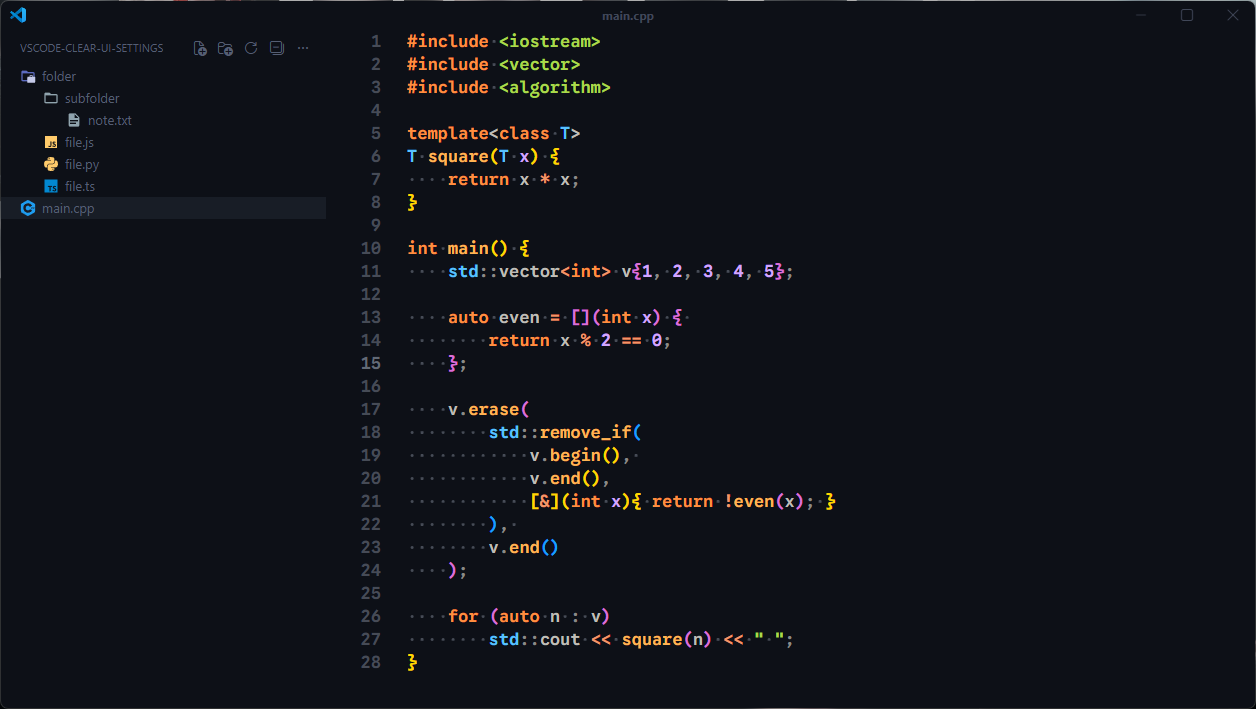
A clean, distraction-free VSCode configuration featuring the Ayu Dark theme with custom UI modifications for maximum focus and productivity.
Key Features:
- Ayu Dark theme with Atom Material Icons
- Hidden tabs, status bar, and minimap for maximum screen real estate
- Custom typography using Google Sans Code font
- Top-positioned activity bar for better ergonomics
- Enhanced indentation visibility
- Custom CSS support for advanced UI customization
-
Ayu Dark Theme
- Name:
Ayu Dark - Publisher:
teabyii - Install:
ext install teabyii.ayu
- Name:
-
Atom Material Icons
- Name:
Atom Material Icons - Publisher:
Atom Material - Install:
ext install AtomMaterial.a-file-icon-vscode
- Name:
-
Custom CSS and JS Loader
- Name:
Custom CSS and JS Loader - Publisher:
be5invis - Install:
ext install be5invis.vscode-custom-css
- Name:
- Google Sans Code (included in settings)
- Download from Google Fonts or install via system package manager
-
Clone or download this repository
-
Install the required extensions listed above
-
Copy the settings to your VSCode configuration:
- Open VSCode
- Press
Ctrl+Shift+P(orCmd+Shift+Pon Mac) - Type "Preferences: Open User Settings (JSON)"
- Paste the configuration
-
Set up Custom CSS (optional):
- Create a file at
%APPDATA%/Code/User/vscode-custom.css(Windows) - Or
~/.config/Code/User/vscode-custom.css(Linux/Mac) - Add your custom CSS rules
- Press
Ctrl+Shift+Pand run "Reload Custom CSS and JS"
- Create a file at
- No editor tabs for distraction-free coding
- Hidden status bar and minimized scrollbars
- Activity bar moved to top for better screen usage
- Breadcrumbs disabled for cleaner navigation
- Font: Google Sans Code, 600 weight, 17px
- Indentation: 4 spaces, 23px tree indent
- Whitespace rendering enabled for better code structure visibility
- Line highlighting disabled for cleaner appearance
- Workspace trust disabled for faster project opening
- Unicode highlighting adjusted for cleaner code display
- Custom title bar with active file name only
Feel free to adjust these settings to your preference:
Note: After applying these settings, you may need to reload VSCode for all changes to take effect. Some settings (particularly custom CSS) may require administrator/elevated privileges to apply.