User Themes
FINAL CUT supports color themes. This allows you to change the color of
all widget elements. You can also customize the color palette to your
preferences. If you want to switch back to the default theme, you can
always call the method FApplication::setDefaultTheme() or
FApplication::setDarkTheme() to select the dark theme.
FINAL CUT uses a default color scheme that developers can override in a
derived class of FWidgetColors. The setColorTheme() method redefines
all widget colors in the constructor.
class myWidgetColors final : public finalcut::FWidgetColors
{
  public:
    myWidgetColors()
    {
      myWidgetColors::setColorTheme();
    }

    ~myWidgetColors() override
    { }

    auto getClassName() const -> finalcut::FString override
    {
      return "myWidgetColors";
    }

    void setColorTheme() override
    {
      ...  // Color definitions
    }
};
To set the widget colors, you should call the FWidget::setColorTheme()
method via the FApplication object. This creates a new theme instance
and assigns it to the application.
finalcut::FApplication app(argc, argv);
app.setColorTheme<myWidgetColors>();
The following example creates the BeeColorTheme. Start by creating a
reusable include file for your application.
File: widget-color-theme.h
#ifndef WIDGETCOLORTHEME_H
#define WIDGETCOLORTHEME_H

class BeeColorTheme final : public finalcut::FWidgetColors
{
  public:
    BeeColorTheme()
    {
      BeeColorTheme::setColorTheme();
    }

    ~BeeColorTheme() override
    { }

    auto getClassName() const -> finalcut::FString override
    {
      return "BeeColorTheme";
    }

    void setColorTheme() override
    {
      term =
      {
        finalcut::FColor::Black,      // Foreground
        finalcut::FColor::LightBlue   // Background
      };

      dialog =
      {
        finalcut::FColor::Black,      // Foreground
        finalcut::FColor::LightGray,  // Background
        finalcut::FColor::Red,        // Resize foreground
        finalcut::FColor::Blue        // Emphasis foreground
      };

      text =
      {
        finalcut::FColor::Black,      // Foreground
        finalcut::FColor::LightGray,  // Background
        finalcut::FColor::White,      // Selected foreground
        finalcut::FColor::Blue,       // Selected background
        finalcut::FColor::White,      // Selected focused foreground
        finalcut::FColor::Cyan        // Selected focused background
      };

      error_box =
      {
        finalcut::FColor::Black,      // Foreground
        finalcut::FColor::Yellow,     // Background
        finalcut::FColor::Red         // Emphasis foreground
      };

      tooltip =
      {
        finalcut::FColor::Black,      // Foreground
        finalcut::FColor::Yellow      // Background
      };

      shadow =
      {
        finalcut::FColor::LightGray,  // Foreground (only for transparent shadow)
        finalcut::FColor::Black       // Background
      };

      current_element =
      {
        finalcut::FColor::White,      // Foreground
        finalcut::FColor::Green,      // Background
        finalcut::FColor::LightGray,  // Focused foreground
        finalcut::FColor::DarkGray,   // Focused background
        finalcut::FColor::Brown,      // Incremental search foreground
        finalcut::FColor::LightRed,   // Selected foreground
        finalcut::FColor::Green,      // Selected background
        finalcut::FColor::LightRed,   // Selected focused foreground
        finalcut::FColor::DarkGray    // Selected focused background
      };

      list =
      {
        finalcut::FColor::Black,      // Foreground
        finalcut::FColor::LightGray,  // Background
        finalcut::FColor::LightRed,   // Selected foreground
        finalcut::FColor::LightGray   // Selected background
      };

      label =
      {
        finalcut::FColor::Black,      // Foreground
        finalcut::FColor::LightGray,  // Background
        finalcut::FColor::LightGray,  // Inactive foreground
        finalcut::FColor::DarkGray,   // Inactive background
        finalcut::FColor::Red,        // Hotkey foreground
        finalcut::FColor::LightGray,  // Hotkey background
        finalcut::FColor::Blue,       // Emphasis foreground
        finalcut::FColor::DarkGray    // Ellipsis foreground
      };

      input_field =
      {
        finalcut::FColor::Black,      // Foreground
        finalcut::FColor::Cyan,       // Background
        finalcut::FColor::LightGray,  // Focused foreground
        finalcut::FColor::Green,      // Focused background
        finalcut::FColor::Black,      // Inactive foreground
        finalcut::FColor::LightGray   // Inactive background
      };

      toggle_button =
      {
       finalcut::FColor::Black,       // Foreground
       finalcut::FColor::LightGray,   // Background
       finalcut::FColor::White,       // Focused foreground
       finalcut::FColor::Green,       // Focused background
       finalcut::FColor::DarkGray,    // Inactive foreground
       finalcut::FColor::LightGray    // Inactive background
      };

      button =
      {
        finalcut::FColor::Black,      // Foreground
        finalcut::FColor::Cyan,       // Background
        finalcut::FColor::White,      // Focused foreground
        finalcut::FColor::Green,      // Focused background
        finalcut::FColor::Cyan,       // Inactive foreground
        finalcut::FColor::LightGray,  // Inactive background
        finalcut::FColor::Red         // Hotkey foreground
      };

      title_bar =
      {
        finalcut::FColor::White,      // Foreground
        finalcut::FColor::Blue,       // Background
        finalcut::FColor::LightGray,  // Inactive foreground
        finalcut::FColor::DarkGray,   // Inactive background
        finalcut::FColor::Black,      // Button foreground
        finalcut::FColor::LightGray,  // Button background
        finalcut::FColor::LightGray,  // Focused button foreground
        finalcut::FColor::Black       // Focused button background
      };

      menu =
      {
        finalcut::FColor::Black,      // Foreground
        finalcut::FColor::Yellow,     // Background
        finalcut::FColor::White,      // Focused foreground
        finalcut::FColor::Blue,       // Focused background
        finalcut::FColor::Cyan,       // Inactive foreground
        finalcut::FColor::Yellow,     // Inactive background
        finalcut::FColor::Red,        // Hotkey foreground
        finalcut::FColor::Yellow      // Hotkey background
      };

      status_bar =
      {
        finalcut::FColor::White,      // Foreground
        finalcut::FColor::DarkGray,   // Background
        finalcut::FColor::White,      // Focused foreground
        finalcut::FColor::Green,      // Focused background
        finalcut::FColor::Black,      // Separator foreground
        finalcut::FColor::LightRed,   // Hotkey foreground
        finalcut::FColor::DarkGray,   // Hotkey background
        finalcut::FColor::LightRed,   // Focused hotkey foreground
        finalcut::FColor::Green       // Focused hotkey background
      };

      scroll_bar =
      {
        finalcut::FColor::Black,      // Foreground
        finalcut::FColor::Green,      // Background
        finalcut::FColor::Black,      // Button foreground
        finalcut::FColor::Green,      // Button background
        finalcut::FColor::Cyan,       // Inactive button foreground
        finalcut::FColor::LightGray   // Inactive button background
      };

      progress_bar =
      {
        finalcut::FColor::Green,      // Foreground
        finalcut::FColor::DarkGray    // Background
      };
    }
};

#endif // WIDGETCOLORTHEME_HFINAL CUT includes four distinct color tables to manage the 16 standard terminal colors. These tables redefine the traditional 16 ANSI colors, which you can reference using index values from 0 to 15:
| Index | Color name |
|---|---|
| 0 | finalcut::FColor::Black |
| 1 | finalcut::FColor::Blue |
| 2 | finalcut::FColor::Green |
| 3 | finalcut::FColor::Cyan |
| 4 | finalcut::FColor::Red |
| 5 | finalcut::FColor::Magenta |
| 6 | finalcut::FColor::Brown |
| 7 | finalcut::FColor::LightGray |
| 8 | finalcut::FColor::DarkGray |
| 9 | finalcut::FColor::LightBlue |
| 10 | finalcut::FColor::LightGreen |
| 11 | finalcut::FColor::LightCyan |
| 12 | finalcut::FColor::LightRed |
| 13 | finalcut::FColor::LightMagenta |
| 14 | finalcut::FColor::Yellow |
| 15 | finalcut::FColor::White |
You can define custom colors as 8-bit values using their RGB components.
To create a custom palette, derive a new class from FColorPalette.
The constructor requires a function to assign the colors, which must
use the following signature:
setPalette(finalcut::FColor index, int red, int green, int blue);Here is an example implementation:
class myColorPalette final : public finalcut::FColorPalette
{
  public:
    explicit myColorPalette (const FSetPalette& f)
      : FColorPalette(f)
    { }

    ~myColorPalette()
    { }

    auto getClassName() const -> finalcut::FString override
    {
      return "myColorPalette";
    }

    void setColorPalette() override
    {
      ...  // Color palette definition
    }

    void resetColorPalette() override
    {
      setDefaultVGAPalette();
    }
};
Use the FOutput::setColorPaletteTheme() method to apply your new
palette theme. This method creates a new instance and stores it in the
FOutput object.
finalcut::FVTerm::getFOutput()->setColorPaletteTheme<myColorPalette>();The standard VGA palette is part of the FColorPalette class. To set it,
use the method setDefaultVGAPalette(). This is useful for resetting
terminal color palettes when escape sequences don't work.

Figure 1: VGA palette
The FINAL CUT eight-color palette default8ColorPalette is optimized for
the eight-color widget theme default8ColorTheme. It is intended for
terminals that cannot display more than eight colors.

Figure 2: FINAL CUT 8-color palette
The FINAL CUT palette default16ColorPalette is the default 16-color
palette. It is optimized for the widget color theme default16ColorTheme.

Figure 3: FINAL CUT 16-color palette
The second 16-color palette in FINAL CUT is designed for the dark theme.
This is defined in the default16ColorDarkTheme widget color theme,
while the 8-color version is accessible via default8ColorDarkTheme.

Figure 4: FINAL CUT 16-color dark palette
To create the BeeColorPalette theme, define the new palette class in
a new header file.

Figure 5: Bee palette
File: color-palette-theme.h
#ifndef BEECOLORPALETTE_H
#define BEECOLORPALETTE_H

class BeeColorPalette final : public finalcut::FColorPalette
{
  public:
    explicit BeeColorPalette (const FSetPalette& f)
      : FColorPalette(f)
    { }

    ~BeeColorPalette()
    { }

    auto getClassName() const -> finalcut::FString override
    {
      return "BeeColorPalette";
    }

    void setColorPalette() override
    {
      setPalette (finalcut::FColor::Black, 0x00, 0x00, 0x00);
      setPalette (finalcut::FColor::Blue, 0x23, 0x21, 0x2c);
      setPalette (finalcut::FColor::Green, 0x26, 0x93, 0x7c);
      setPalette (finalcut::FColor::Cyan, 0xcf, 0xb3, 0xa8);
      setPalette (finalcut::FColor::Red, 0xba, 0x1a, 0x1a);
      setPalette (finalcut::FColor::Magenta, 0xb2, 0x18, 0xb2);
      setPalette (finalcut::FColor::Brown, 0xe8, 0x87, 0x1f);
      setPalette (finalcut::FColor::LightGray, 0xff, 0xfb, 0xe4);
      setPalette (finalcut::FColor::DarkGray, 0x3a, 0x36, 0x37);
      setPalette (finalcut::FColor::LightBlue, 0xa5, 0xa5, 0xb1);
      setPalette (finalcut::FColor::LightGreen, 0x5e, 0xeb, 0x5c);
      setPalette (finalcut::FColor::LightCyan, 0x62, 0xbf, 0xf8);
      setPalette (finalcut::FColor::LightRed, 0xee, 0x44, 0x44);
      setPalette (finalcut::FColor::LightMagenta, 0xe9, 0xad, 0xff);
      setPalette (finalcut::FColor::Yellow, 0xf8, 0xef, 0xa6);
      setPalette (finalcut::FColor::White, 0xff, 0xff, 0xff);
    }

    void resetColorPalette() override
    {
      setDefaultVGAPalette();
    }
};

#endif // BEECOLORPALETTE_HIf you include the two header files above in your application, you can use the widget color and color palette themes. Instances of both classes are created and initialized in your application's main function.
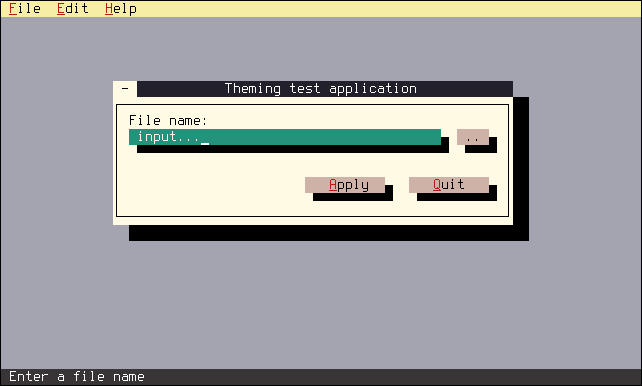
Figure 6: User theme example
File: theme.cpp
#include <final/final.h>

#include "widget-color-theme.h"
#include "color-palette-theme.h"

using namespace finalcut;

class DialogWidget final : public FDialog
{
  public:
    explicit DialogWidget (FWidget* parent = nullptr)
      : FDialog{"Theming test application", parent}
    {
      Input.setLabelText("File name:");
      Input.setLabelOrientation(FLineEdit::LabelOrientation::Above);
      Input.setStatusBarMessage("Enter a file name");
      Browse.addCallback
      (
        "clicked",
        this, &DialogWidget::cb_FileBrowse
      );
      Apply.setStatusBarMessage("Apply settings");
      Quit.setStatusBarMessage("Exit the program");
      Quit.addCallback
      (
        "clicked",
        finalcut::getFApplication(),
        &finalcut::FApplication::cb_exitApp,
        this
      );
      Open.addCallback
      (
        "clicked",
        this, &DialogWidget::cb_FileBrowse
      );
    }

  private:
    void initLayout()
    {
      setGeometry (FPoint{15, 5}, FSize{50, 9});
      Input.setGeometry (FPoint{2, 2}, FSize{39, 1});
      Browse.setGeometry (FPoint{43, 2}, FSize{4, 1});
      Apply.setGeometry (FPoint{24, 5}, FSize{10, 1});
      Quit.setGeometry (FPoint{37, 5}, FSize{10, 1});
      FDialog::initLayout();
    }

    void cb_FileBrowse()
    {
      auto file_name = FFileDialog::fileOpenChooser(this);

      if ( ! file_name.isEmpty() )
      {
        Input.setText(file_name);
        Input.redraw();
      }
    }

    FMenuBar        MenuBar{this};
    FMenu           File{"&File", &MenuBar};
    FMenuItem       New{"&New", &File};
    FMenuItem       Open{"&Open...", &File};
    FMenu           Edit{"&Edit", &MenuBar};
    FMenuItem       Undo{"&Undo", &Edit};
    FMenu           Help{"&Help", &MenuBar};
    FMenuItem       About{"&About", &Help};
    FStatusBar      StatusBar{this};
    FLineEdit       Input{"input...", this};
    FButton         Browse{"..", this};
    FButton         Apply{"&Apply", this};
    FButton         Quit{"&Quit", this};
};

auto main (int argc, char* argv[]) -> int
{
  FApplication app(argc, argv);

  // Set the widget color theme
  app.setColorTheme<BeeColorTheme>();

  // Set the color palette theme
  FVTerm::getFOutput()->setColorPaletteTheme<BeeColorPalette>();

  DialogWidget dialog(&app);
  FWidget::setMainWidget(&dialog);
  dialog.show();
  return app.exec();
}
Save the code as theme.cpp and compile it using the following GCC command:
g++ theme.cpp -o theme -O2 -lfinal -std=c++14