Soccerize Football is full-stack, event-driven real-time football simulation app supporting real-time goals, cards (yellow or red), and commentary powered by AWS services- Simple Queue Service(SQS), Lambda, DynamoDB, DynamoDB Stream, WebSocket APIs, along with Express Server and React with Vite.


Soccerize is a real-time football commentary and scoring app powered by:
- WebSocket (AWS API Gateway)
- AWS SQS + Lambda + DynamoDB Streams
- CI/CD with Jenkins, GitLab, ArgoCD
- Kubernetes (KIND - in kind-cluster branch/EKS in eks-deploy branch)
This diagram illustrates how the entire AWS infrastructure is set up — including VPC, subnets, worker nodes, ALB, traffic routing, SQS, Lambda, DynamoDB, and WebSocket delivery.

This diagram shows how the React frontend, Node.js backend, AWS services, and the CI/CD pipeline (Jenkins + GitLab + ArgoCD) work together to deliver real-time updates.

- React.js (Vite) – Uses React with Vite
- WebSocket Client – On load of frontend, auto-connects to WedSocket API for real-time commentary
- Node.js + Express.js – Handles API endpoints for goals/cards events and sends events to AWS SQS
- AWS SDK (v3) – Publishes messages and interacts with AWS services programmatically
- Amazon SQS – Buffers real-time football events before processing
- AWS Lambda –
- Event Processor Lambda: Consumes SQS messages and inserts them into DynamoDB
- Broadcaster Lambda: Triggered by DynamoDB Streams to push commentary to clients
- Amazon DynamoDB – Stores event data(goal/card) and active WebSocket connections
- DynamoDB Streams – Emits changes to trigger the Broadcaster Lambda
- API Gateway (WebSocket) – Pushes commentary to all connected frontend clients in real time
- Docker – Containerizes all services (frontend and backend) for consistent builds
- Docker Compose – (Optional for local testing) Spins up multi-container environments
- Amazon EKS – Cluster provisioned via
eksctlwith managed node groups in private subnets - Ingress Controller (ALB) – Routes external traffic to internal services securely
- ConfigMaps & Secrets – Injects runtime variables and credentials securely into pods
- GitLab – Source control with branches:
dev,kind-cluster, andeks-deploy - Jenkins CI –
- Pulls code on push to
eks-deploybranch - Runs SonarQube for code quality and Trivy for files scanning (DevSecOps)
- Builds and tags Docker images through passed parameters
- Pushes images to Docker Hub
- Pulls code on push to
- Jenkins CD –
- Updates Kubernetes manifests with the new Docker image tag passed down from Jenkins CI
- Commits and Pushes back to GitLab (GitOps)
- ArgoCD – Setup ArgoCD server, creates an application, watches the Git repo and syncs updated manifests to EKS cluster
- Prometheus – Collects metrics from Pods, Nodes, and Services
- Grafana – Visual dashboards for observability
- Email Notification – Sent on Jenkins job completion (success/failure)
Fully automated workflow powered by GitLab, Jenkins, ArgoCD, and GitOps best practices.

- Developer pushes to the
eks-deploybranch in GitLab - Developer manually triggers the Jenkins CI pipeline by passing the frontend and backend image tag as parameters.
- Clones the repository
- Runs static code analysis using SonarQube
- Scans the project files with Trivy for vulnerabilities
- Builds Docker images for frontend and backend
- Tags the images based on version
- Pushes images to Docker Hub


- Uses the new image tag as input
- Updates Kubernetes manifests with the new tag
- Commits and pushes updated manifests back to the GitLab repo


- ArgoCD watches the GitLab repository
- On detecting new changes:
- Pulls updated manifests
- Syncs them to the EKS Kubernetes cluster
- Prometheus collects metrics from pods and nodes
- Grafana visualizes metrics in real-time dashboards
- Email alerts are sent on CI/CD success or failures
- Code Quality → SonarQube
- Image Vulnerability Scans → Trivy
- GitOps-Style Deployment → ArgoCD
Soccerize is a real-time football commentary application that provisions AWS resources using Infrastructure-as-Code (Terraform).
- Remote state management (via S3 & DynamoDB) is used for core services: SQS, Lambda, DynamoDB, WebSocket API.
- Local state files are used for foundational infrastructure like VPC, Subnets, and EC2.
First, we need to create an S3 bucket and a DynamoDB table to store Terraform state remotely and lock it during execution.
Location: ~/projects/soccerize/bootstrap/main.tf
cd ~/projects/soccerize/bootstrap
terraform init
terraform apply
This provisions
- soccerize-tf-state S3 bucket for storing .tfstate remotely
- soccerize-tf-lock DynamoDB table for state locking
Location: ~/projects/soccerize/infrastructure (Remote state is used here)
cd ~/projects/soccerize/infrastructure
terraform init
terraform apply
This provisions
- SQS queues
- DynamoDB tables
- Lambda functions
- WebSocket API Gateway
- IAM roles and permissions
Location: ~/projects/soccerize/scripts/provision-dev-bastion.sh (Local state file used here)
Instead of running Terraform manually, I have used a script to automate provisioning and extract outputs like VPC ID, subnets, and Bastion IP.
cd ~/projects/soccerize/infrastructure/envs/dev
terraform init
terraform apply
This script does the following:
-
Navigates to
infrastructure/envs/dev/and runs:terraform initterraform apply -auto-approve
-
Provisions the following AWS resources:
- VPC
- Public & Private Subnets
- NAT Gateway
- EC2 Bastion Host
- Security Groups
-
Captures important Terraform outputs automatically:
vpc_idprivate_subnets→ extracts Subnet A & Subnet Bbastion_public_ipkey_pair_name
-
Generates Kubernetes config files using the captured outputs and environment variables:
cluster-config.ymlnodegroup-config.yml
Generation is done using
envsubst:envsubst < cluster-config.tpl.yml > cluster-config.yml envsubst < nodegroup-config.tpl.yml > nodegroup-config.yml
- Two files gets generated under
~/projects/soccerize/infrastructure/eks-clustercluster-config.yml and nodegroup-config.yml
Once the script finishes running, you’ll see your VPC ID, Subnets, Bastion EC2 public IP and SSH key name printed in the terminal.
To connect to the Bastion from your local machine:
ssh -i ~/projects/soccerize/key-name ubuntu@<BASTION_PUBLIC_IP> sudo apt update && sudo apt upgrade -y
sudo apt install -y git unzip curl jq build-essentialsudo apt update
sudo apt install docker.io -y
sudo systemctl enable --now docker
sudo usermod -aG docker $USER && newgrp dockerVerify Docker:
docker psThe AWS CLI is required to authenticate and interact with AWS resources from your local terminal.
curl "https://awscli.amazonaws.com/awscli-exe-linux-x86_64.zip" -o "awscliv2.zip"
unzip awscliv2.zip
sudo ./aws/install
rm -rf awscliv2.zip aws/
Verify AWS
aws --versionaws configureProvide your AWS Access Key ID, AWS Secret Access Key, Default Region, and Output format.
kubectl is the command-line tool used to interact with your Kubernetes clusters.
curl -LO "https://dl.k8s.io/release/v1.33.2/bin/linux/amd64/kubectl"
chmod +x kubectl
sudo mv kubectl /usr/local/bin/
Verify kubectl
kubectl versioneksctl is the official CLI tool for managing Amazon EKS clusters. We'll use it to create and configure our Kubernetes cluster in AWS.
curl -sL "https://github.com/eksctl-io/eksctl/releases/latest/download/eksctl_$(uname -s)_amd64.tar.gz" | tar xz -C /tmp
sudo mv /tmp/eksctl /usr/local/bin
Verify eksctl
eksctl versionWe'll create the EKS cluster from our Bastion EC2 instance using configuration files stored in a GitLab repository.So far, we’ve generated but not pushed cluster-config.yml and nodegroup-config.yml. First, push those files to your GitLab repo before proceeding.
This key allows the Bastion to securely connect to GitLab and clone your repo.
ssh-keygen -t rsa -C "<your_email>" -f ~/.ssh/gitlabkeyGenerated files:
~/.ssh/gitlabkey→ private key~/.ssh/gitlabkey.pub→ public key
- Go to GitLab > User Settings > SSH Keys
- Paste the content of
~/.ssh/gitlabkey.puband click Add Key
eval $(ssh-agent -s)
ssh-add ~/.ssh/gitlabkeymkdir -p ~/projects
cd ~/projects
git clone -b eks-deploy git@gitlab.com:<your-username>/<your-repo>.git
cd soccerize
git branch
#you should see eks-deployFiles to look for:
- eks-cluster/ ├── cluster-config.yml └── nodegroup-config.yml
cd eks-cluster
eksctl create cluster -f cluster-config.yml
Verify Cluster
kubectl versionIf you see this error: Unable to connect to the server: dial tcp ... i/o timeout It means the Bastion cannot reach the EKS control plane (port 443 is blocked).
Fix Security Group Ingress from Bastion to EKS Cluster SG
aws ec2 authorize-security-group-ingress \
  --group-id <CLUSTER-SG-ID> \
  --protocol tcp \
  --port 443 \
  --source-group <BASTION-SG-ID> \
  --region <DEFAULT-REGION>
Verify again
kubectl versionExpected: Client Version: v1.33.2 Server Version: v1.30.x-eks-xxxxx You're now fully connected to the EKS cluster from Bastion
After the cluster is created, run the following command from the Bastion EC2 instance:
aws eks update-kubeconfig --name <CLUSTER-NAME> --region <DEFAULT-REGION>This command:
- Retrieve the cluster details from AWS
- Add or update the kubeconfig file at ~/.kube/config
- Allow kubectl to authenticate with the EKS API
Run the following command to list all services running in the default namespace:
kubectl get svc- Returns the default Kubernetes Service of TYPE CLUSTER IP- the virtual IP of the Kubernetes Service.
- Provisions worker nodes based on your nodegroup-config.yml
eksctl create nodegroup -f nodegroup-config.ymlVerify Nodes
kubectl get nodes- Provisions two worker nodesacross two AZ's inside private subnets.
eksctl utils associate-iam-oidc-provider --region <DEFAULT-REGION> --cluster <CLUSTER-NAME>> --approvecurl -o iam_policy.json https://raw.githubusercontent.com/kubernetes-sigs/aws-load-balancer-controller/main/docs/install/iam_policy.jsonaws iam create-policy \
--policy-name AWSLoadBalancerControllerIAMPolicy \
--policy-document file://iam_policy.jsoneksctl create iamserviceaccount \
--cluster=soccer \
--region=us-east-1 \
--namespace=kube-system \
--name=aws-load-balancer-controller \
--attach-policy-arn=arn:aws:iam::211125312142:policy/AWSLoadBalancerControllerIAMPolicy \
--approvecurl https://raw.githubusercontent.com/helm/helm/master/scripts/get-helm-3 | bashhelm repo add eks https://aws.github.io/eks-charts
helm repo updatehelm upgrade -i aws-load-balancer-controller eks/aws-load-balancer-controller \
-n kube-system \
--set clusterName=<CLUSTER-NAME>> \
--set serviceAccount.create=false \
--set serviceAccount.name=aws-load-balancer-controller \
--set region=<DEFAULT-REGION>> \
--set vpcId=<VPC ID> \
--set image.tag="v2.7.1"Verify Deployment
kubectl get deployment -n kube-system aws-load-balancer-controllerkubectl apply -f namespace/
kubectl apply -f configmaps/
kubectl apply -f secrets/
kubectl apply -f deployments/
kubectl apply -f service/
kubectl apply -f ingress-resource/Important- Update Public Subnets in ingress-resource/ YAMLs For frontend-ingress.yaml and backend-ingress.yaml, update the annotation:
annotations:
  alb.ingress.kubernetes.io/subnets: <PUBLIC-SUBNET1>,<PUBLIC-SUBNET2>
  alb.ingress.kubernetes.io/target-type: ip
  #These are the public subnet IDs from your VPC, generated during the bastion + network provisioning phase (infrastructure/envs/dev)
  #Copy those values and paste into both Ingress YAMLs.
Verify ALB Ingress
kubectl get ingress -n soccerize-app
sudo apt update
sudo apt install -y docker.io
sudo systemctl start docker
sudo systemctl enable dockersudo apt install -y openjdk-17-jrecurl -fsSL https://pkg.jenkins.io/debian-stable/jenkins.io-2023.key | sudo tee \
/usr/share/keyrings/jenkins-keyring.asc > /dev/null
echo deb [signed-by=/usr/share/keyrings/jenkins-keyring.asc] \
https://pkg.jenkins.io/debian-stable binary/ | sudo tee \
/etc/apt/sources.list.d/jenkins.list > /dev/null
sudo apt update
sudo apt install jenkins -y
#Start and Enable Jenkins
sudo systemctl start jenkins
sudo systemctl enable jenkins
#Check Status
sudo systemctl status jenkins
#Access Jenkins
http://<EC2-PUBLIC-IP>:8080
#Retrive the Jenkins Password
sudo cat /var/lib/jenkins/secrets/initialAdminPasswordsudo apt update
sudo apt install -y wget apt-transport-https gnupg lsb-releasewget -qO - https://aquasecurity.github.io/trivy-repo/deb/public.key | \
sudo gpg --dearmor -o /usr/share/keyrings/trivy.gpg
echo "deb [signed-by=/usr/share/keyrings/trivy.gpg] \
https://aquasecurity.github.io/trivy-repo/deb \
$(lsb_release -cs) main" | \
sudo tee /etc/apt/sources.list.d/trivy.list > /dev/nullsudo apt update
sudo apt install -y trivyVerify Installation
trivy --versiondocker run -itd \
--name sonarqube \
-p 9000:9000 \
-e SONAR_ES_BOOTSTRAP_CHECKS_DISABLE=true \
-v sonarqube_data:/opt/sonarqube/data \
-v sonarqube_extensions:/opt/sonarqube/extensions \
sonarqube:lts-communityVerify SonarQube
docker pshttp://<EC2-PUBLIC-IP>:9000
#Default login Username admin Password admin- Go to Jenkins Dashboard → Manage Jenkins → Plugin Manager → Available Plugins
- Use the search bar and install these plugins:
- OWASP Dependency-Check Plugin
- SonarQube Scanner
- Docker Pipeline
- Pipeline: Stage View
- Blue Ocean
This section explains how to securely integrate Jenkins with SonarQube for the code analysis as part of CI/CD pipeline.
-
Login to your SonarQube instance:
http://<EC2-IP>:9000 -
Navigate to:
Administration → Security → Users → Tokens -
Click Generate Token
- Name:
jenkins-token(or any name of your choice)
- Name:
-
Copy the token and save it temporarily.
we won’t be able to see it again later.
-
Open Jenkins and go to:
Manage Jenkins → Credentials → (Global) → Add Credentials -
Fill in the following:
- Kind:
Secret text - Secret:
<paste the token copied from SonarQube> - ID:
sonar - Description:
SonarQube Access Token
- Kind:
- Navigate to:
Manage Jenkins → Global Tool Configuration - Scroll down to SonarQube Scanner section.
- Configure the tool:
- Name:
SonarScanner - Check Install automatically
- Name:
-
Go to:
Manage Jenkins → Configure System -
Find the SonarQube servers section.
-
Add the following:
- Name:
SonarQube - Server URL:
http://<EC2-IP>:9000 - Server authentication token: Select the
sonarcredential added earlier
- Name:
-
Visit SonarQube Webhooks:
http://<EC2-IP>:9000/admin/webhooks -
Click Create and fill in:
- Name:
jenkins-webhook - URL:
http://<JENKINS-EC2-IP>:8080/sonarqube-webhook/
- Name:
-
Click Save
The webhook ensures that SonarQube sends analysis results back to Jenkins after scanning is complete.
This section explains how to integrate GitLab with Jenkins
- Login to your GitLab account.
- Navigate to:
User Settings → Access Tokens - Fill in the token details:
- Name:
gitlab-token - Scopes:
read_repository,write_repository,api
- Name:
- Click Create Personal Access Token.
- Copy and store the token securely.
we won’t be able to see it again once we leave the page.
- Open Jenkins and go to:
Manage Jenkins → Credentials → (Global) → Add Credentials - Select:
- Kind:
Username with password - Username:
<your-gitlab-username> - Password:
<paste the GitLab personal access token>
- Kind:
- Provide:
- ID:
GitlabCred - Description:
GitLab PAT for Jenkins Integration
- ID:
- Click OK to save.
- Navigate to Jenkins → Manage Jenkins → Plugins.
- Under the Available tab, search for:
GitLab Plugin. - Select and install the plugin.
- Restart Jenkins if prompted.
-
Go to Jenkins → Manage Jenkins → Configure System.
-
Scroll down and find the GitLab section.
-
Fill in the connection details:
- Connection Name:
gitlab - GitLab Host URL:
https://gitlab.com - Credentials:
- Click Add and enter your GitLab Personal Access Token (PAT).
- Select the created credential from the dropdown.
- Connection Name:
-
Click Test Connection to verify the setup.
-
Finally, click Save.
This section explains:
- Installing Argo CD on our EKS cluster
- Accessing Argo CD UI securely via browser
- Connecting GitLab repository for GitOps operations
# Step 1: Create Argo CD Namespace
kubectl create namespace argocdkubectl apply -n argocd -f https://raw.githubusercontent.com/argoproj/argo-cd/stable/manifests/install.yamlwatch kubectl get pods -n argocdsudo curl --silent --location -o /usr/local/bin/argocd \
https://github.com/argoproj/argo-cd/releases/download/v2.4.7/argocd-linux-amd64
sudo chmod +x /usr/local/bin/argocdkubectl get svc -n argocdkubectl port-forward svc/argocd-server -n argocd 8081:443Run this command on your local machine to forward Argo CD to your browser:
ssh -i terra-key -L 8080:localhost:8081 ubuntu@<EC2-PUBLIC-IP>
Then open your browser and go to:
`http://localhost:8080`
Default credentials:
- Username:
admin - Password: Run this command to retrieve it:
kubectl -n argocd get secret argocd-initial-admin-secret \
-o jsonpath="{.data.password}" | base64 -d && echo- Use the output password to log in to the Argo CD UI.
After logging in to the Argo CD UI:
- Click the user icon in the top-right corner.
- Select Change Password.
- Enter your Current Password.
- Enter your New Password.
- Confirm the New Password.
- Re-login using your new password.
Inside the Argo CD UI:
- Navigate to Settings → Repositories → Connect Repo.
- Fill out the form with the following details:
- Type: Git
- Project: default
- Connection: HTTPS
- Repository URL:
<your-gitlab-repo> - Username:
<your-gitlab-username> - Password (GitLab personal access token):
<your-gitlab-PAT>
- Click Connect
This section describes the process of creating an Argo CD Application that syncs with your Gitlab repository and deploys a manifest from a specific path ie k8s/dev and branch eks-deploy in EKS Cluster
Check connected clusters using:
argocd cluster listSERVER NAME STATUS MESSAGE https://kubernetes.default.svc in-cluster Successful cluster has no application and is not monitored
Follow these steps:
- Open your browser and go to the Argo CD UI
Usually accessible via:
http://localhost:8080(Ensure you have an SSH port-forward session running) - On the Argo CD dashboard, click on the
+ NEW APPbutton in the top menu.
After clicking NEW APP in the Argo CD UI, fill out the form with the following details:
- Application Name:
soccerize-app - Project Name:
default - Sync Policy: Select
Automatic
Tick these boxes:
PRUNE RESOURCESSELF HEALAUTO-CREATE NAMESPACE
Provide the following Git details in the application form:
- Repository URL:
<your-gitlab-repo> - Revision (Branch):
<your-brachname> - Path:
k8s/dev<place-where-manifests-live>
- Cluster URL:
https://kubernetes.default.svc - Namespace:
<your-namespace-of-soccerizeapp>

To configure the Shared Library in Jenkins for your pipeline:
- Go to Manage Jenkins → System.
- Search for Global Trusted Pipeline Libraries.
- Add a new library with the following details:
- Name:
Shared - Default Version:
eks-deploy<your-gitlab-repo-branch-name> - Project Repository:
<jenkins-shared-lib><which-we-will-create-in-next-step> - Credentials: Select your GitLab credentials (
<your-gitlab-credential>)
- Name:
- Save the configuration. Your Jenkins pipeline can now use this shared library for deployments.
This guide explains how to create and use a Jenkins Shared Library repository hosted on GitLab for reusable pipeline code.
- Create a new repository in GitLab named
jenkins-shared-lib. - Initialize it with a README (optional).
Open your terminal and run locally:
cd ~/projects
git clone <gitlab-repo-url-for-jenkins-shared-lib>
cd jenkins-shared-libgit checkout -b eks-deploy
mkdir vars
cd vars
git add vars/*.groovy
git commit -m "Add reusable pipeline scripts for eks-deploy"
git push origin eks-deployAt the top of your Jenkins pipeline script, include the shared library by adding:
@Library('Shared') _
# code
steps #{
      #  build() # Calls build.groovy in vars/
#}- Navigate to Manage Jenkins → Credentials.
- Add new credentials with the following details:
- Kind: Username with password
- Username:
<your-dockerhub-username> - Password:
<your-dockerhub-PAT> - ID:
docker - Description:
dockerhub creds
- Save the credentials.
You can now reference these credentials in your Jenkins pipelines using the ID docker.
This guide explains how to set up two Jenkins pipelines:
- Soccerize-CI – Continuous Integration
- Soccerize-CD – Continuous Deployment
- Go to Jenkins → New Item
- Name:
Soccerize-CI - Type: Pipeline
- Click OK
- Description:
This is a soccerize-ci pipeline - Tick:
Discard old builds- Days to keep builds:
1 - Max builds to keep:
2
- Days to keep builds:
- Check:
This project is parameterized - Add the following String Parameters:
FRONTEND_DOCKER_TAGBACKEND_DOCKER_TAG
- GitLab Connection: Select
gitlabfrom the dropdown (must be configured in Jenkins system config, if not then you need to install Gitlab Pluggins)
- Definition:
Pipeline script from SCM- SCM:
Git - Repository URL:
<your GitLab repository URL> - Credentials:
<your GitLab PAT credential> - Branch Specifier:
eks-deploy - Script Path:
Jenkinsfile
- SCM:
- Check:
Trigger builds remotely - Authentication Token:
soccerize-ci-token
- Go to Jenkins → New Item
- Name:
Soccerize-CD - Type: Pipeline
- Click OK
- Description:
This is a soccerize-cd pipeline - Tick:
Discard old builds- Days to keep builds:
1 - Max builds to keep:
2
- Days to keep builds:
- GitLab Connection: Select
gitlabfrom the dropdown
- Definition:
Pipeline script from SCM- SCM:
Git - Repository URL:
<your GitLab repository URL> - Credentials:
<your GitLab PAT credential> - Branch Specifier:
*/eks-deploy - Script Path:
GitOps/Jenkinsfile
- SCM:
- Check:
Trigger builds remotely- Authentication Token:
soccerize-ci-token
- Authentication Token:
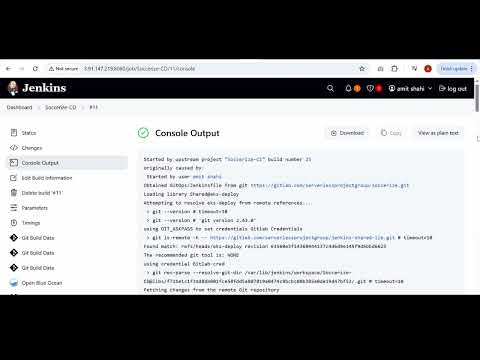
Soccerize-CIpoints to the root-levelJenkinsfileSoccerize-CDpoints toGitOps/JenkinsfileNow we need to write the corresponding pipeline code in eachJenkinsfile
curl https://raw.githubusercontent.com/helm/helm/main/scripts/get-helm-3 | bashhelm repo add prometheus-community https://prometheus-community.github.io/helm-charts
helm repo updatekubectl create namespace monitoringhelm install prometheus prometheus-community/kube-prometheus-stack \
--namespace monitoring
kubectl port-forward svc/prometheus-grafana 3000:80 -n monitoringNow visit: http://localhost:3000 from your local server Default Grafana Credentials:
- Username: admin
- Password: prom-operator
kubectl port-forward svc/prometheus-kube-prometheus-prometheus 9090:9090 -n monitoringNow visit: http://localhost:9090 from your local server
ssh -i terra-key \
  -L 3000:localhost:3000 \
  -L 9090:localhost:9090 \
  ubuntu@<EC2-PUBLIC-IP>

This project is licensed under the MIT License.
Feel free to use, modify, and distribute this software with proper attribution.
See the LICENSE file for full license details.