You signed in with another tab or window. Reload to refresh your session.You signed out in another tab or window. Reload to refresh your session.You switched accounts on another tab or window. Reload to refresh your session.Dismiss alert
This project, to which I've dedicated significant time (134 files and 17901 lines of code ), is a comprehensive reservation system designed for any business. It allows you to begin by defining the layout of your establishment through an intuitive drawing tool, complete with snapping features for precision. You can easily create and modify the perimeter of your space and refine it later if needed.
In the editing phase, you can place and customize objects like tables and seats, adjusting their dimensions or removing them as desired. Once your layout is finalized, you can move to the reservation tab, where you can manage bookings by inputting details such as the name, phone number, time, email, and notes for customer preferences.
For those who prefer a more hands-off approach, the system generates a dynamic URL that allows customers to select a reservation time that best suits them. After securing a reservation, they can save the page for future reference. The reservation will then appear on your dashboard, where you can easily manage it, including the option to cancel or edit as necessary.
How To Get Started
Open Terminal:
git clone https://github.com/Sidak08/RsvpSysNext.git
cd ./RsvpSysNext
npm install
touch .env.local
Set Keys for MONGODB_URI, BASE_URL, NODE_ENV, STRIPE and STRIPE_WEBHOOK_SECRET.
npm run dev
# or
yarn dev
# or
pnpm dev
# or
bun dev
If You Are Not Automatically Redirected to the Dashboard, Click on the Manual Link or Navigate to /dashboard.
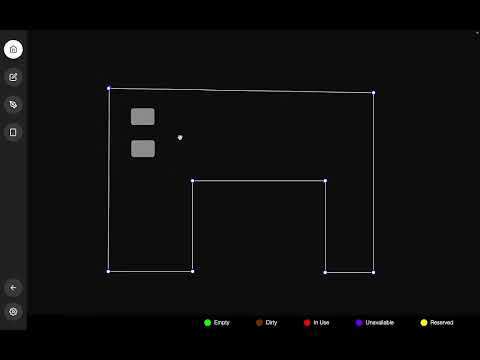
You Should End Up Here
Go to the Draw Tab and Make a Basic Layout
You Even Get Snapping and Can Edit in the Edit Tab
Now You Can Go to the Edit Tab and Place Tables
These Tables Are Resizable and Can Be Deleted
Resize: Click the Four Corners and Drag
Change Properties and Delete: These Commands Can Be Done with the Info Box at the Bottom Right
Go Back to Home
You Can Now Click on a Table to Make a Reservation for It
The Top Right Corner Contains Info About Just the Table, Including the Current and Future Status
The Bottom Right Corner Shows the Upcoming Reservations from All the Tables
Make a Reservation
If the Dot Is Green with the Selected Time and Date, You Can Click "Book"
This Pulls Up an Info Box About the Guest
Fill Out the Information If You Can or Leave It Blank
Status Box
This Shows You All of the Reservations for the Table and Lets You Make a Reservation for That Specific Table
Selecting a Reservation Pulls Up the Info Box
Upcoming Reservations
This Contains All the Upcoming Reservations for All the Tables
You Can Click on Them to See the Info Box
Info Box
When You Click on a Reservation, You Get This Box; the Reservation Is Also Highlighted for Ease of Use
You Can Edit, Delete, or View the Reservation Here
Change Info
This Is What Pops Up When You Click "Change" on a Reservation
You Can Click the Plus Sign to Add More Info in Any Column
Leaving a Row Blank Will Delete It
You Can Click "Change Time" to Change the Time
Change Time
This Pulls Up a Calendar and Time Picker
The Green Dot Indicates if the Reservation Is Valid
The Changes Are Automatically Saved if the Reservation Is Valid
Guest Booking Tab
Navigate to the Guest Booking Page
Copy the URL and Paste It in a New Tab
Guest Booking Page
This Is What the Guest Sees
The Default Booking Time Is the Current Time and Date, but They Can Choose Their Own
Once They Click "Find Time," It Returns the Three Closest Time Slots
They Can Click on the Time Slot to Book It
Guest Booking Info
Once They Click "Book," They Get This Info Box
They Have to Enter Their Name, Phone Number, and Email
Guest Booking Confirmation
Once They Enter the Info and the Server Confirms the Reservation, They Get This Page
This Page Can Be Saved by Just Copying the URL, as It Is Dynamically Generated
See the Reservation
You Can Go Back to Your Home Page and Refresh to See the Reservation
In the Future, You Would Not Have to Refresh
License
This project is licensed under the Creative Commons Attribution-NonCommercial 4.0 International License. See the LICENSE file for details.
About
I developed a reservation system that lets businesses design and refine their layout with an intuitive tool, manage bookings through an easy interface, and offer customers a dynamic URL for self-service reservations, all of which are easily managed on a central dashboard.