
Portugues (Brasil) | English
Tip
For AppImage Builds: Scrcpy-Webcam
Use your Android device as a high-quality webcam on Linux via scrcpy and v4l2loopback.
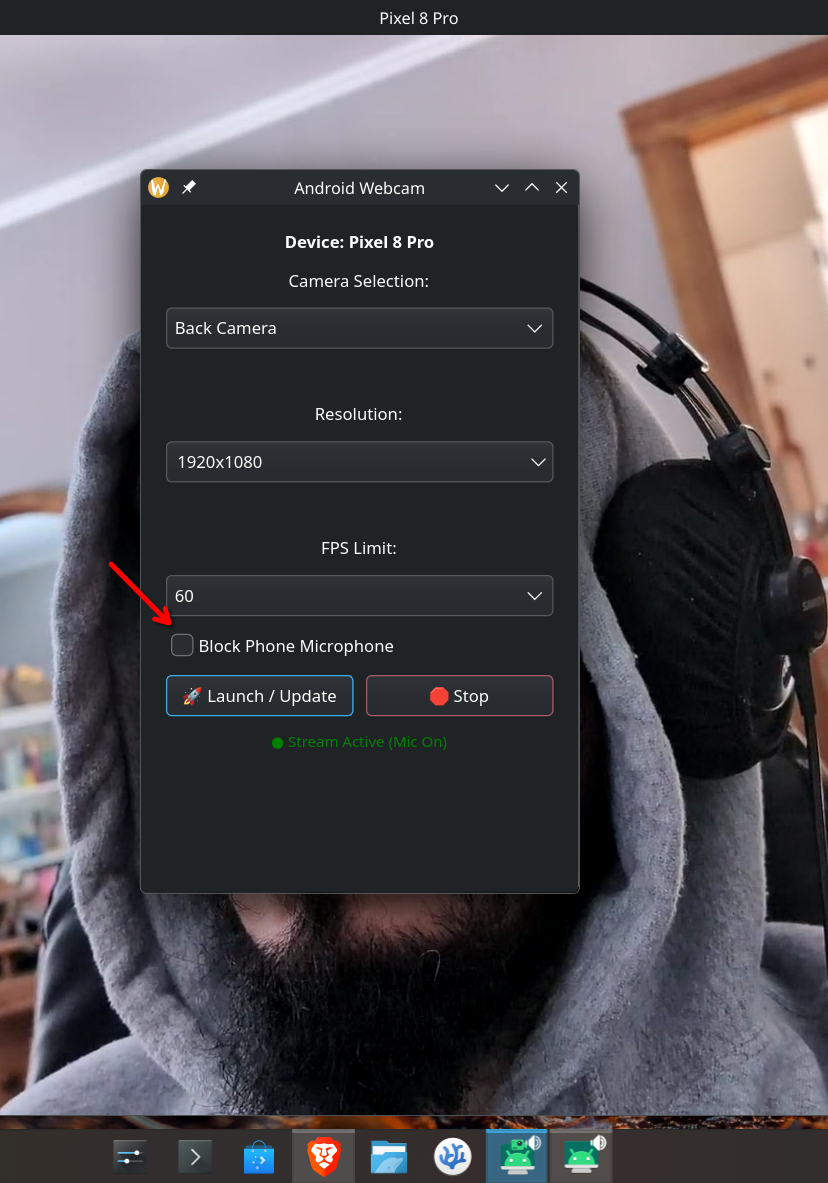
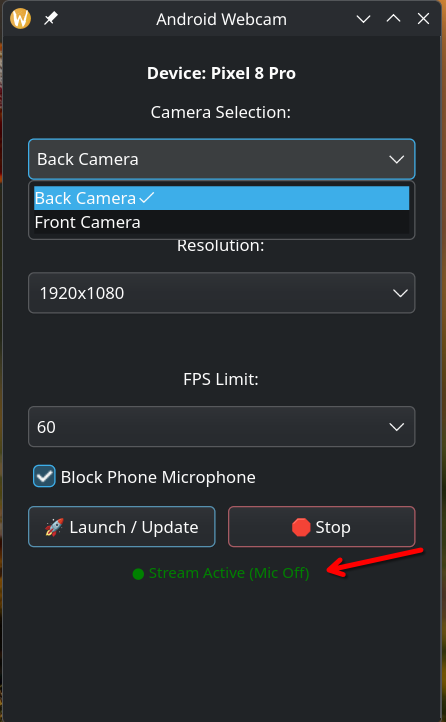
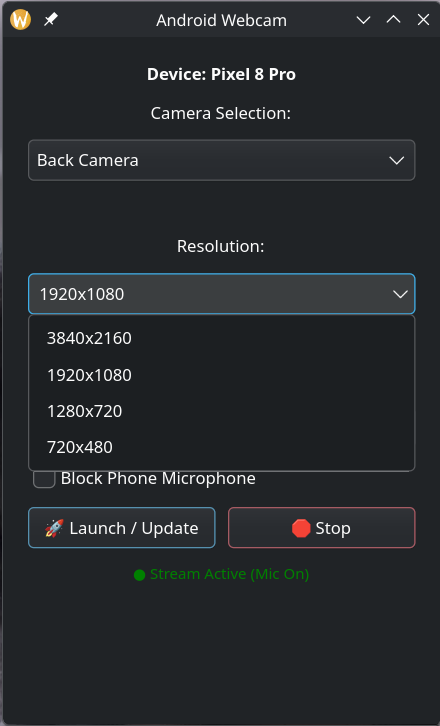
| 1. Launch & Settings | 2. Mute Microphone | 3. Change resolution |
|---|---|---|
 |
 |
 |
Before installing or building, ensure your system has the necessary drivers and tools:
sudo apt update
sudo apt install v4l2loopback-dkms v4l2loopback-utils adb ffmpeg libsdl2-2.0-0git clone https://github.com/Genymobile/scrcpy
cd scrcpy
./install_release.sh
cd ..# Install core dependencies
sudo pacman -S v4l2loopback-dkms v4l2loopback-utils android-tools ffmpeg sdl2 scrcpy dkms
# Install kernel headers (MATCH these to your running kernel)
sudo pacman -S linux-headers
# Load the module for the current session
sudo modprobe v4l2loopbacksudo apt install ./android-webcam_*_amd64.debUse the provided Arch build script to generate and install the package automatically.
Debian / Ubuntu:
sudo update-initramfs -uArch Linux:
echo "v4l2loopback" | sudo tee /etc/modules-load.d/v4l2loopback.conf
echo "options v4l2loopback devices=1 video_nr=9 card_label='Android-Webcam' exclusive_caps=1" | sudo tee /etc/modprobe.d/v4l2loopback.conf
sudo mkinitcpio -Psudo usermod -aG video $USER(Note: Log out and back in for changes to take effect.)
Standardized build scripts are provided for each distribution. Run the one that matches your OS:
chmod +x build-debian.sh build-arch.shIf you are on Debian / Ubuntu / Mint:
./build-debian.shIf you are on Arch Linux / EndeavourOS / Manjaro:
./build-arch.sh- Connect:
- Wired (USB): Plug in your phone via USB and enable USB Debugging.
- Wireless (Wi-Fi):
- From USB: Plug in phone once, then click 📶 Switch to Wi-Fi. Once connected, you can unplug the USB cable!
- Direct Wi-Fi: On the waiting screen, enter your phone's IP address (and port, e.g.
192.168.1.50:5555) and click Connect.
- Authorize: Tap Allow for the USB/Wireless debugging prompt on your phone.
- Launch: Open Android Webcam from your App Menu or Terminal.
- Configure: Select camera, resolution, and FPS, then click 🚀 Launch / Update.
- Persistent Settings: Your last selected camera, resolution, FPS, mic mute state, and wireless IP are automatically saved as the defaults for your next session. You can also explicitly click 💾 Save Current as Default.
- Select Source: In Zoom, OBS, Discord, or Google Meet, choose "Android-Webcam".
This project is built upon the incredible work of the scrcpy project.
- scrcpy GitHub: https://github.com/Genymobile/scrcpy