-
Notifications
You must be signed in to change notification settings - Fork 1
Expand file tree
/
Copy pathpublishing.qmd
More file actions
384 lines (242 loc) · 17.6 KB
/
publishing.qmd
File metadata and controls
384 lines (242 loc) · 17.6 KB
1
2
3
4
5
6
7
8
9
10
11
12
13
14
15
16
17
18
19
20
21
22
23
24
25
26
27
28
29
30
31
32
33
34
35
36
37
38
39
40
41
42
43
44
45
46
47
48
49
50
51
52
53
54
55
56
57
58
59
60
61
62
63
64
65
66
67
68
69
70
71
72
73
74
75
76
77
78
79
80
81
82
83
84
85
86
87
88
89
90
91
92
93
94
95
96
97
98
99
100
101
102
103
104
105
106
107
108
109
110
111
112
113
114
115
116
117
118
119
120
121
122
123
124
125
126
127
128
129
130
131
132
133
134
135
136
137
138
139
140
141
142
143
144
145
146
147
148
149
150
151
152
153
154
155
156
157
158
159
160
161
162
163
164
165
166
167
168
169
170
171
172
173
174
175
176
177
178
179
180
181
182
183
184
185
186
187
188
189
190
191
192
193
194
195
196
197
198
199
200
201
202
203
204
205
206
207
208
209
210
211
212
213
214
215
216
217
218
219
220
221
222
223
224
225
226
227
228
229
230
231
232
233
234
235
236
237
238
239
240
241
242
243
244
245
246
247
248
249
250
251
252
253
254
255
256
257
258
259
260
261
262
263
264
265
266
267
268
269
270
271
272
273
274
275
276
277
278
279
280
281
282
283
284
285
286
287
288
289
290
291
292
293
294
295
296
297
298
299
300
301
302
303
304
305
306
307
308
309
310
311
312
313
314
315
316
317
318
319
320
321
322
323
324
325
326
327
328
329
330
331
332
333
334
335
336
337
338
339
340
341
342
343
344
345
346
347
348
349
350
351
352
353
354
355
356
357
358
359
360
361
362
363
364
365
366
367
368
369
370
371
372
373
374
375
376
377
378
379
380
381
382
383
384
---
title: "Publishing OTTR Courses"
format:
html:
toc: true
toc-depth: 4
toc-location: right
---
Below are some examples of courses created using the [OTTR Template](https://github.com/ottrproject/OTTR_Template) and published on three platforms: Bookdown, Leanpub, and Coursera.
*Introduction to Reproducibility in Cancer Informatics:*
- [GitHub repository and source code](https://github.com/jhudsl/Reproducibility_in_Cancer_Informatics)
- [Bookdown website](https://jhudatascience.org/Reproducibility_in_Cancer_Informatics/introduction.html)
- [Leanpub course](https://leanpub.com/universities/courses/jhu/cancer-informatics-for-research-leaders)
- [Coursera course](https://www.coursera.org/learn/intro-reproducibility-cancer-informatics)
*Computing for Cancer Informatics:*
- [GitHub repository and source code](https://github.com/jhudsl/Computing_for_Cancer_Informatics)
- [Bookdown website](https://jhudatascience.org/Computing_for_Cancer_Informatics/)
- [Leanpub course](https://leanpub.com/universities/courses/jhu/cancer-informatics-computing)
- [Coursera course](https://www.coursera.org/learn/computing-for-cancer-informatics)
# Publishing with Bookdown
To publish your content using Bookdown, utilize GitHub Pages by following the [repository setup instructions](getting_started.html). Note that Bookdown is a prerequisite for Coursera and Leanpub publishing. You must publish with Bookdown before using those platforms.
As you add or rename chapters, update `_bookdown.yml` accordingly. For example, after adding `03-new_chapter_of_course.Rmd`:
```{yaml}
book_filename: "Course_Name"
chapter_name: "Chapter "
repo: https://github.com/ottrproject/OTTR_Template/ ##Make sure you update this to your GitHub Repo!!
rmd_files: ["index.Rmd",
"01-intro.Rmd",
"02-chapter_of_course.Rmd",
"03-new_chapter_of_course.Rmd", ## This is the only new line!
"about.Rmd"]
new_session: yes
delete_merged_file: true
language:
ui:
chapter_name: "Chapter "
output_dir: "docs"
```
Only a single line changes. Be careful with quotation marks (`""`) and commas (`,`).
Preview the book by running `bookdown::serve_book()` in the RStudio Console. This generates an `.rds` file you can ignore. The live preview will appear in your RStudio Viewer.
When a pull request is merged to main, [GitHub Actions](#github-actions) will re-run `bookdown::render_book()` and add the results to `main`.
# Publishing with Leanpub
OTTR includes everything needed to publish to [Leanpub](https://leanpub.com/). The [`ottrpal` package](https://github.com/ottrproject/ottrpal) handles converting content into a Leanpub-ready format, storing output in the `manuscript` folder.
::: {.callout-warning}
Do not manually edit files in the `manuscript` folder. It is auto-generated by `ottrpal` and will be overwritten.
:::
If you want quizzes and answers hidden, you will need a separate private OTTR_Quizzes repository. [Start with these instructions](publishing.html#quizzes-repository-checklist) before proceeding.
## Leanpub Rendering
The `ottrpal` package handles most formatting for links and other elements, as long as you have followed the [image formatting instructions](writing_content_courses.html#set-up-images).
GitHub Actions will attempt to convert Bookdown to Leanpub by running `ottrpal::bookdown_to_leanpub()` at the top of the repository.
### Setting up Leanpub-related GitHub Actions
When ready to publish to Leanpub, enable the following in your [`config_automation.yml`](customize-robots.html):
- `render-leanpub: yes`
- `check-quizzes: yes`
You may also configure chapter and quiz ordering. By default, `make-book-txt: TRUE` orders content by filename numbering. Set `make-book-txt: FALSE` if you want to specify ordering manually via a `Book.txt` file. Read more in the [quizzes section](#setting-up-quizzes).
After updating `config_automation.yml`, file and merge a pull request. Quiz formatting will be checked automatically and reported in a pull request comment.
File issues with the `ottrpal` package in its [GitHub repository](https://github.com/ottrproject/ottrpal/issues).
## Hosting your course on Leanpub
Finalizing a course on Leanpub can be tricky. The [Using Leanpub](https://hutchdatascience.org/Using_Leanpub/index.html) guide provides detailed help.
1. Create a [Leanpub account](https://leanpub.com/) if you do not have one.
2. Start a course:
- Click the three-line button at the far right of the top bar.
- Click the **Author** tab, then **Courses**.
- Verify your email address if prompted.
- Click `create a new course`, then **A Course**.
- Provide a title (the Course URL fills automatically).
- Select **Using Git and GitHub**.
- JHU developers: follow [this additional setup document](https://docs.google.com/document/d/18UQicXwf8d25ayKGF2BrinvRgB_R2ToVn5EDOUcxyoc/edit?usp=sharing).
- Press `add to plan`.
3. Preview a new version:
- Click the three-line menu, then the **Author** tab, then **Courses**.
- Click your course name or icon.
- Click **Preview New Version**, then `Create Preview`.
If the render fails, it is typically due to a quiz formatting error. Occasional failures may also occur due to sync lag between GitHub and Leanpub — try again if it fails once.
## Setting up quizzes {#setting-up-quizzes}
Store quizzes in the `quizzes/` directory. Use the [template quiz](https://github.com/ottrproject/OTTR_Quizzes/blob/main/quizzes/quiz_ch1.md) as a starting point. All quizzes must be written in [Markua format](https://leanpub.com/markua/read#leanpub-auto-quizzes-and-exercises).
After adding each quiz, add its filename to the `Book.txt` file at the top of the repository (not the one in `manuscript`) in the correct position. For example, with two quizzes interleaved between three chapters:
```
01-intro.md
02-chapter_of_course.md
quiz_1.md
03-chapter_of_course.md
quiz_2.md
about.md
```
Files listed with a `#` prefix in `Book.txt` are ignored by Leanpub.
You cannot have two quizzes with the same `quiz_id`. See an [example quiz here](https://github.com/ottrproject/OTTR_Quizzes/blob/main/quizzes/quiz_ch1.md).
### Leanpub quiz question types
**Standard multiple choice** — answer choices are not randomized:
```
? A question is here
a) A wrong answer
B) A correct answer has a capital letter
c) A wrong answer
d) A wrong answer
```
**Choose answers** — randomizes choices using `C)` for correct, `m)` for mandatory incorrect, and `o)` for optional incorrect. The number of answers must be at least equal to the count of correct and mandatory incorrect answers.
```
{choose-answers: 4}
? A question is here
C) The correct answer is signified with a capital C
m) A mandatory incorrect answer
m) A mandatory incorrect answer
o) An optional incorrect answer
o) An optional incorrect answer
```
Upon merging to `main`, the `check-quizzes.yml` GitHub Action validates quiz formatting and reports errors on the pull request.
### Leanpub quiz format rules
- Quizzes start and end with `{quiz}` and `{\quiz}` tags.
- No exclamation points or colons in answers.
- At least one correct answer per question.
- All question and quiz attributes must be recognized by Leanpub.
- All quizzes must be listed in `Book.txt`.
- The `choose-answers` count must be at least as large as the number of mandatory and correct answers.
## Converting quizzes from Leanpub to Coursera format
Convert quizzes to a Coursera-uploadable YAML file by running:
```{r, eval=FALSE}
ottrpal::convert_quizzes()
```
Note that images and links are not currently supported by the conversion script and must be added manually. Colons (`:`) are not allowed in prompts or answers.
[See full Coursera publishing instructions](course_publishing.html#publishing-with-coursera).
## `_Quizzes` repository checklist
- [ ] A [`GH_PAT` has been set](https://www.ottrproject.org/getting_started.html#6_Set_up_your_GitHub_personal_access_token) in both the main Template and the `_Quizzes` repository.
- [ ] [Leanpub course has been created](#hosting-your-course-on-leanpub).
- [ ] Writing mode is set to `GitHub` and linked to your main OTTR_Template repository.
- [ ] `_Quizzes` repository is set to `private`.
- [ ] `main` branch protection is configured:
- [ ] `Require pull request reviews before merging` is checked.
- [ ] `Require status checks to pass before merging` is checked.
- [ ] `Require branches to be up to date before merging` is checked.
- [ ] Repository is [enrolled in automatic updates](enroll_sync.html).
- [ ] `Book.txt` is up to date.
- [ ] [`ottrpal::bookdown_to_leanpub()` ran successfully](#leanpub-rendering).
# Publishing with Coursera
Once your content is extensively developed, consider publishing on Coursera.
::: {.callout-note}
This guide was prepared for [ITN project](https://www.itcrtraining.org/) developers at Johns Hopkins University or other Coursera partner institutions. Coursera's Educator Resource Center is the authoritative source for platform documentation.
:::
## Setting up your Coursera course
**If you are from Johns Hopkins:** Follow [this document](https://docs.google.com/document/d/1aZeOSFLkK4hZne4Vb1iaP_0H4zyhIwvbnw9sbdCFq1Y/edit?usp=sharing) and contact Ira Gooding (iragooding@jhu.edu) to create a course shell.
**If you are not from Johns Hopkins:** Set up your educator profile and course shell through your own institution.
## Converting your files for Coursera
GitHub Actions (in `render-all.yml`) renders your course in a Coursera-compatible format — identical to the standard version but without the left-side table of contents. These files are available in the `docs/no_toc` folder. A preview link is posted as a GitHub comment by `render-preview.yml`.
If quizzes were written in Leanpub format, `pull-request.yml` converts them automatically for Coursera upload. Alternatively, you can write quizzes directly on Coursera's website and download them as YAML for storage in your repository.
## Navigating to your course on Coursera
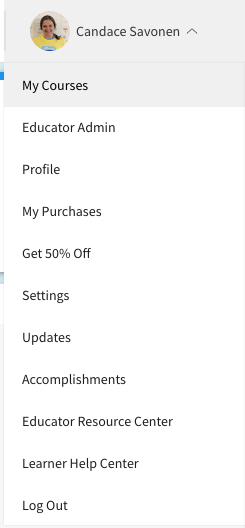
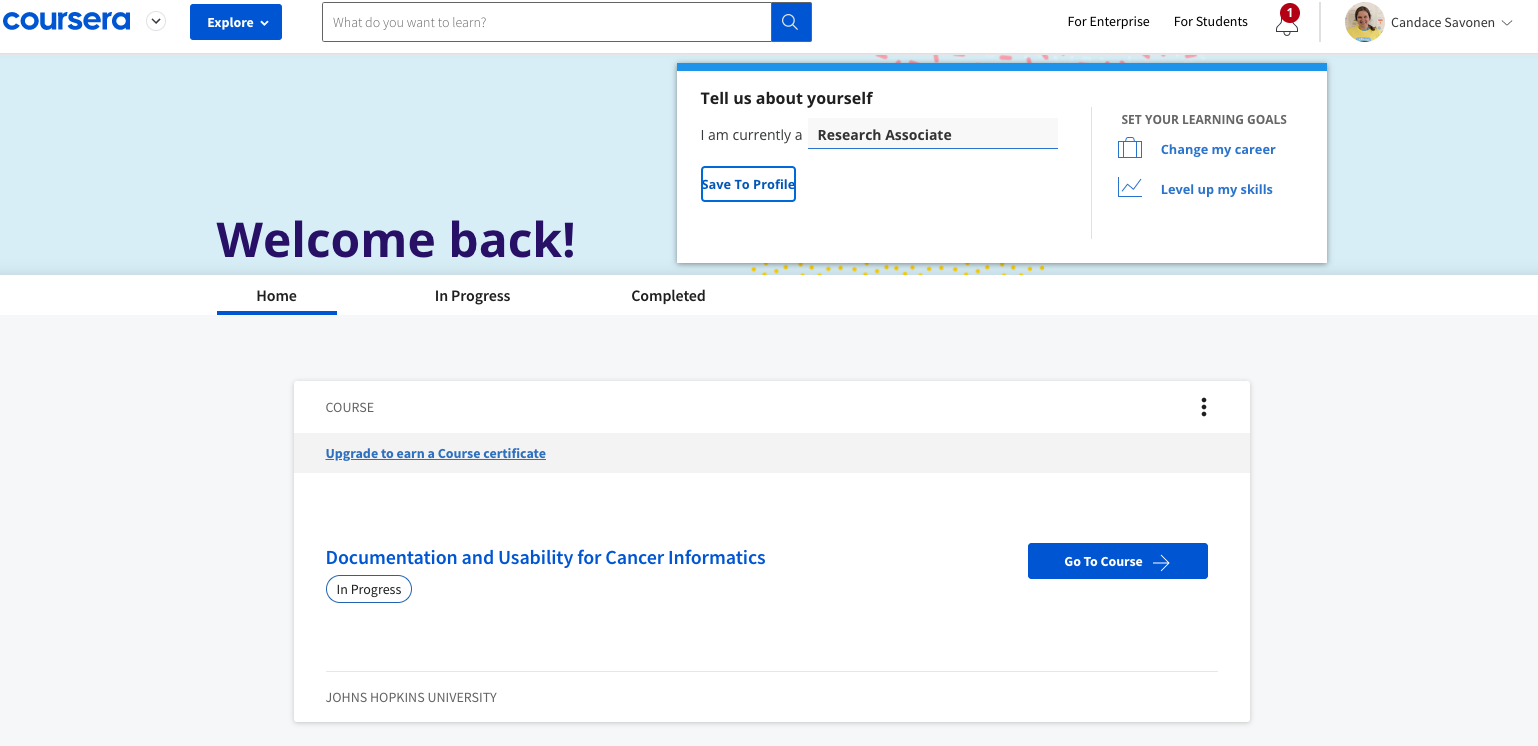
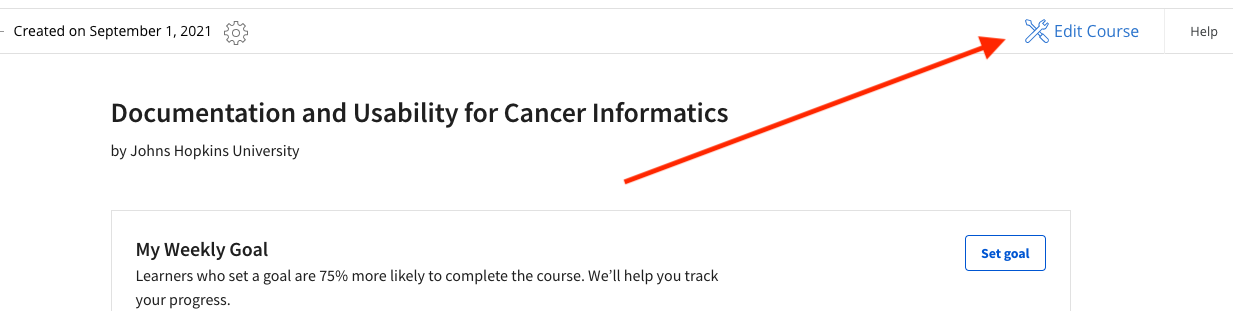
Go to **My Courses** in your Coursera profile. Your course will appear in the list. Click **Go to Course**, then **Edit Course** in the upper right corner.
Select your version (initially Version 1):
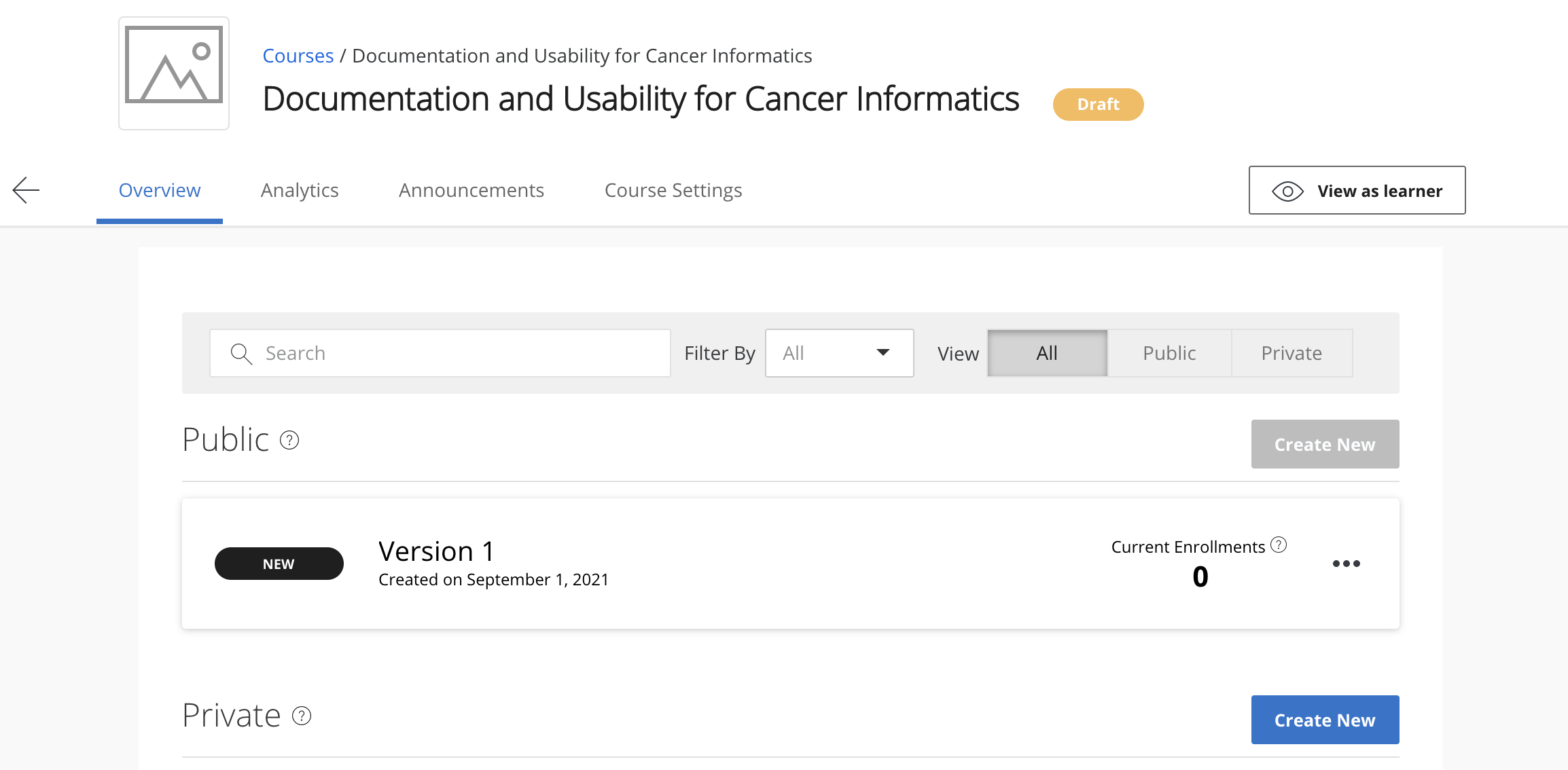
You are now on the Edit content page:
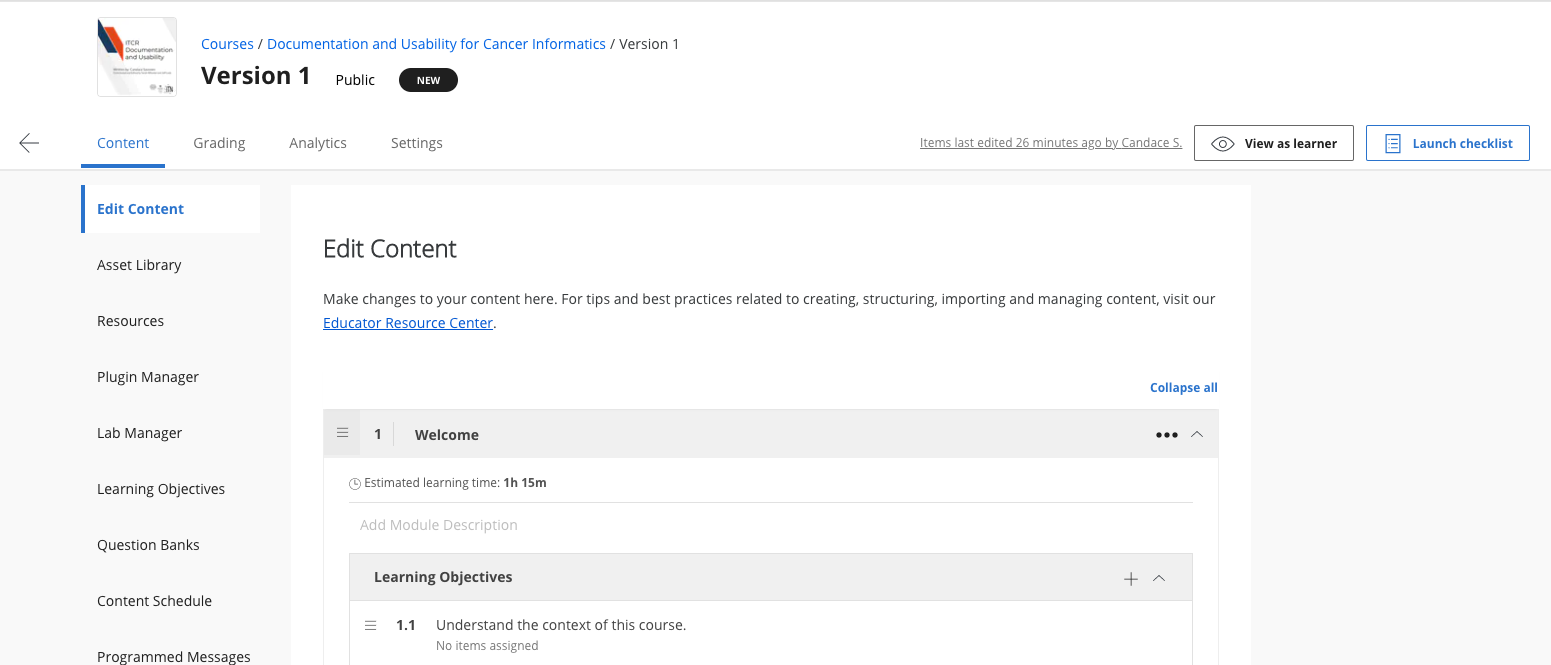
Each lesson should contain at least one chapter and one quiz. Each module represents approximately one week of learner work — plan one or two lessons per module accordingly.
Click `+ Add Lesson` to add a new lesson:
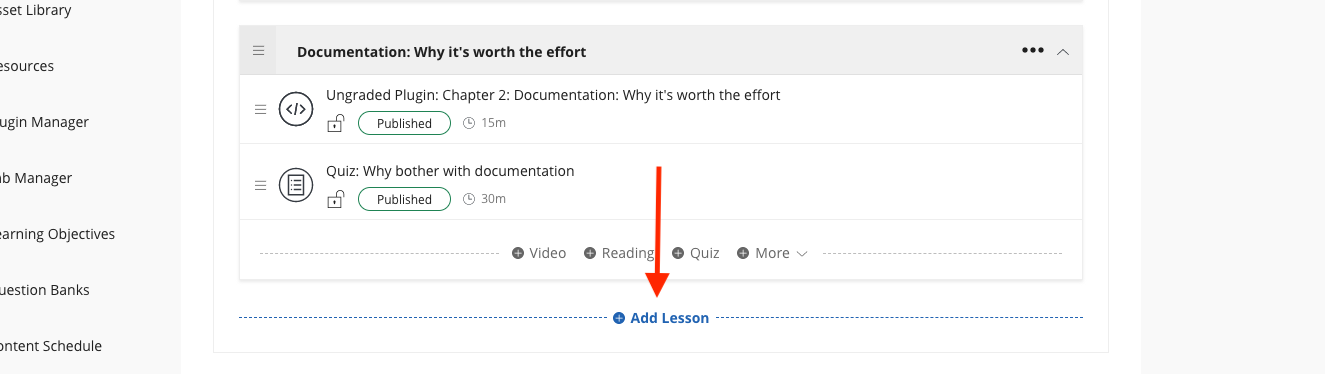
### Adding chapters to Coursera
Chapter URLs follow this pattern, using your GitHub Pages URL with `/no_toc/` inserted before the filename:
```
<main-github-pages-url>/no_toc/<html_filename>
```
Find your GitHub Pages URL under `Settings` > `Pages`. For example:
```
https://ottrproject.org/OTTR_Template/no_toc/introduction.html
```
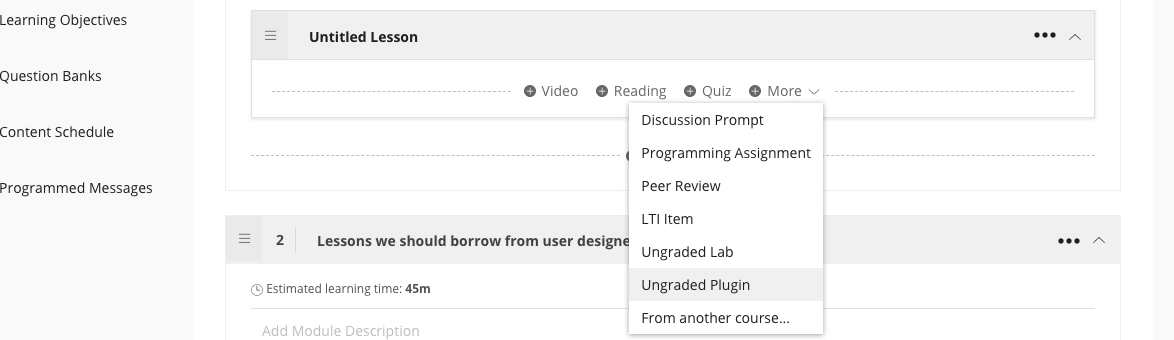
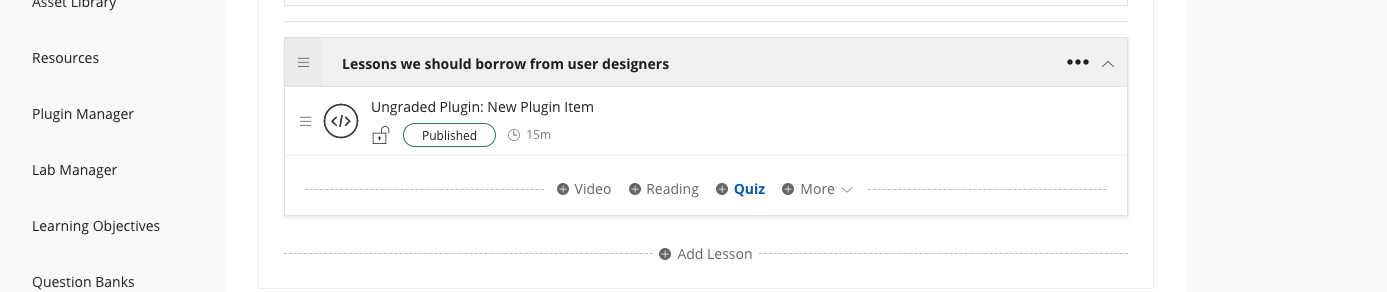
To add a chapter: in a lesson, click `+ More` and choose **Ungraded Plugin**.
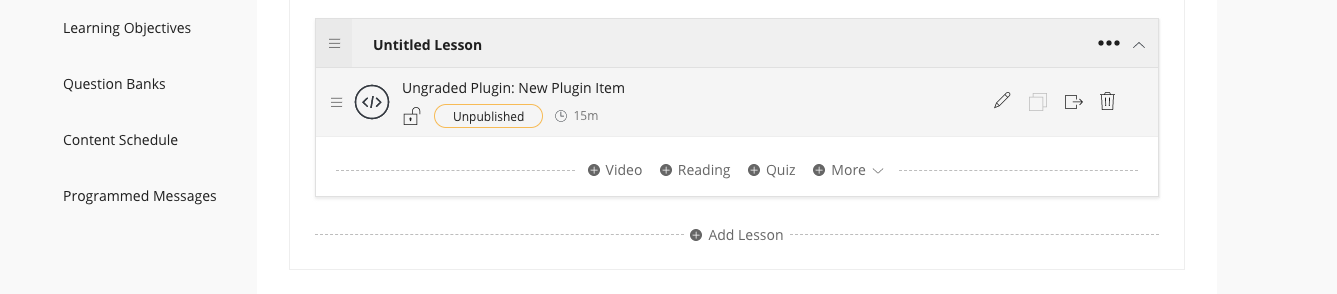
Click the edit button on the new Ungraded Plugin:
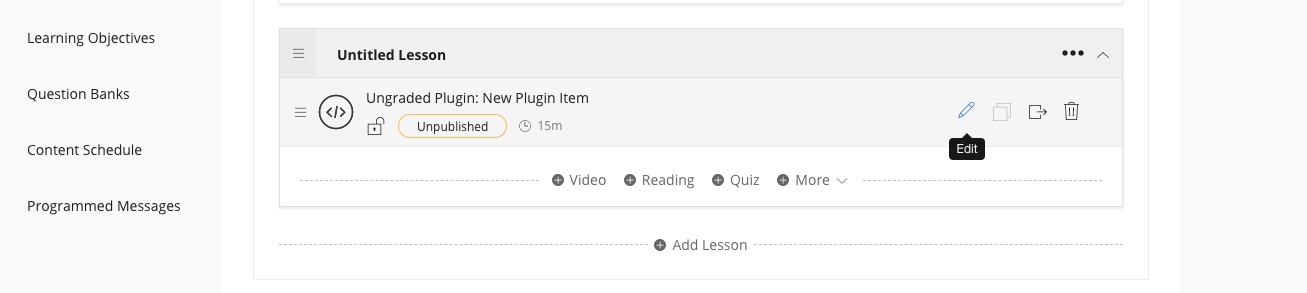
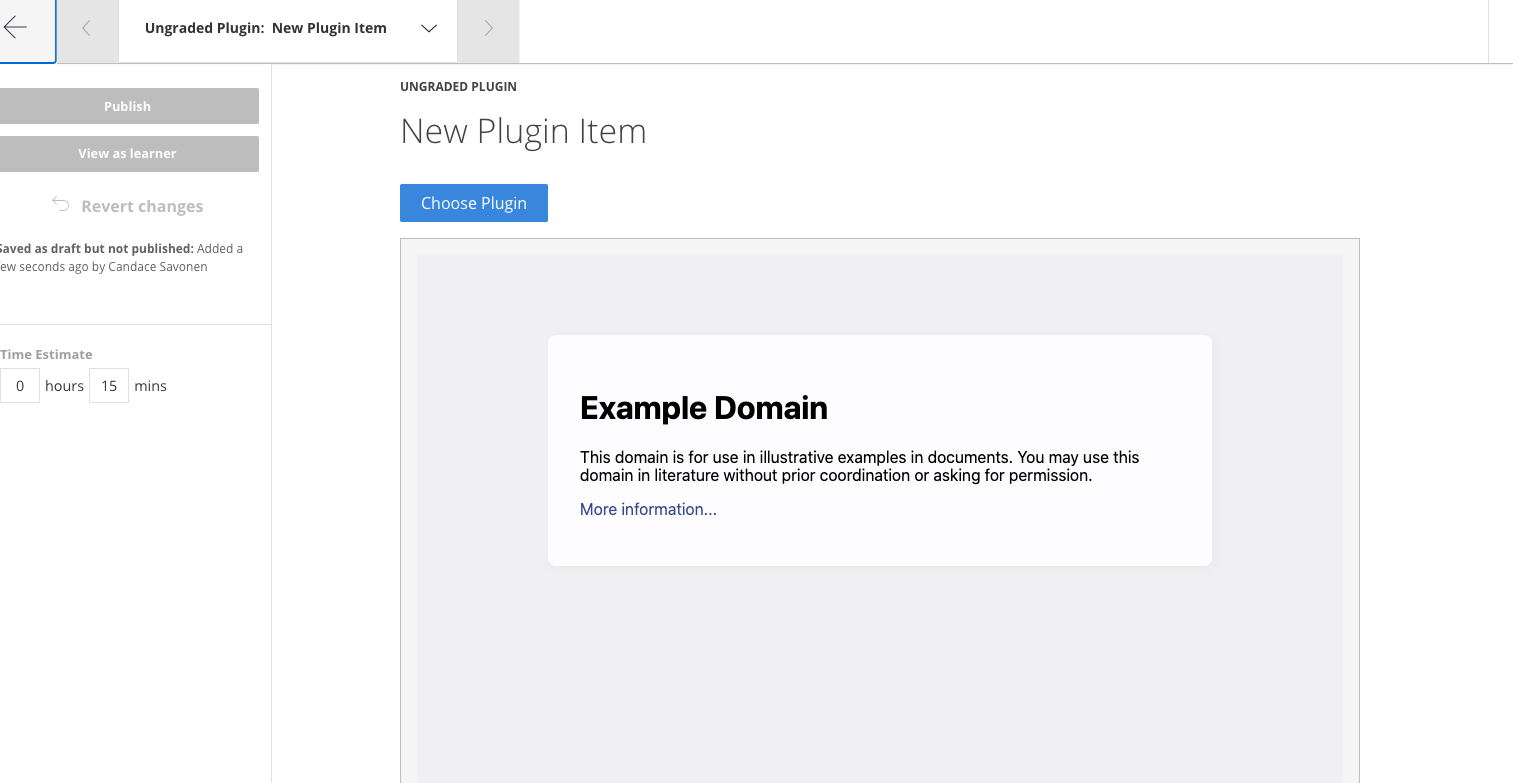
Scroll down and click **Edit Configuration**:
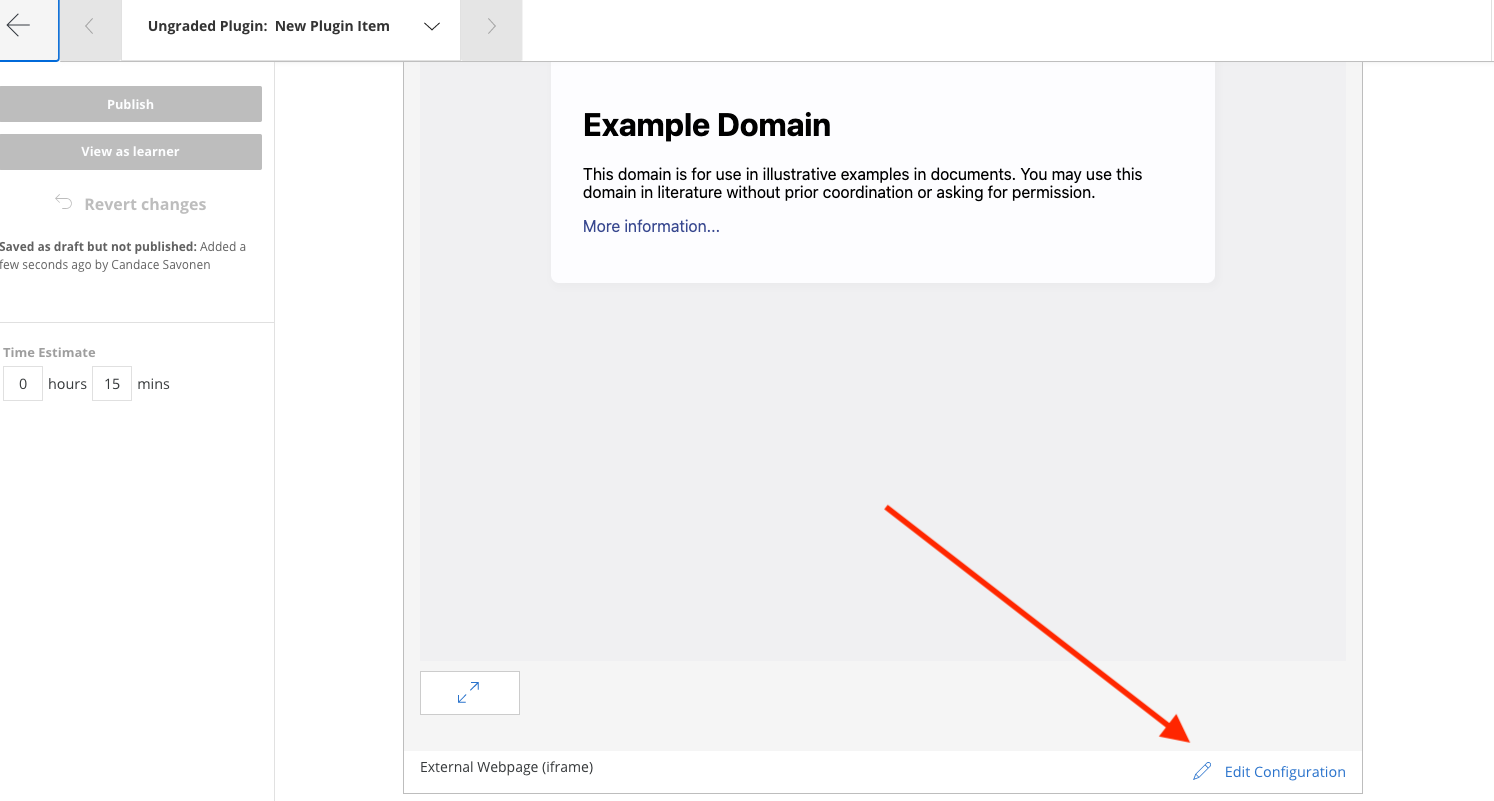
Replace the example URL with your chapter URL:
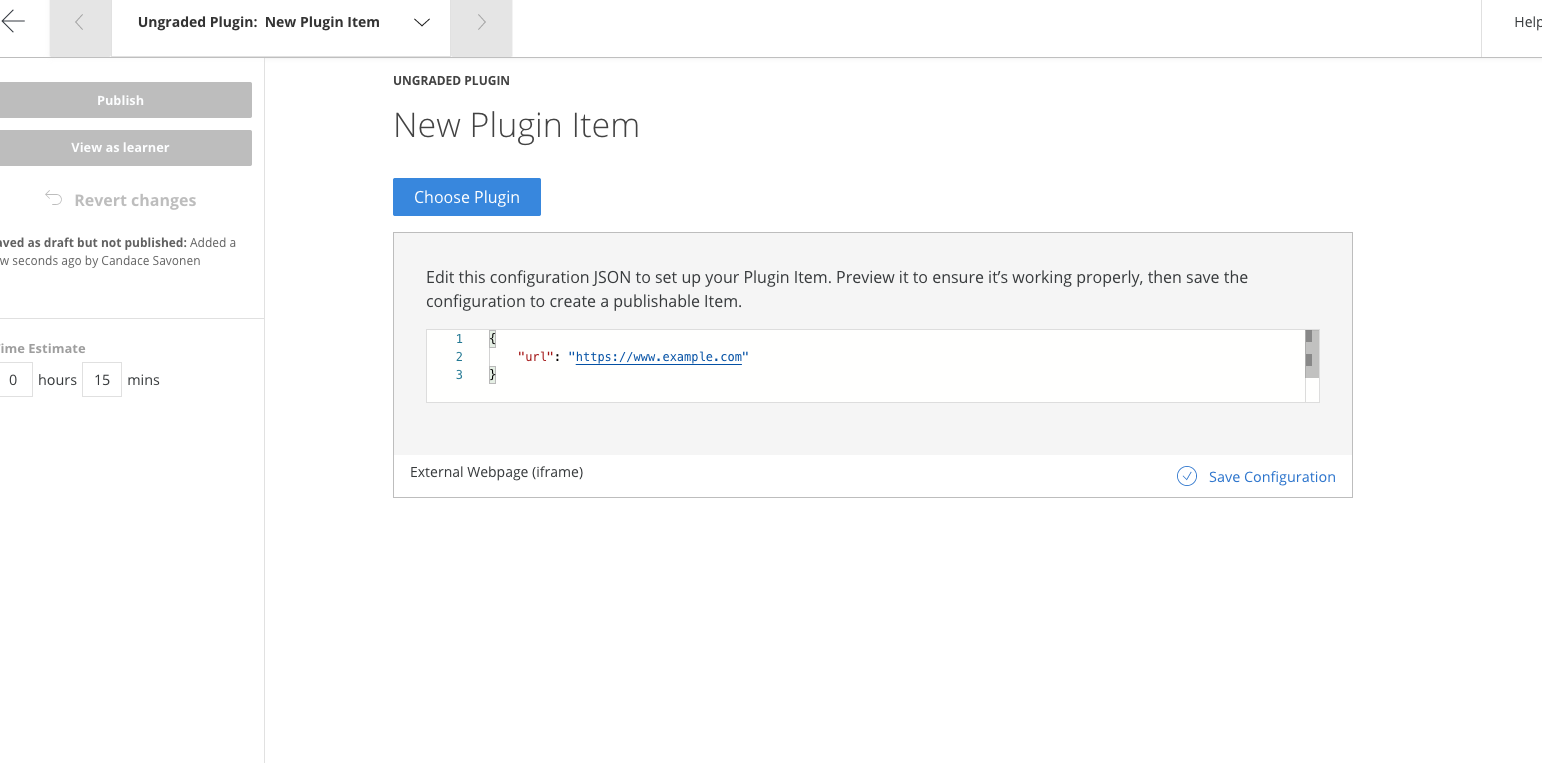
Click **Save Configuration**:
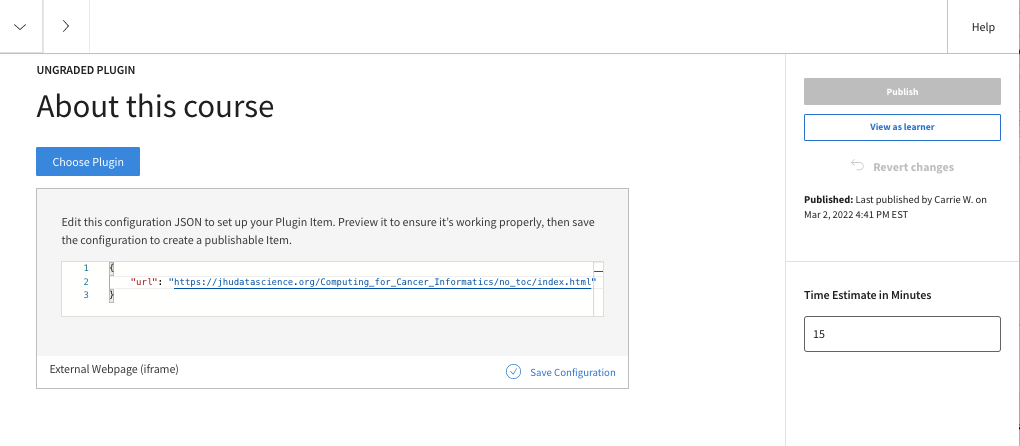
Adjust the time estimate for your content. If the URL is correct, a preview of your chapter appears:
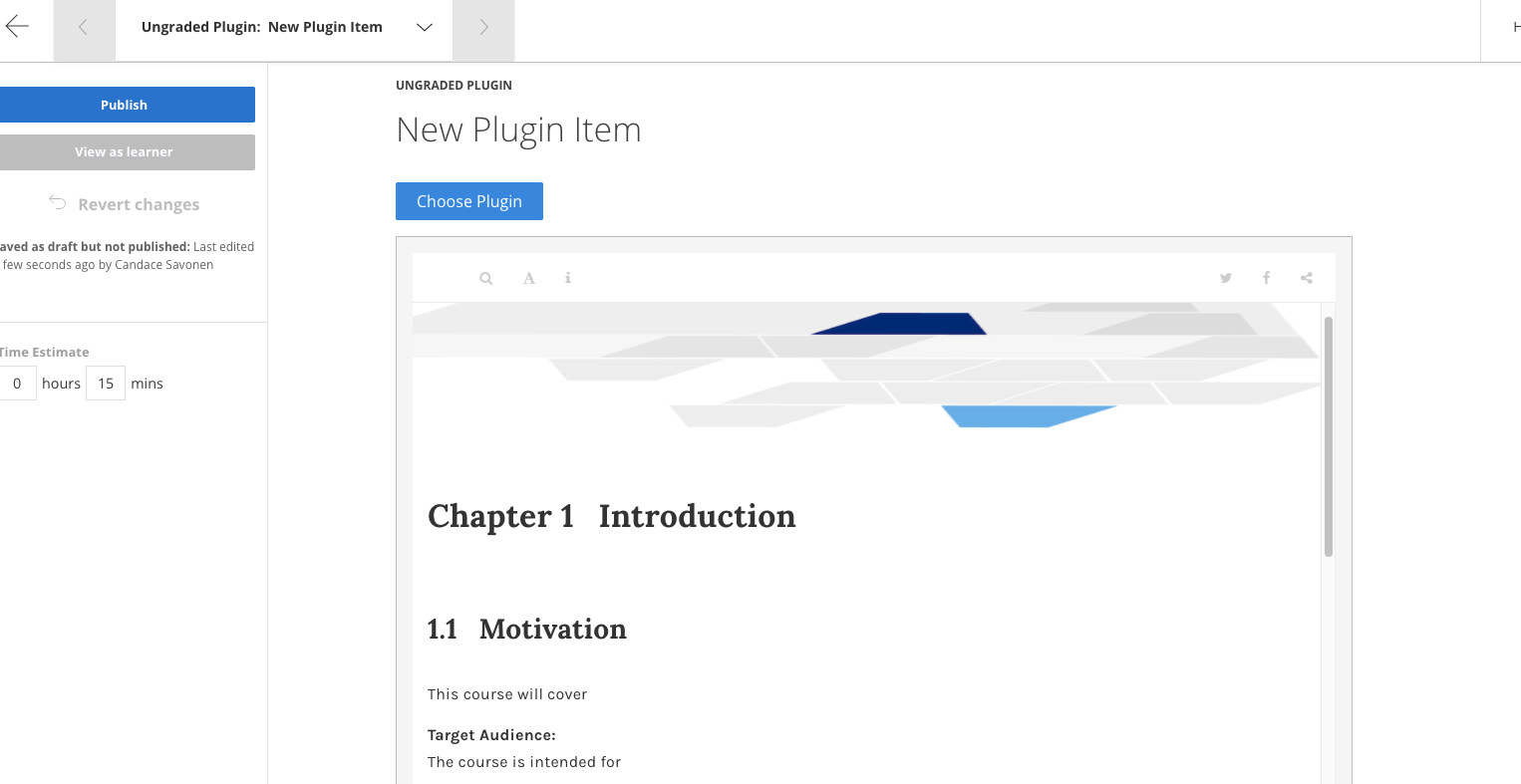
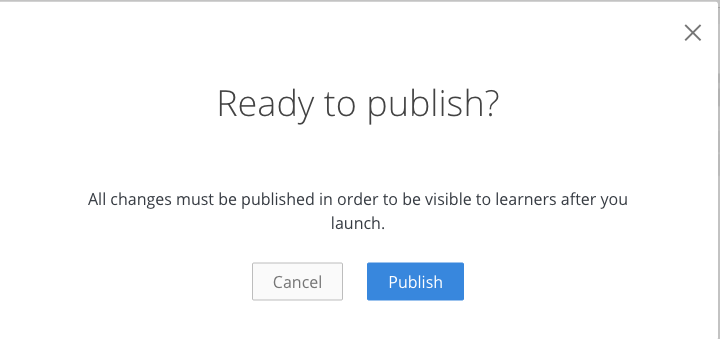
Edit the title if needed, then click **Publish** to save. Coursera will ask you to confirm — click **Publish** again.
### Adding quizzes to Coursera
From the **Edit content** page, click `+ Quiz` on the lesson where you want to add it:
Click **Edit** on the new quiz:
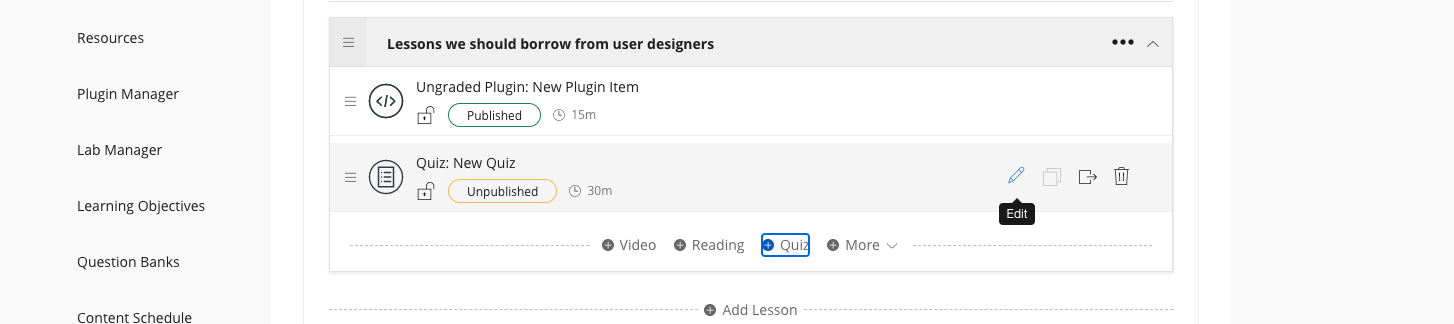
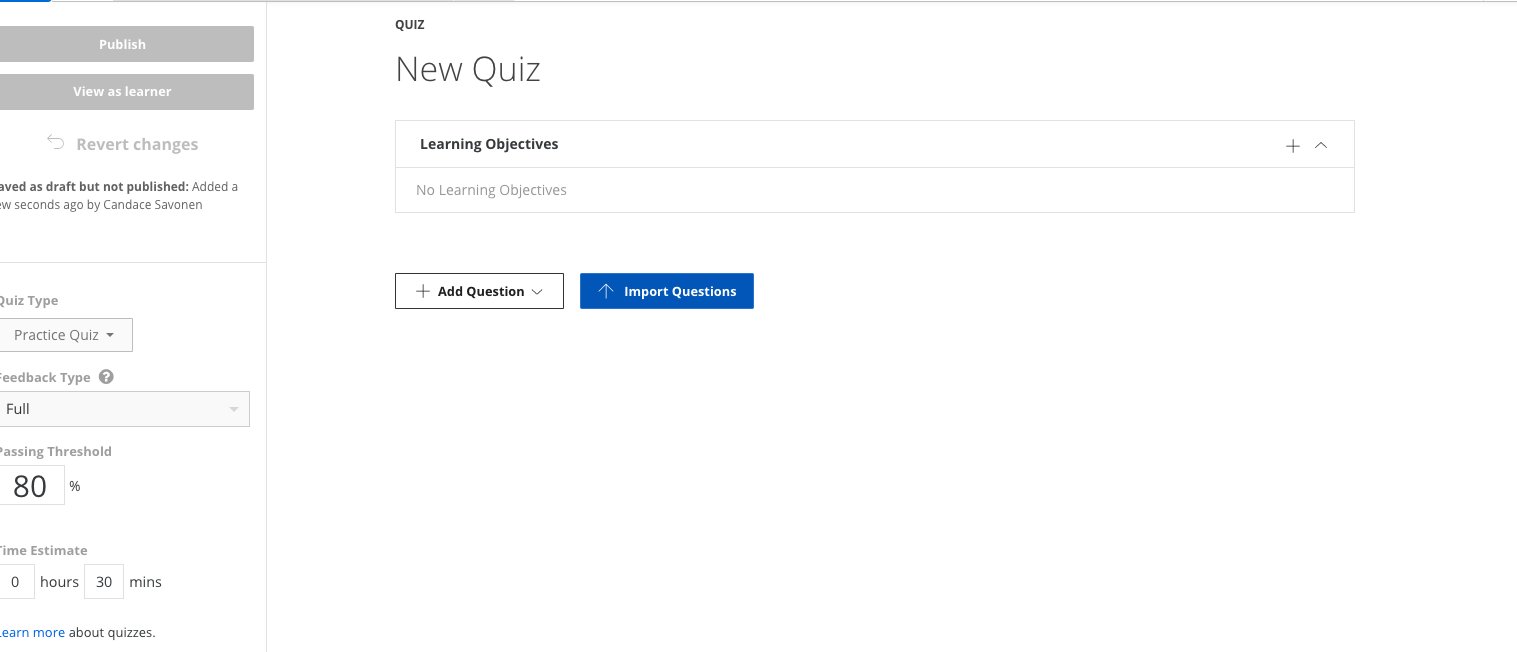
To import a converted Leanpub quiz, click **Import Questions** and choose your converted YAML file. (If not yet converted, [see the conversion section](#converting-quizzes-from-leanpub-to-coursera-format).)
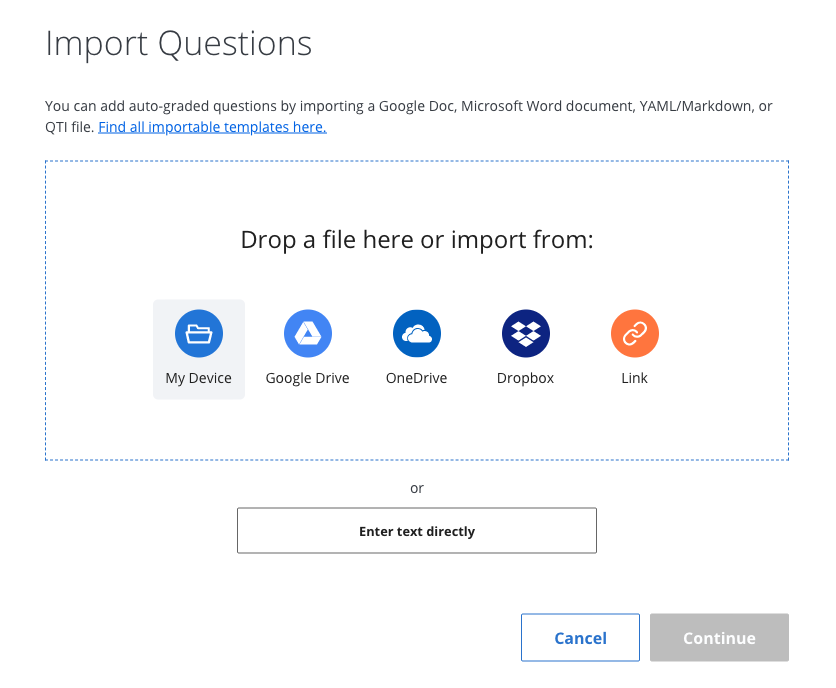
Click **Upload**:
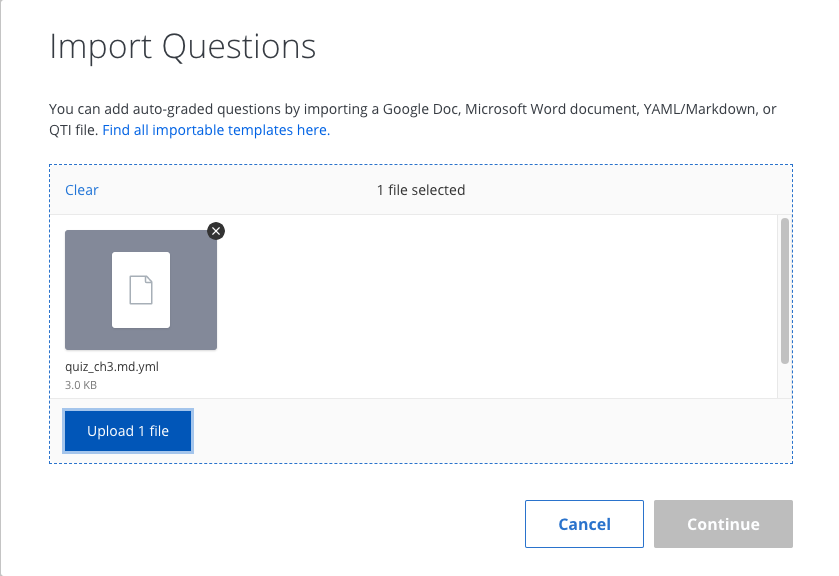
If the upload fails, [file an issue](https://github.com/ottrproject/OTTR_Quizzes/issues) with the file and a description of the failure. Note that images, links, and colons in prompts or answers are not supported.
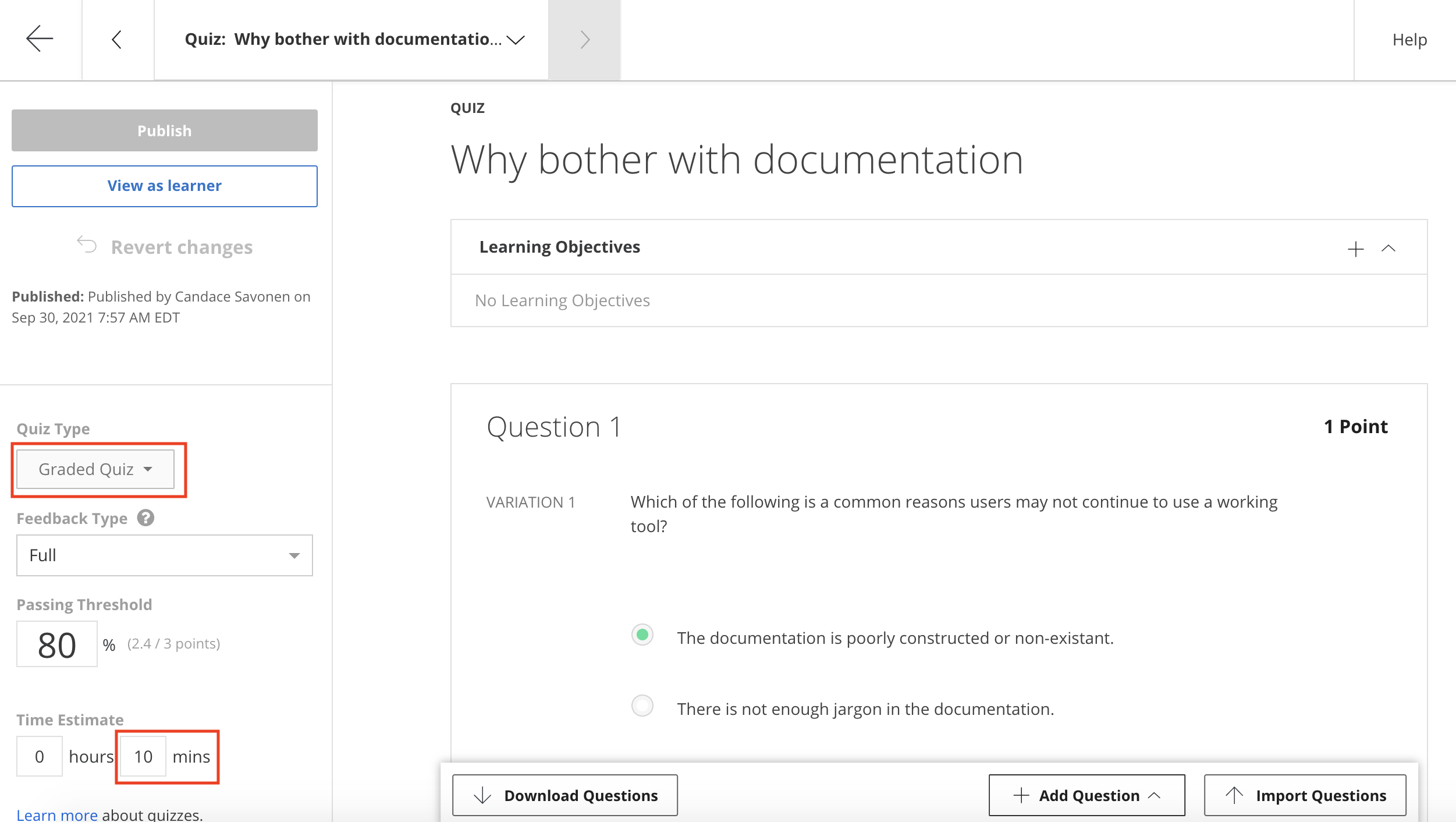
After a successful upload, click **Continue**. Change the quiz type from `Practice Quiz` to `Graded Quiz` as needed using the dropdown on the left. Update the time estimate as well.
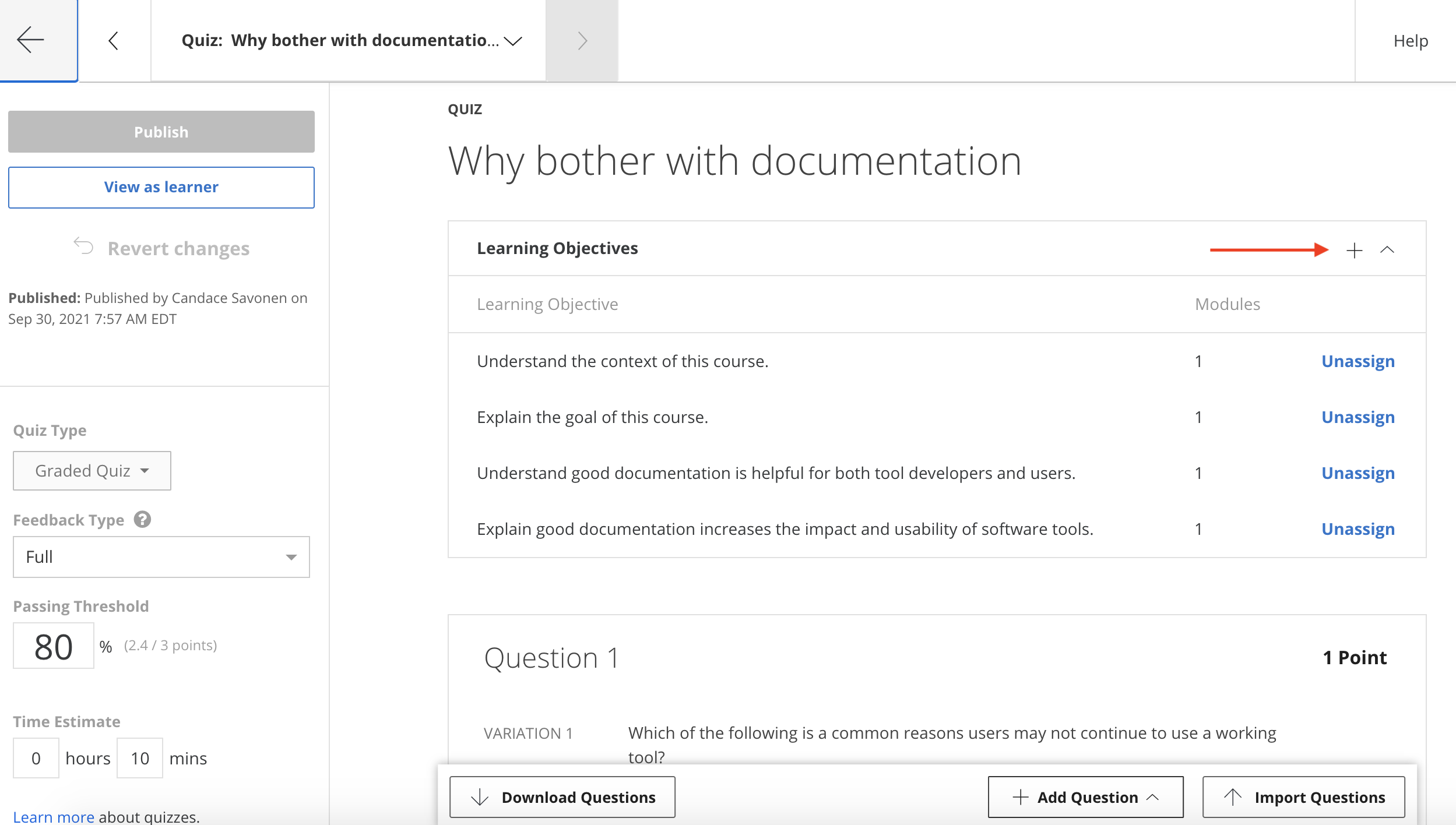
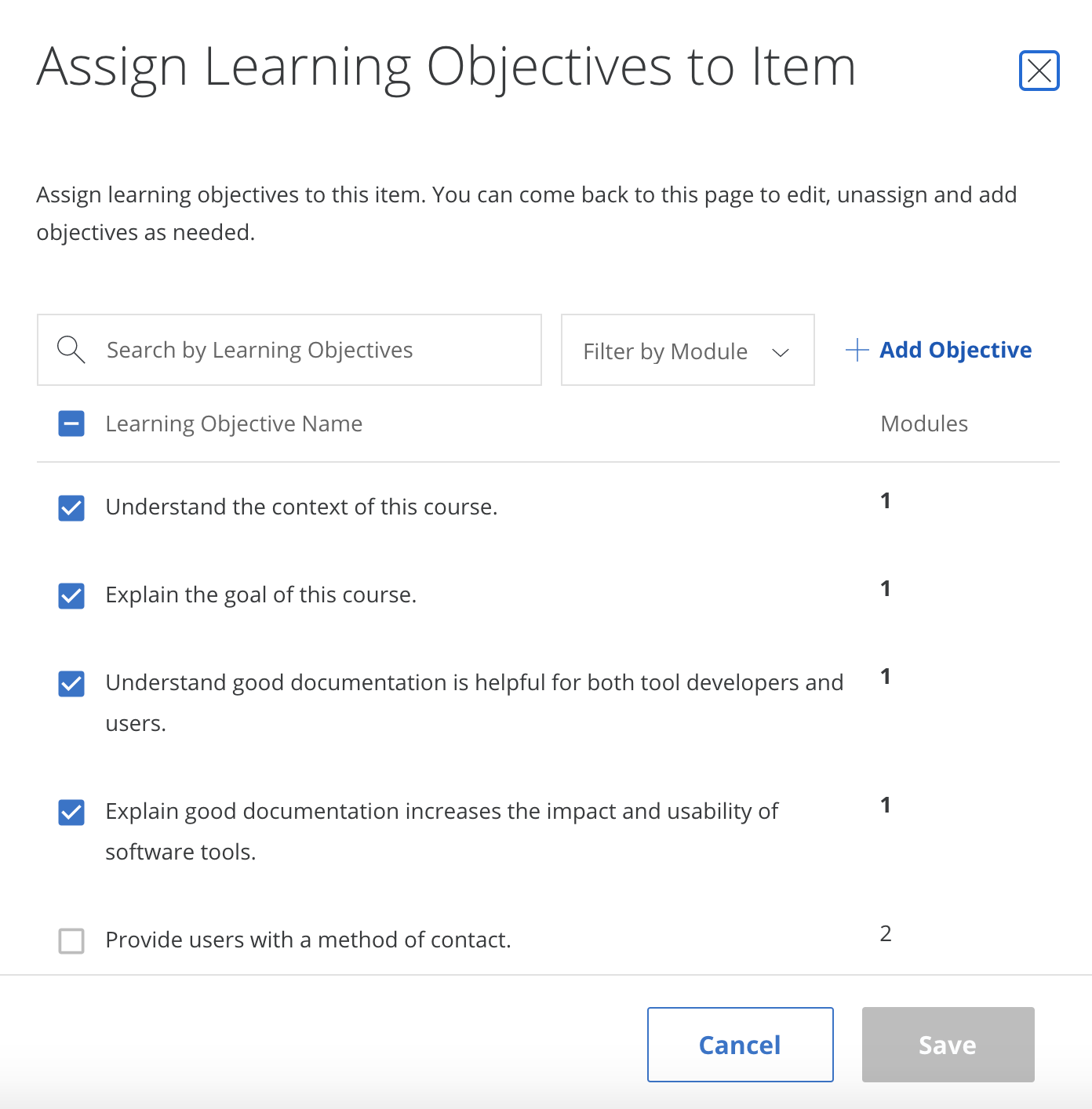
Assign learning objectives by clicking the plus sign under the title, selecting applicable objectives, and clicking **Save**:
Edit the title if needed, then click **Publish** to save.
## Programmed messages
From **Edit Course**, navigate to `Content` > `Programmed Messages` in the left sidebar. At minimum, add a **Welcome** and a **Completion** message. Click **Preview** then **Publish** to save each.
**Welcome message template:**
```
Welcome to {Course Name}
We hope this course will {What will they learn?}
To get the most out of the course {What do you advise?}
If you ever encounter any problems with the course, have questions or ideas, please let us know using this feedback form.
```
**Completion message template:**
```
Congratulations and thank you for completing {name of course}!
We hope this course has {What do you hope they learned}.
If you have feedback about our course we would greatly appreciate you filling out this form.
```
Add a link to your feedback form using the link icon in both messages.
## Grading formula
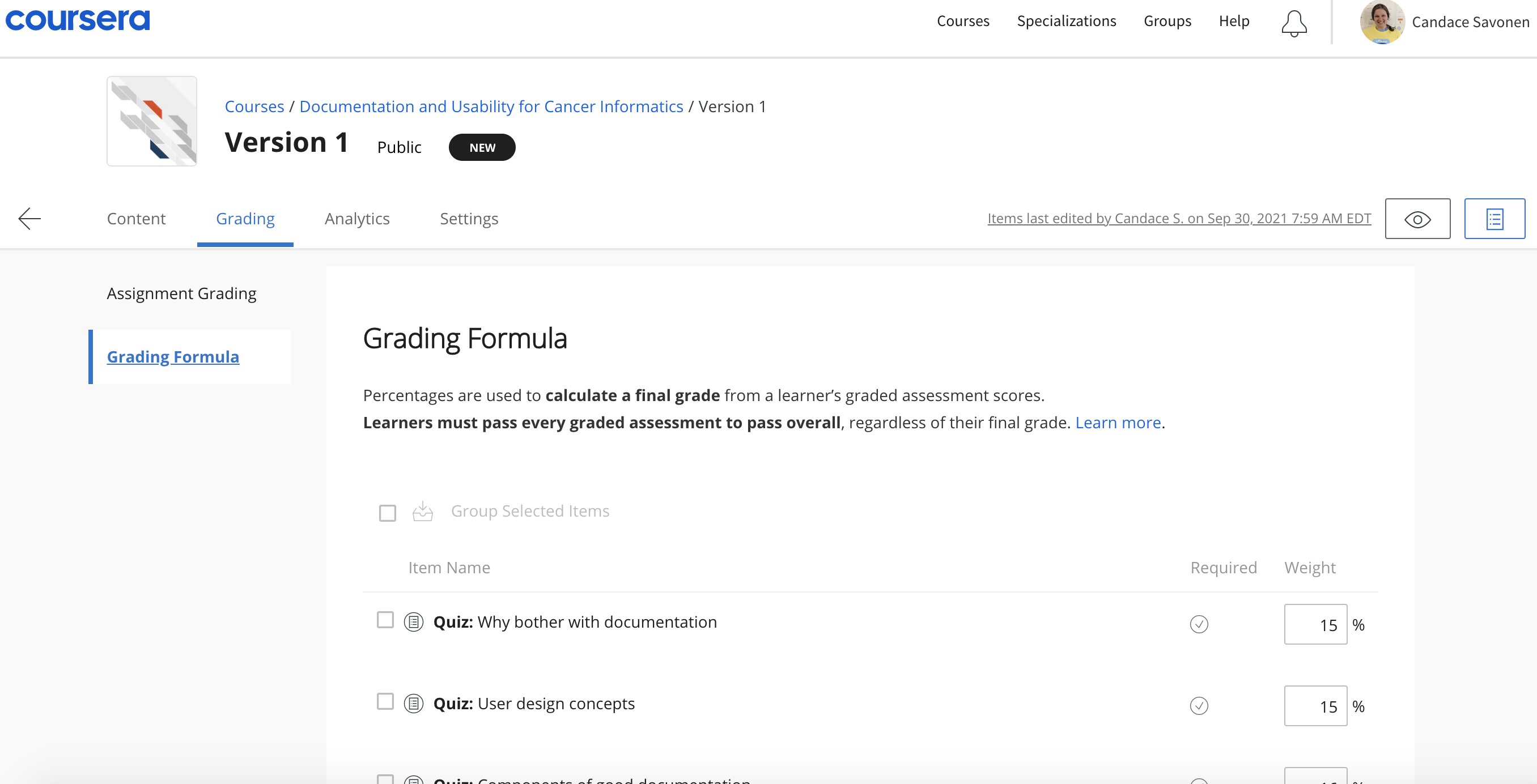
From **Edit Course**, navigate to your version page. Set the percentage each module's assignments contribute to the final grade.
## Content schedule
Found under the `Content` tab. Assign modules to weeks of your course here.
## Module descriptions
Located just before learning objectives when editing content. Descriptions help learners know what to expect from each module.
## Landing page
Add a course image and consider including:
- Estimated workload
- Skills covered
- Recommended background
- What students will learn
## Multiple reading formats
Because Coursera uses plug-ins and there are accessibility concerns, add a reading at the very start of your course directing students to alternative formats. Create a reading using the **Add Reading** button (next to **Add Quiz**) and move it to the top of the first module by dragging the three-line icon on the left.
Title the reading:
```
Multiple Lesson Formats
```
Paste and modify the following:
```
Like many of our other courses, the content of this course is available in multiple formats.
You can also find the lessons for this course at [insert Bookdown link here]. This format might be most appropriate for you if you rely on screen-reader technology.
Our courses are open source, so you can also find all the source material on GitHub by visiting [insert GitHub link here].
These resources are used throughout this Coursera course in the form of ungraded plug-ins. You are welcome to use those plug-ins here on Coursera or connect to the content in other formats through the links above. Please select the format that most suits your needs.
Note about links in the plug-ins: The plug-ins used throughout the course feature links to other resources. To follow these links, right-click on them and open in a new tab or window.
Regardless of the format you choose for the instructional content, you must take and pass the quizzes here on Coursera if you want to earn a Coursera certificate.
```